

✨Free✨BucketHat&Trunk / CP47
- ダウンロード商品¥ 0
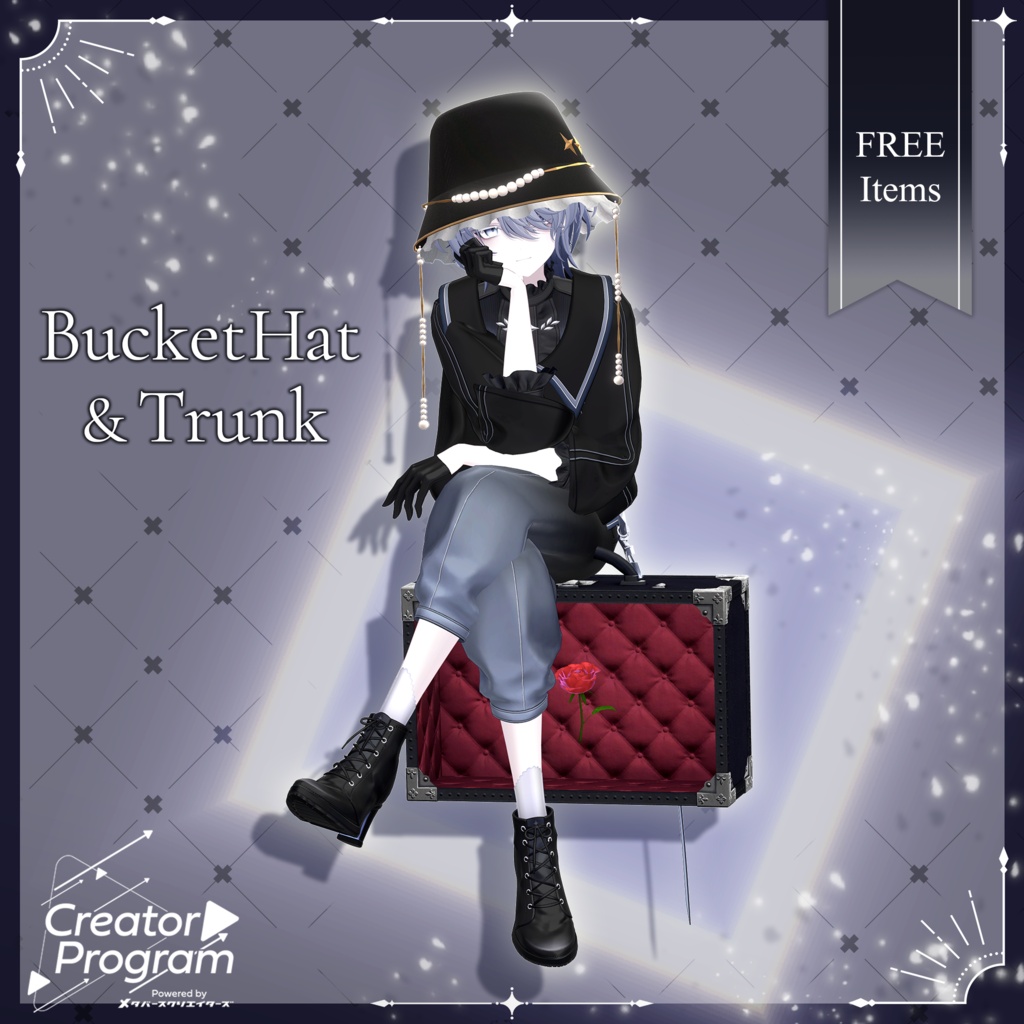
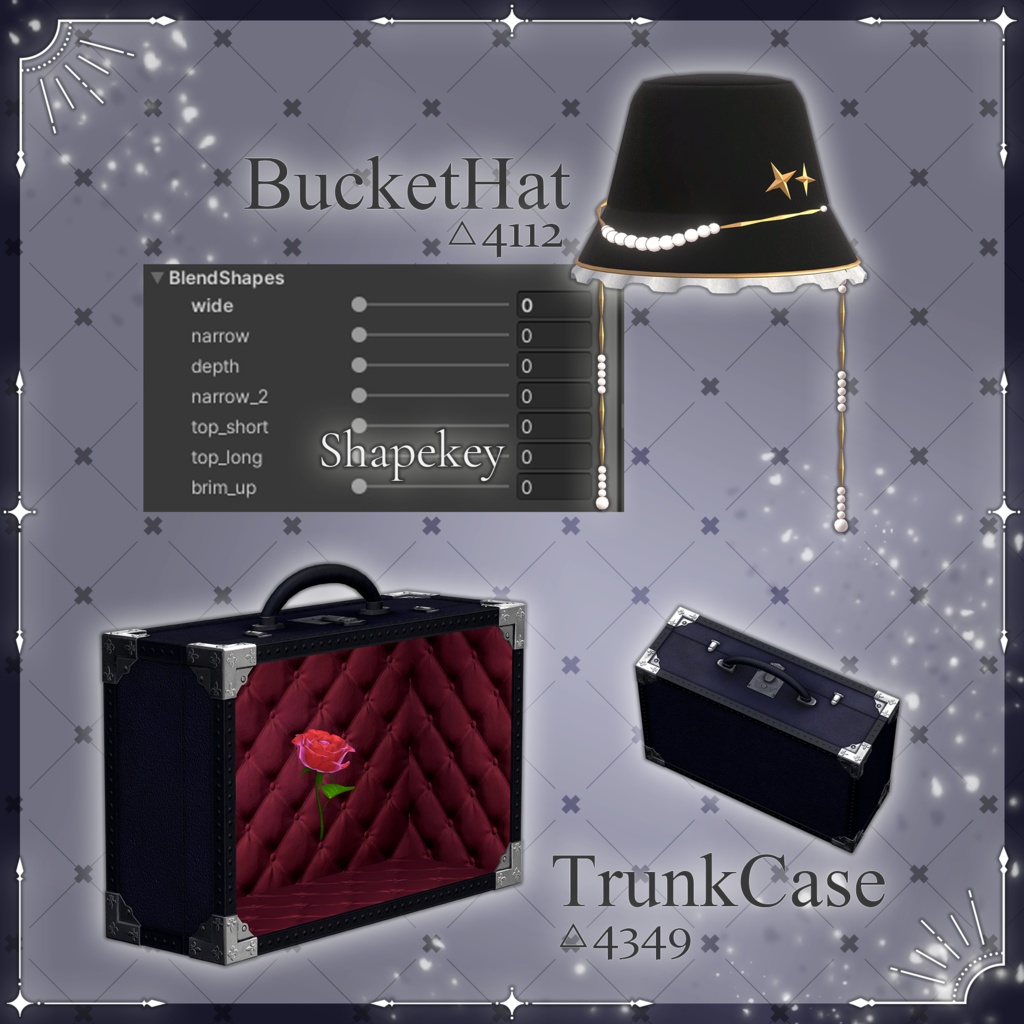
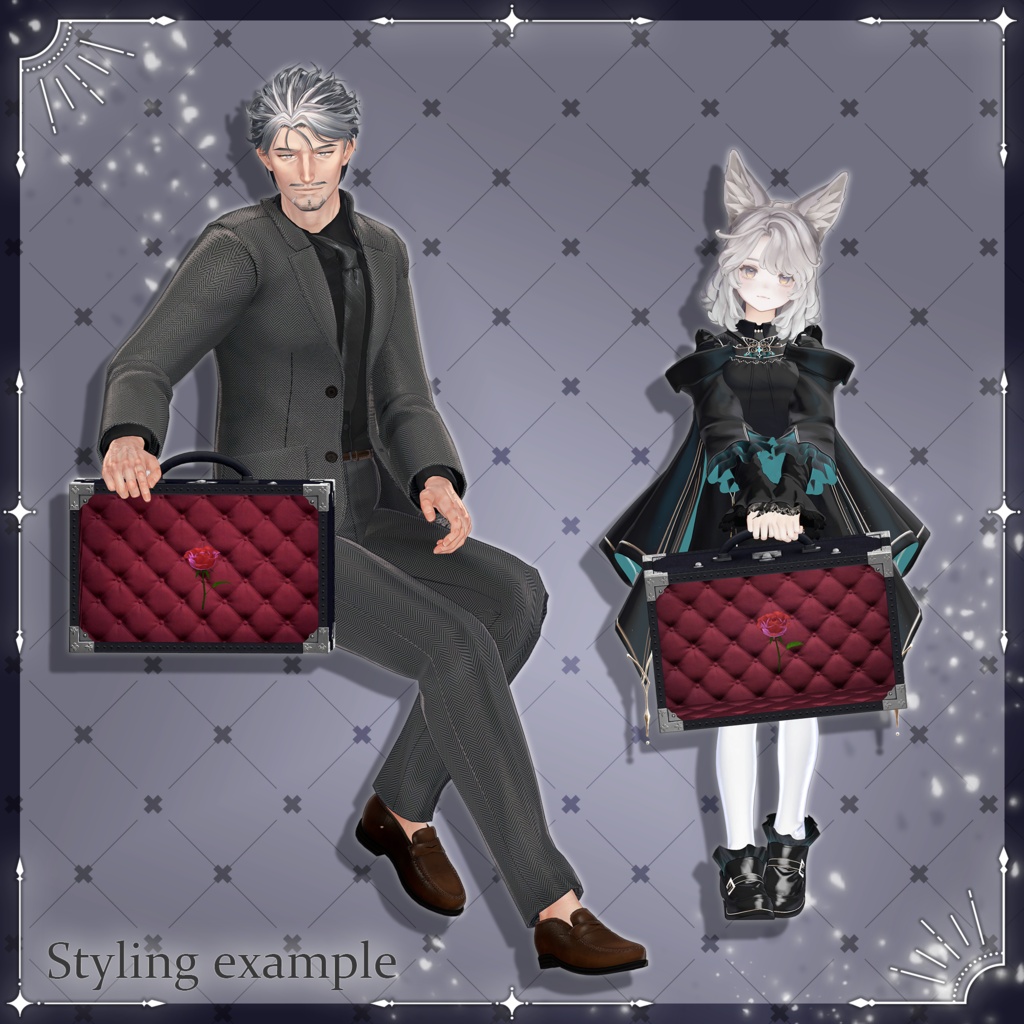
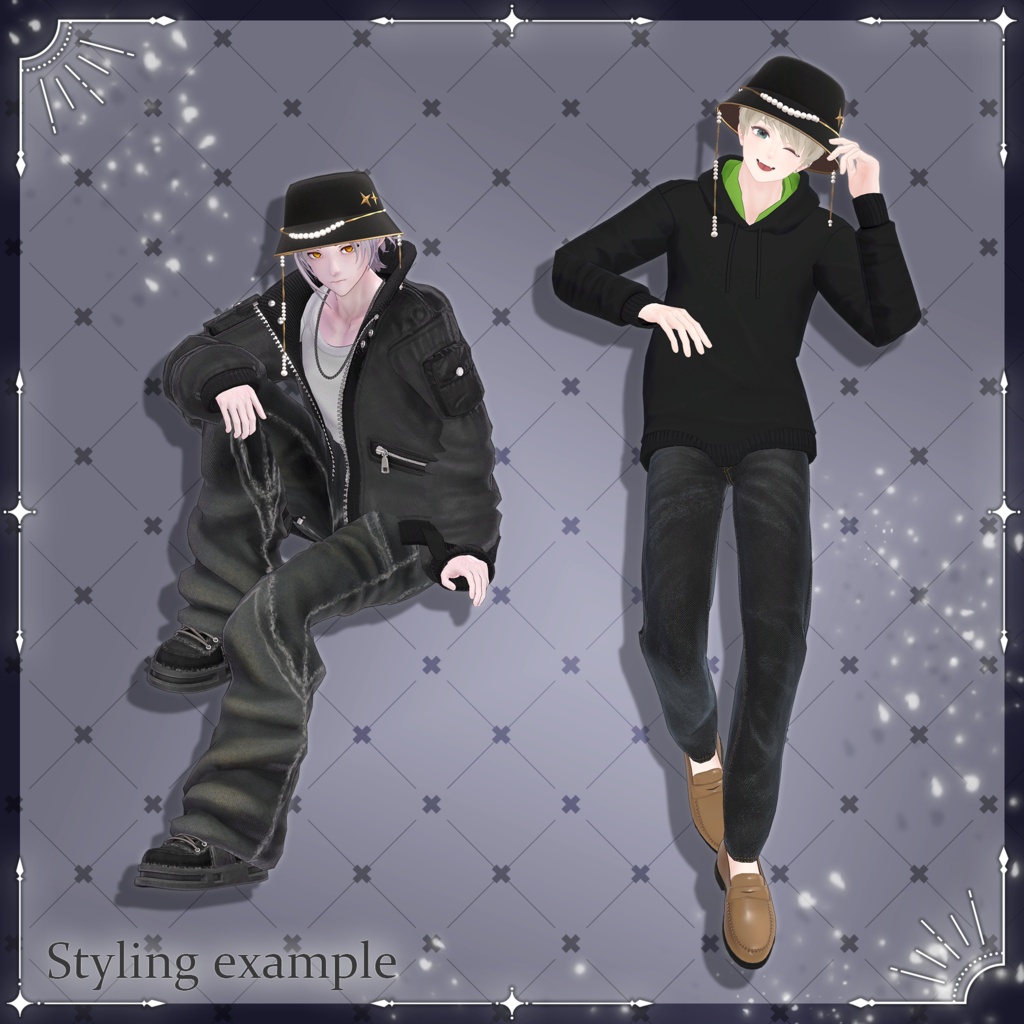


An elegant bucket hat adorned with shimmering pearls and gold accents, paired with a gothic-style trunk case. The hat includes Shape Keys for adjusting its size, making it easier to fit a wide variety of avatars. The trunk's contents can be freely replaced, allowing you to customize what you're carrying inside. Please note: Due to the nature of downloadable products, returns and refunds are not available. Please read and agree to the product description and Terms of Use before purchasing. ◆ Item Details MC_BucketHat Contents [free]MC_BucketHat.Unitypackage ReadMe.txt MC_Trunk Contents [free]MC_Trunk.Unitypackage ReadMe.txt The ReadMe.txt contents are shared between both products. Shader Used lilToon https://lilxyzw.booth.pm/items/3087170 Required Asset Modular Avatar https://modular-avatar.nadena.dev/ja/docs/intro ◆ Model Data MC_BucketHat Total: 4,112 polygons Hat: 864 Frill: 576 brimChain: 1,704 PearlChain: 936 Star: 32 Meshes: 5 Materials: 1 PhysBone Components: 2 MC_Trunk Total: 4,349 polygons bag: 2,638 rose: 1,711 Meshes: 2 Materials: 2 PhysBone Components: None Import paths: Assets > MetaverseCreators_CP > KORARAKO'sShop > [free]MC_BucketHat Assets > MetaverseCreators_CP > KORARAKO'sShop > [free]MC_Trunk ◆ Installation Bucket Hat Set up the latest VRChat SDK through VCC. Install lilToon and Modular Avatar through VCC. Import this product's package. Place your avatar (and any dressing/customization Prefab, if applicable) into the Scene Hierarchy. Hide unnecessary avatar clothing such as default outfits or underwear, or set them to Editor Only if needed. Drag MC_BucketHat.Prefab directly under the avatar. Adjust the height and rotation of BucketHat in the Scene. Use the Hat object's BlendShapes to adjust the hat's size and width. Upload the avatar through the VRChat SDK. MA BlendShapes Sync synchronizes the Shape Keys of the Hat and its other objects. For this reason, adjust the hat's shape using the Hat object. If you want to adjust each object individually, remove MA BlendShapes Sync from the Inspector. If the avatar's hair clips through the hat while moving, add PB_HairCol from the BucketHat to the hair's PhysBone Collider settings. For other hair clipping issues, using an external tool such as CapFitter is recommended. Trunk Steps 1–6 are the same as above. Open the avatar's Armature in the Hierarchy and place the trunk directly under the desired hand's Hand bone. Adjust its position, rotation, and orientation as needed. Upload the avatar through the VRChat SDK. Replacing the Trunk's Contents In the Hierarchy, open MC_Trunk > Bag_in_object. A Rose object is inside. Place your desired object in the same position. Hide the original Rose object or set it to Editor Only. ◆ Color Customization This product currently includes one material and one texture variation only. ◆ Terms of Use https://drive.google.com/drive/folders/1qRMXoIxM1ZgacBPfwOigQRtXP1vCbNMn?usp=sharing Please also follow the Terms of Use of the original avatar you are using. ◆ Development Environment Modeling: Blender 5.0.1 Textures: Substance 3D Painter 12.0.1 Setup: Unity 2022.3.22f1 VRChat SDK - Avatars: 3.7.6 (VCC) lilToon: 2.3.4 Modular Avatar: 1.18.1 ◆ Credits Creator: こららこ https://korarako.booth.pm/ (Personal BOOTH)