

Toon Color Assistant
- Freeダウンロード商品¥ 0
- Support (same content)ダウンロード商品¥ 500
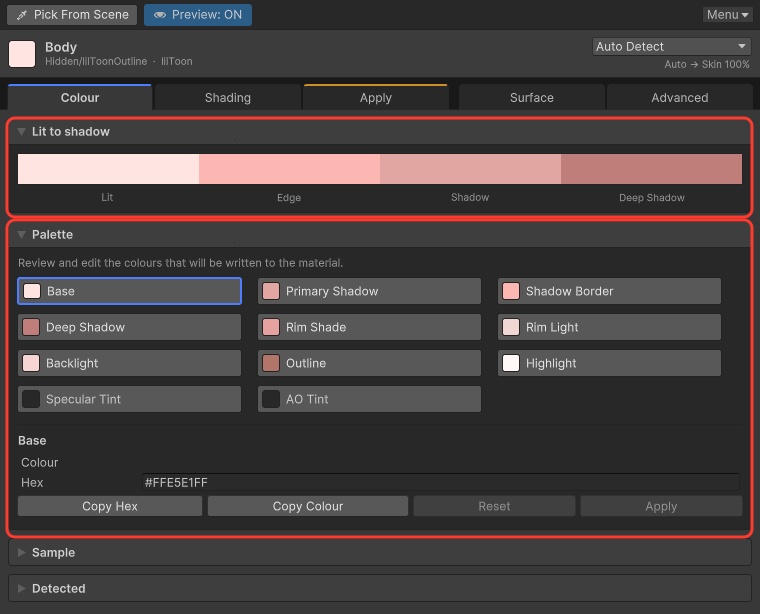

Unity エディターで VRChat アバターのトゥーンカラーを合わせるツールです。Scene ビューで表面をクリックするとテクスチャ色を読み、影・リム・アウトラインなどの色を提案します。 ==================== A Unity Editor tool that sets toon colours on a VRChat avatar. Click a surface in the Scene view to sample the texture colour, then get proposed shadow, rim, and outline colours. ==================== Unity 에디터에서 VRChat 아바타의 툰 스타일 색상을 맞추는 도구입니다. Scene 뷰에서 표면을 클릭하면 텍스처 색을 읽고, 그림자·림·외곽선 색을 제안합니다.
ドキュメント / Documentation
https://kamyu1537.github.io/toon-color-assistant/
動作環境 / Requirements
- Unity 2022.3 LTS - lilToon / Poiyomi は任意(無くてもウィンドウは開き、色の提案はできます。プロジェクトにあるときだけ、そのシェーダーのプロパティへ書き込みます) ※ ツール本体の表示言語は韓国語と英語です(日本語 UI はありません)。 ※ VCC / ALCOM で追加することもできます。 ==================== - Unity 2022.3 LTS - lilToon / Poiyomi are optional (the window still opens and still proposes colours without them; it writes those shaders' properties only when they are in the project) ※ The tool UI language is Korean and English (no Japanese UI). ※ You can also add it with VCC / ALCOM. ==================== - Unity 2022.3 LTS - lilToon / Poiyomi는 선택 사항입니다 (없어도 창은 열리고 색 제안은 됩니다. 프로젝트에 있을 때만 그 셰이더 속성에 기록합니다) ※ 도구 UI 언어는 한국어와 영어입니다 (일본어 UI 없음). ※ VCC / ALCOM으로도 추가할 수 있습니다.
導入方法 / How to install
【VCC / ALCOM(推奨)】 1. ToonColorAssistant-1.24.2.zip を解凍し、中の .url ファイルを開くか、下記のリンクから VCC にリポジトリを追加します。 vcc://vpm/addRepo?url=https%3A%2F%2Fkamyu1537.github.io%2Fvcc-listing%2Findex.json 2. アバタープロジェクトの Manage Project から Toon Color Assistant を追加します。 【unitypackage】 1. Unity でアバターのプロジェクトを開きます(Unity 2022.3 LTS)。 2. Assets > Import Package > Custom Package から me.kamyu.tooncolorassistant-1.24.2.unitypackage を選び、Import します。 3. Packages/me.kamyu.tooncolorassistant に入ります。上部メニューに Tools > Toon Color Assistant が出ればインストール完了です。 ※ 追加の DLL や NuGet パッケージは不要です。 ※ 詳しくはドキュメントをご確認ください。 ==================== [VCC / ALCOM (recommended)] 1. Unzip ToonColorAssistant-1.24.2.zip and open the .url file inside, or add the repository to VCC from the link below. vcc://vpm/addRepo?url=https%3A%2F%2Fkamyu1537.github.io%2Fvcc-listing%2Findex.json 2. Open Manage Project for your avatar project and add Toon Color Assistant. [unitypackage] 1. Open the avatar project in Unity (Unity 2022.3 LTS). 2. Choose Assets > Import Package > Custom Package, select me.kamyu.tooncolorassistant-1.24.2.unitypackage, and click Import. 3. It lands in Packages/me.kamyu.tooncolorassistant. Tools > Toon Color Assistant in the top menu means it is installed. ※ No extra DLL or NuGet package is required. ※ See the documentation for details. ==================== 【VCC / ALCOM (권장)】 1. ToonColorAssistant-1.24.2.zip 압축을 풀고 안의 .url 파일을 열거나, 아래 링크로 VCC에 저장소를 추가합니다. vcc://vpm/addRepo?url=https%3A%2F%2Fkamyu1537.github.io%2Fvcc-listing%2Findex.json 2. 아바타 프로젝트의 Manage Project에서 Toon Color Assistant를 추가합니다. 【unitypackage】 1. Unity에서 아바타 프로젝트를 엽니다 (Unity 2022.3 LTS). 2. Assets > Import Package > Custom Package에서 me.kamyu.tooncolorassistant-1.24.2.unitypackage를 고르고 Import합니다. 3. Packages/me.kamyu.tooncolorassistant에 들어갑니다. 상단 메뉴에 Tools > Toon Color Assistant가 보이면 설치 완료입니다. ※ 따로 받을 DLL이나 NuGet 패키지는 없습니다. ※ 자세한 내용은 문서를 확인해주세요.
使い方 / How to use
1. Tools > Toon Color Assistant を開きます。 2. Pick From Scene を押し、Scene ビューでアバターの表面をクリックします。(やめるときは Esc) 3. ウィンドウ上部でマテリアル・シェーダー・読んだ色・マテリアルタイプを確認します。必要ならタイプを変更します。 4. Colour タブでサンプル色と提案パレットを確認します。 5. Shading タブでスタイルと影・リム・逆光・アウトライン・ハイライトを調整します。 6. プレビューで結果を確認し、Apply でマテリアルに書き込みます。Write to original / Write to a copy と書き込むチャンネルを選べます。 ※ lilToon / Poiyomi 以外のシェーダーでは色の提案とコピーのみで、マテリアルへは書き込みません。 ※ Surface タブでは shadow mask / normal / matcap / occlusion / ramp などのテクスチャ生成もできます。 ※ 詳しくはドキュメントのクイックスタートをご確認ください。 ==================== 1. Open Tools > Toon Color Assistant. 2. Click Pick From Scene, then click the avatar surface in the Scene view. (Esc leaves pick mode.) 3. Check the material, shader, sampled colour, and material type at the top of the window. Change the type if needed. 4. On the Colour tab, review the sample and the proposed palette. 5. On the Shading tab, pick a style and adjust shadow, rim, backlight, outline, and highlight. 6. Preview the result, then click Apply to write to the material. Choose Write to original / Write to a copy and which channels to write. ※ For shaders other than lilToon / Poiyomi, you get colour suggestions and copying only; nothing is written to the material. ※ The Surface tab can generate textures such as shadow mask / normal / matcap / occlusion / ramp. ※ See the documentation Quick start for details. ==================== 1. Tools > Toon Color Assistant를 엽니다. 2. 장면에서 표면 선택을 누른 뒤 Scene 뷰에서 아바타 표면을 클릭합니다. (그만두려면 Esc) 3. 창 위에서 재질·셰이더·읽어 온 색·재질 유형을 확인합니다. 필요하면 유형을 바꿉니다. 4. 색상 탭에서 샘플 색과 제안 팔레트를 확인합니다. 5. 셰이딩 탭에서 스타일과 그림자·림·역광·외곽선·하이라이트를 조절합니다. 6. 미리보기로 결과를 보고, 적용으로 재질에 기록합니다. 원본에 기록 / 복제본에 기록과 기록할 채널을 고를 수 있습니다. ※ lilToon / Poiyomi 이외 셰이더에서는 색 제안과 복사만 되며, 재질에는 기록하지 않습니다. ※ Surface 탭에서는 shadow mask / normal / matcap / occlusion / ramp 등의 텍스처 생성도 할 수 있습니다. ※ 자세한 내용은 문서의 빠른 시작을 확인해주세요.
バリエーション / Options
※ 支援版は無料版と内容は同じです。応援していただける方向けです。 ==================== ※ The Support option has the same content as the Free option. It's for those who'd like to support me. ==================== ※ 서포트 옵션은 무료 옵션과 내용이 같으며, 후원을 원하시는 분을 위한 옵션입니다.
ライセンス / License
本ソフトウェアは MIT License でライセンスされています。 ライセンス: https://opensource.org/license/mit ご質問は BOOTH のメッセージ、または X(@kamyu1537)の DM でご連絡ください。 ==================== This software is licensed under the MIT License. License: https://opensource.org/license/mit For questions, contact me via BOOTH message or X (@kamyu1537) DM. ==================== 본 소프트웨어는 MIT License로 라이선스됩니다. 라이선스: https://opensource.org/license/mit 문의는 BOOTH 메시지 또는 X(@kamyu1537) DM으로 연락해주세요.
更新履歴 / Changelog
2026-10-09 v1.24.2 - Added: a small Sponsor button next to Menu on the window's toolbar (opens GitHub Sponsors) - Fixed: Poiyomi colour sampling again includes colour adjustments, decals, masks and vertex colours (as before 1.24.1) - Fixed: on lilToon, applying with Use Outline off switches to the shader without an outline and leaves outline colour / width / texture unchanged - Fixed: loaded preset settings are saved to the project across recompile / reopen - Fixed: several Write to a copy / Generate & Assign / Detail Normal / MatCap / Glitter / AO Map / rim reporting issues Full notes: https://kamyu1537.github.io/toon-color-assistant/en/release-notes/1-24