
Avatar Overlay Studio | Non-Destructive VRChat Avatar Material Layering Tool
- ダウンロード商品¥ 1,600
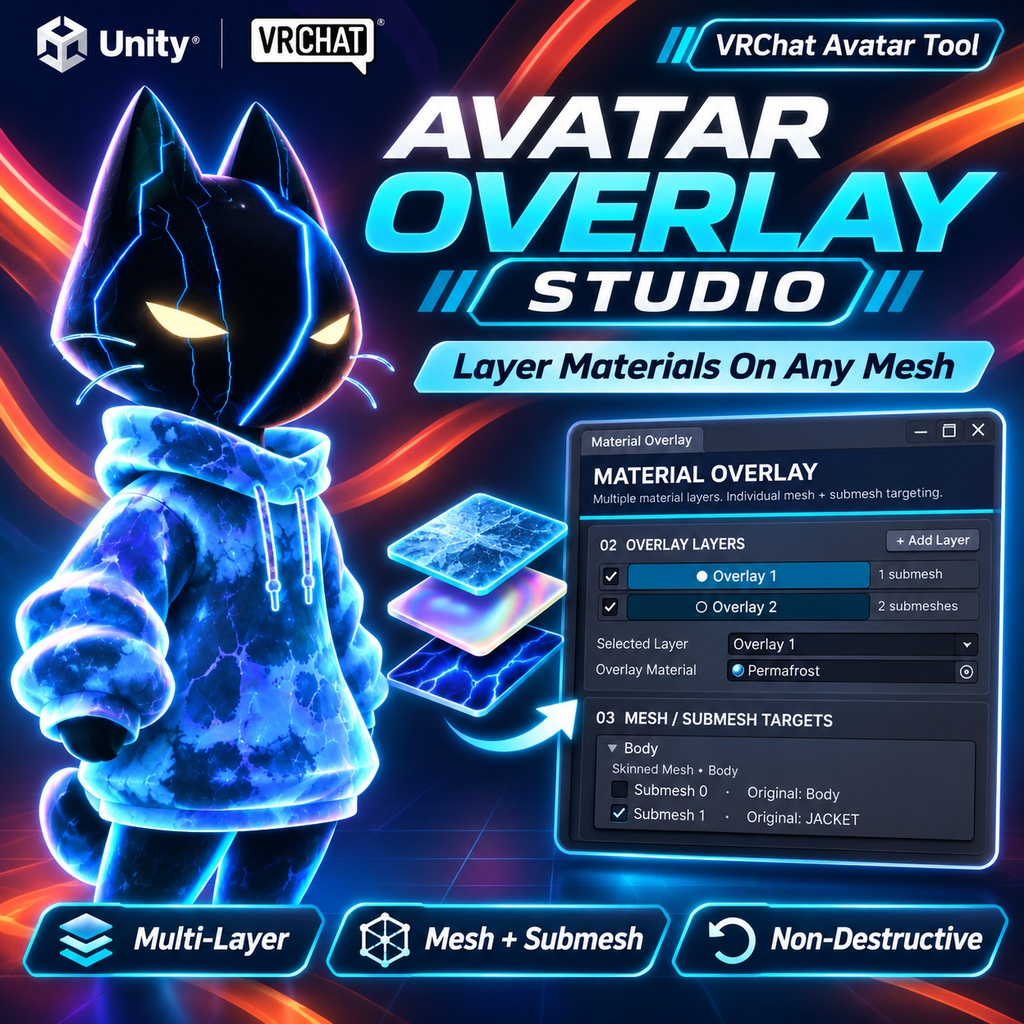

Layer multiple materials across your VRChat avatar with precision — without replacing your original materials! Avatar Overlay Studio is a powerful, easy-to-use Unity Editor tool that lets you apply additional material effects to your VRChat avatar without modifying its original meshes or materials. Want to add lightning, frost, holograms, glowing patterns, or other shader effects across your entire avatar? Instead of manually adding material slots to individual meshes, Avatar Overlay Studio lets you select exactly where each effect should appear. Apply one material across your entire avatar, stack multiple effects together, or customize individual meshes and submeshes — all from one clean editor window. ✨ Features 🎨 Multi-Layer Material System Add multiple overlay materials to the same avatar. Each overlay layer has its own material and mesh selections. Stack different material effects on the same mesh. Enable, disable, duplicate, or remove individual layers. 🎯 Precise Mesh & Submesh Targeting Automatically detects your avatar's compatible mesh renderers. Choose exactly which meshes receive each material. Select individual submeshes for precise control. Apply different materials to different parts of the same mesh. Quickly select or deselect mesh targets. 🛡️ Non-Destructive Workflow Your original meshes and materials remain untouched. Creates separate overlay renderers for additional material effects. No need to manually modify your avatar's material slots. Update or remove generated overlays without rebuilding your avatar. ⚡ Easy Setup & Editing Clean, user-friendly Unity Editor interface. Assign your avatar and add your desired materials. Automatically detects previously installed VRCAkira overlays. Reopen existing setups to edit materials and submesh selections. Apply or update your overlays with a single button. 🧩 Flexible Material Support Works with Skinned Mesh Renderers and standard Mesh Renderers. Supports custom material and shader effects. Useful for frost, lightning, holograms, energy effects, glowing patterns, and more. Compatible with many existing avatar materials, subject to shader rendering behavior. 🚀 How to Use Import Avatar Overlay Studio into your Unity project. Open Tools → VRCAkira → Material Overlay. Select your VRChat avatar. Add an overlay layer and assign your material. Choose which meshes and submeshes should receive the effect. Add additional layers if desired. Click Apply / Update Material Overlays. That's it! Your selected material effects are now layered onto your avatar without replacing the original materials. 💡 Example Uses Lightning + Frost: Combine electrical and frozen effects across your avatar. Holographic Effects: Apply holographic materials to selected body parts or clothing. Glowing Patterns: Add emissive designs without replacing existing textures. Custom Outfit Effects: Apply different overlays to individual outfits or accessories. Full Avatar Effects: Cover multiple meshes with a single material effect. 📋 Requirements Unity with a compatible VRChat Avatar SDK A VRChat avatar Your own overlay materials or shaders Important Notes: Overlay materials and shaders are not included. Some opaque shaders or depth-writing materials may not display correctly when stacked. Materials designed for transparent or additive rendering generally work best for layered effects. Additional overlay renderers increase rendering cost and may affect avatar performance ratings. Dynamic blendshape animations and certain renderer animations may require additional setup to remain synchronized with generated overlays. This is a Unity Editor setup tool, not an in-game VRChat material editor. Create incredible layered avatar effects without destroying your existing setup. Avatar Overlay Studio — More materials. More customization. Less hassle. Created by VRCAkira