

【VRChatワールド用】HEZ MINI POS|指先でお会計、ドック付き決済端末
- ダウンロード商品¥ 1,500


HEZ MINI POS | HEZ STUDIO Demo World https://vrchat.com/home/world/wrld_3f69cf9f-fb4a-4ddf-bd14-5fff6a3d1364
[日本語]
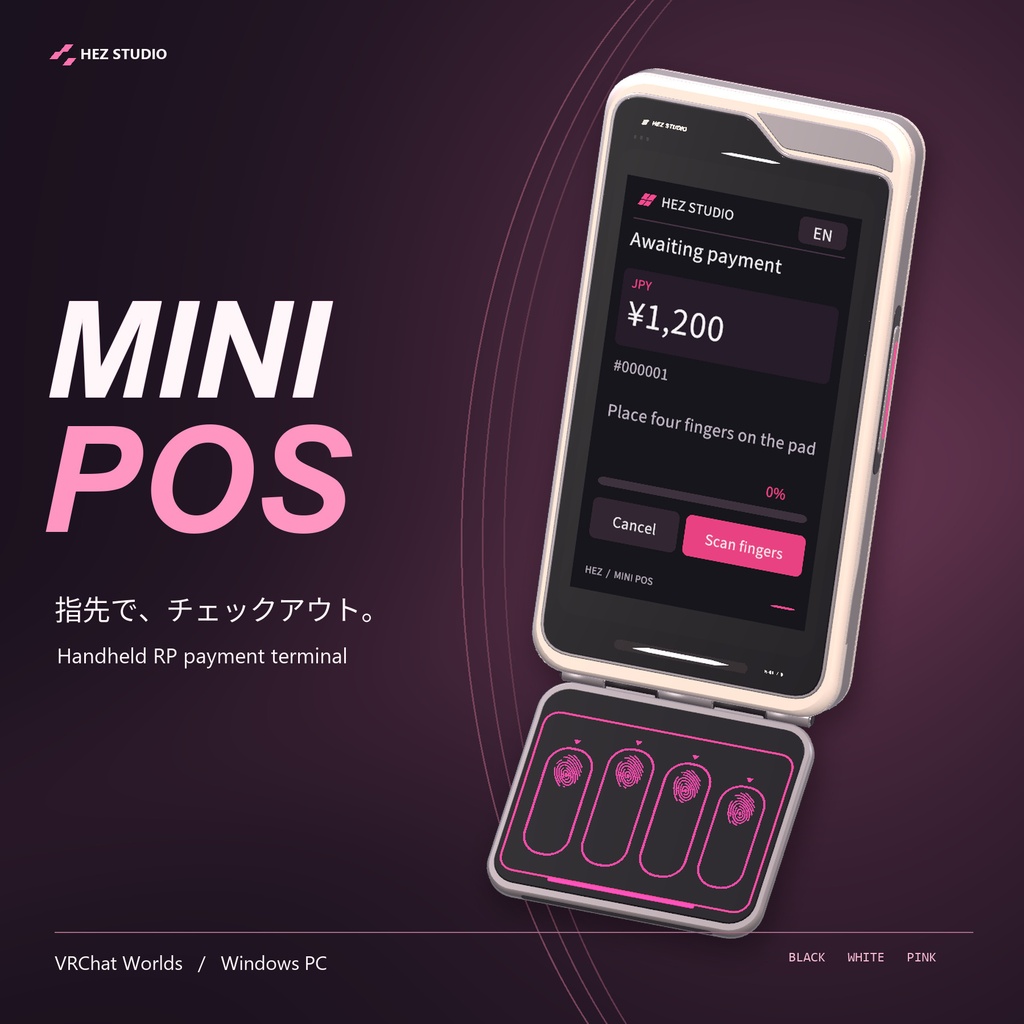
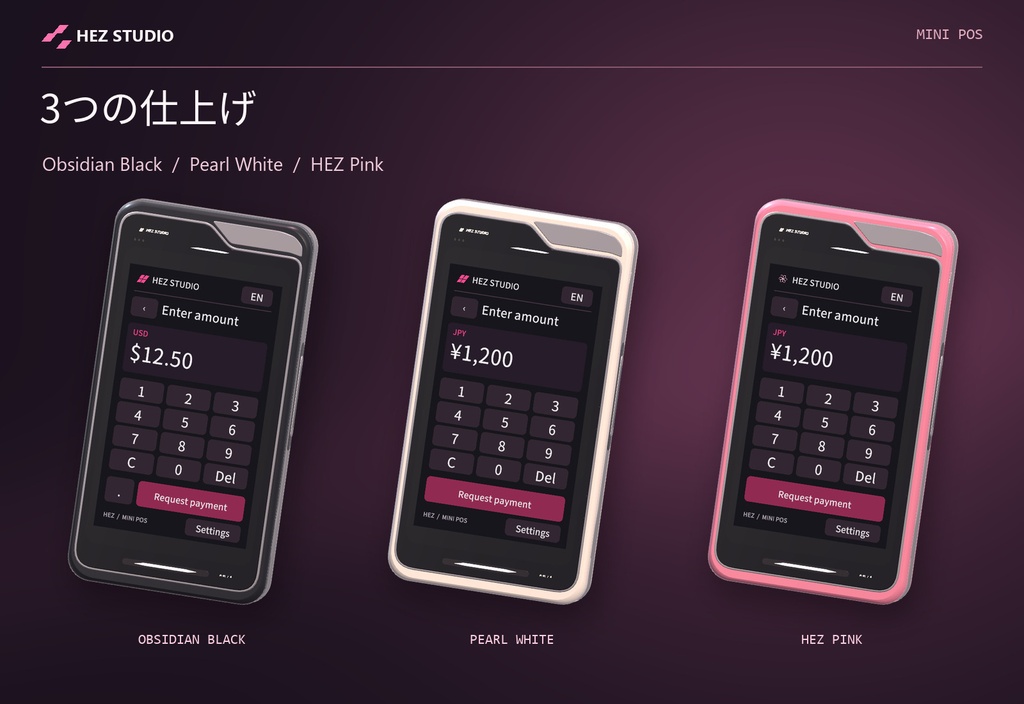
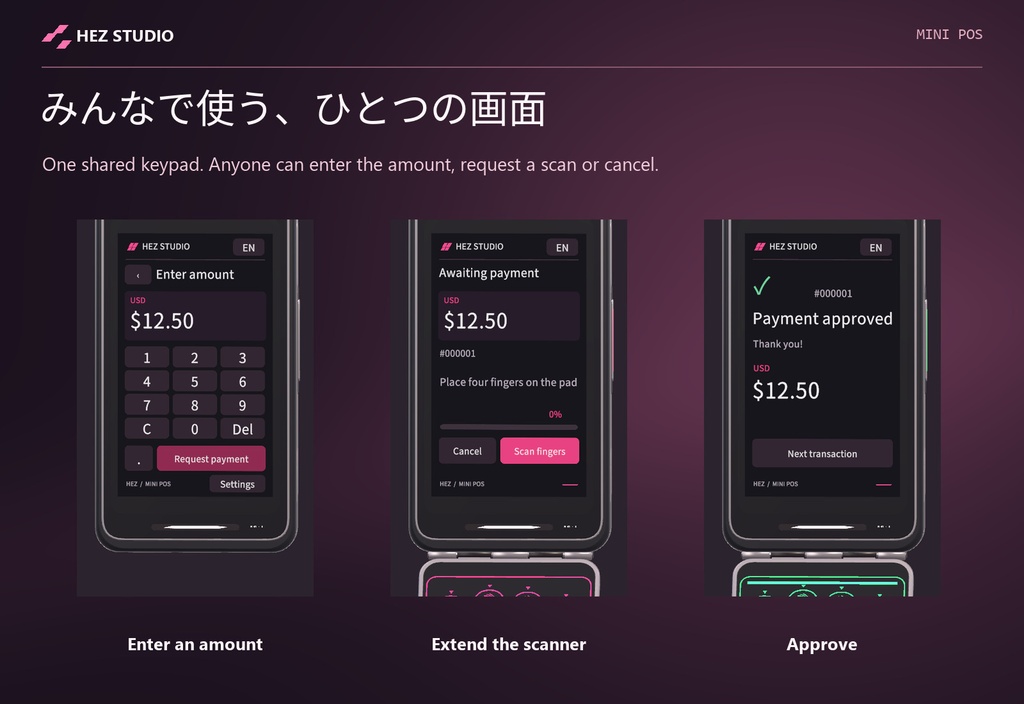
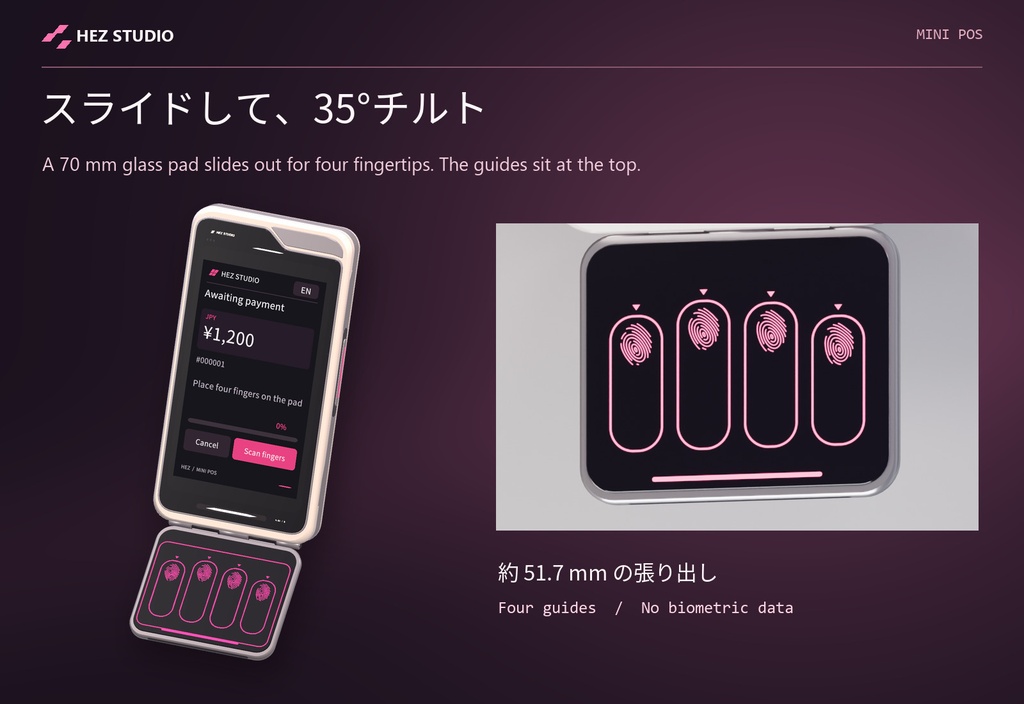
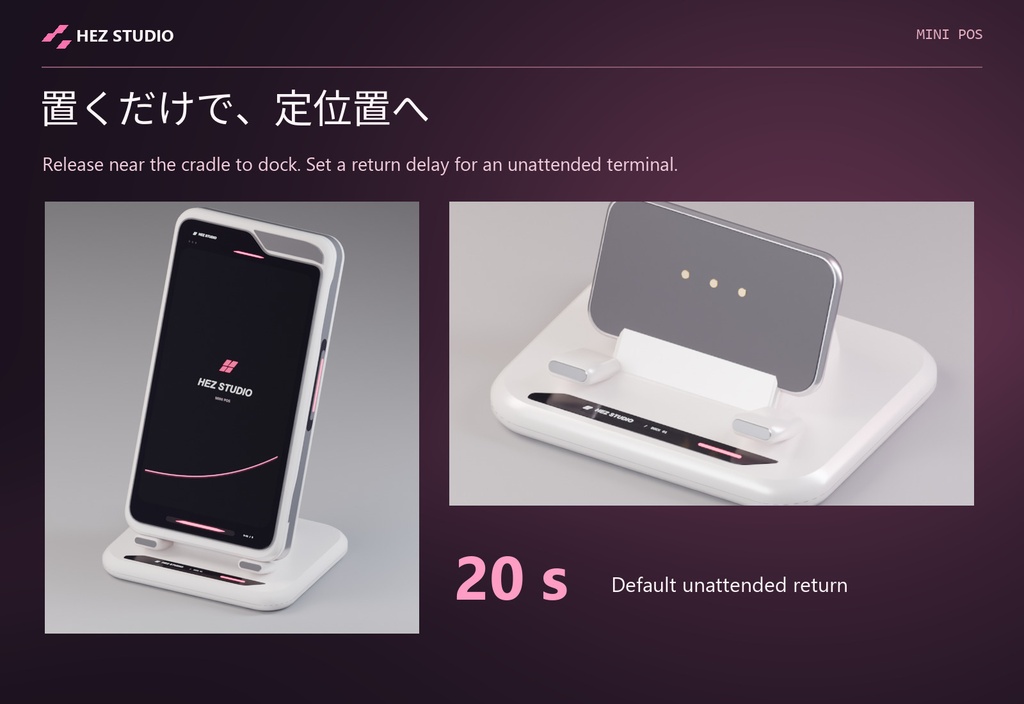
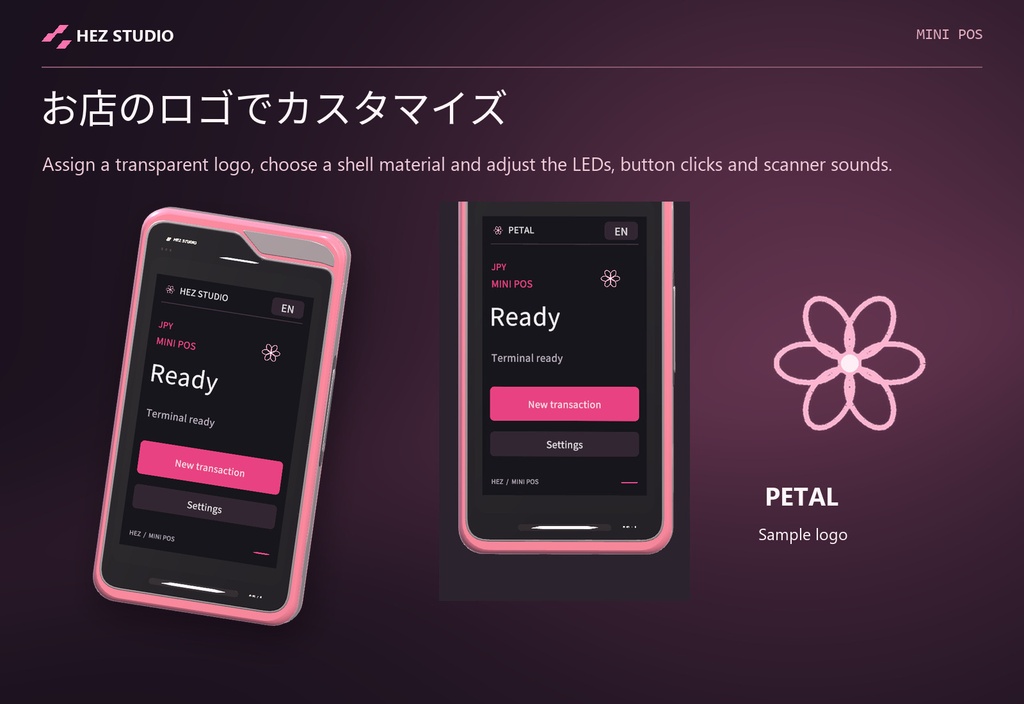
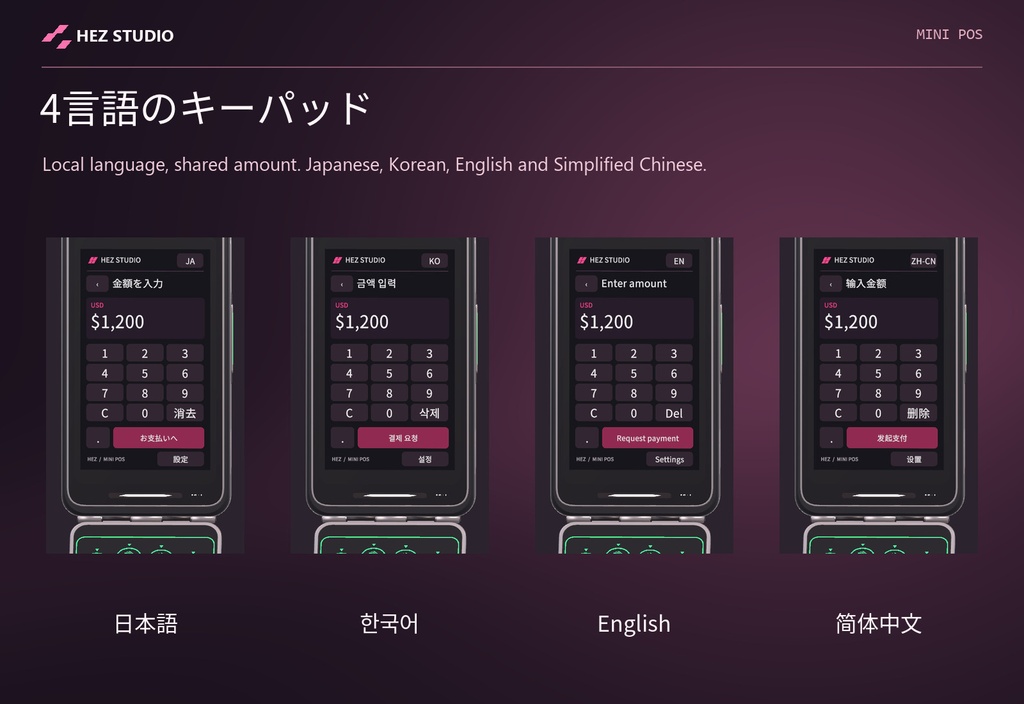
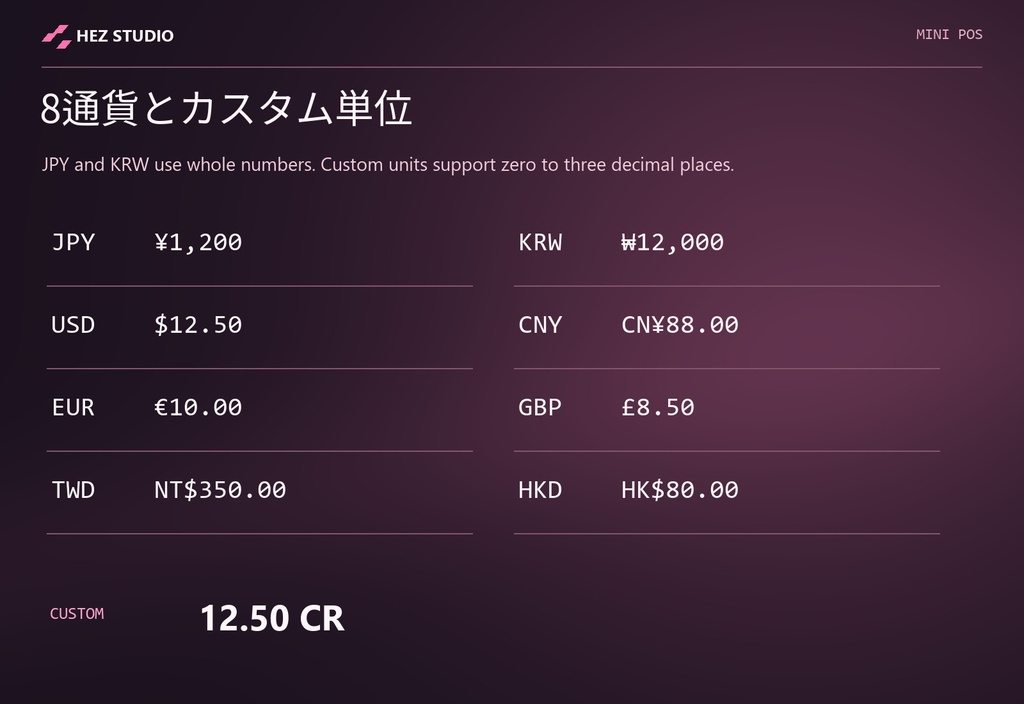
入口の後ろにある製品ギャラリーで、MINI POSを手に取ってお試しください。 実機を試せるデモワールド 「コーヒーをひとつ、お願いします」。カウンターで金額を打ち込み、画面をお客さんの方へ。端末の下からガラスのパッドがせり出します。指をかざすと光の線が走り、ピッと音がしてお会計はおしまい。パッドはひとりでに本体へ戻ります。 ■ セット内容 手持ちの決済端末と卓上ドックのセットです。Black・White・Pinkの3色のプレハブと、3台を並べて試せるデモシーンをUnityPackageに収録しました。Blender・FBXのモデル、テクスチャ、サンプルロゴ、効果音8種、日本語・韓国語・英語のガイドも付属します。 ■ 金額を打って、指をかざす 店員もお客さんも同じ画面を操作できます。金額と通貨を確かめて支払いをリクエストすると、スキャナーが手前にせり出して35°開きます。注文のキャンセルも同じ画面からできます。 VRでは、空いている手の親指を除く4本の指を、パッドの上に約1.2秒かざしてください。途中で手を離しても、もう一度かざせばやり直せます。デスクトップでは、画面のスキャンボタンかパッドをクリックすると同じ演出が始まります。お会計はロールプレイ用で、実際の送金や生体情報の取得は行いません。 ■ お客さんに向けて、ドックへ戻す VRでは端末の縁を握り、お客さんが見やすい角度に傾けてください。手を離すとその姿勢で宙に浮くので、別の縁を握り直せます。お会計が済んだらドックの近くで手を離すと、接点がそろって元の位置に収まります。 初期設定では、手を離したまま20秒経つか、端末がドックより1.25 m以上下に落ちるとドックへ戻ります。戻るまでの時間とドックに吸着する距離は調整できます。端末を宙に置いておきたいときは Automatic Return をオフにしてください。 ■ お店の名前とロゴを入れる Unityで端末を選び、Tools → HEZ MINI POS → Customize selected terminal を開きます。Display Name で画面の「HEZ STUDIO」を店名に変更できます。店名の文字が表示されないときは、Display Name Font にその文字を含むTMPフォントを指定してください。ロゴには透過PNGを Sprite (2D and UI) の Single で読み込み、Custom Logo に設定します。ピンクのデモ端末で「PETAL」の設定例を見られます。 Exterior Material で本体とドックの外装をそろえられます。LEDの色とスキャンラインも変更できます。ボタン音・スキャン音・結果音は個別に切り替えられ、ボタンの音色と音量は Touch Clip と Touch Volume で調整できます。 画面の言語は日本語・韓国語・英語・簡体字中国語から各プレイヤーが選べます。通貨は端末ごとに JPY・KRW・USD・CNY・EUR・GBP・TWD・HKD の8種類から選ぶか、お店独自の単位を設定できます。 ■ 対応環境とワールドへの導入 Windows PC向けのVRChatワールド用小物です。確認環境は Unity 2022.3.22f1、Built-in Render Pipeline、VRChat Worlds SDK 3.10.6、SDK付属のUdonSharp、TextMeshPro 3.0.6です。 VCCでWorldsプロジェクトを開き、Window → TextMeshPro → Import TMP Essential Resources を実行します。購入したZIPを展開し、Unity フォルダーのパッケージを Assets → Import Package → Custom Package から読み込んでください。 ご自分のワールドには Assets/HEZMiniPOS/Prefabs/HEZ_MINI_POS.prefab をルートのScaleが1のままカウンターに置き、シーンにEventSystemがあることを確認してください。3色を試すには Assets/HEZMiniPOS/Demo/HEZ_MiniPOS_Demo.unity を開きます。 Unity・ClientSimでの動作とWindows向けSDKビルドを確認しています。VRヘッドセットでの操作、複数のVRChatクライアント間の同期、Quest単体での動作は未検証です。 ■ 利用条件 個人・法人ともに、改変、公開・商用ワールドへの設置、動画・配信・収益化コンテンツでの利用ができます。元データ・改変データの第三者への共有、再配布、再販売は禁止します。ロゴには使用する権利のある画像をお使いください。同梱フォントにはSIL OFL、外部SDKには各提供元の利用条件が適用されます。
[한국어]
입구 뒤쪽 제품 갤러리에서 MINI POS를 집어 직접 조작해 보세요. 단말기 체험 월드 “커피 한 잔 주세요.” 카운터에서 금액을 찍고 손님 쪽으로 화면을 돌려 주세요. 단말기 아래에서 유리 패드가 쓱 나옵니다. 손님이 손가락을 올리면 빛 한 줄이 지나가고, 삑 소리와 함께 계산이 끝납니다. 패드는 다시 단말기 안으로 들어갑니다. ■ 세트 구성 손에 들 수 있는 결제 단말기와 탁상용 거치대가 한 세트입니다. UnityPackage에는 Black·White·Pink 세 가지 색상의 프리팹과 세 대를 나란히 써 볼 수 있는 데모 씬이 들어 있습니다. Blender·FBX 모델, 텍스처, 예제 로고, 효과음 8종, 일본어·한국어·영어 가이드도 함께 제공합니다. ■ 금액을 찍고 손가락 올리기 점원과 손님 누구나 같은 화면을 쓸 수 있습니다. 금액과 통화를 확인하고 결제를 요청하면 스캐너가 앞으로 나와 35°로 펼쳐집니다. 주문을 취소할 때도 같은 화면을 사용하세요. VR에서는 빈손의 엄지를 뺀 네 손가락을 패드 위에 약 1.2초간 올려 두세요. 중간에 손을 떼도 다시 올리면 스캔할 수 있습니다. 데스크톱에서는 화면의 ‘손가락 스캔’ 버튼이나 패드를 클릭하면 같은 연출이 시작됩니다. 계산은 역할극용이며 실제 송금이나 생체정보 수집은 이루어지지 않습니다. ■ 손님에게 보여 주고 거치대에 놓기 VR에서는 단말기 가장자리를 잡고 손님이 보기 편한 각도로 기울여 보세요. 손을 놓으면 그 자세로 공중에 떠 있어 다른 쪽 가장자리를 다시 잡을 수 있습니다. 계산을 마치고 거치대 가까이에서 놓으면 접점에 맞춰 제자리에 안착합니다. 기본 설정에서는 손을 놓은 채 20초가 지나거나 단말기가 거치대보다 1.25 m 이상 아래로 떨어지면 거치대로 돌아옵니다. 복귀 시간과 거치대에 붙는 거리는 조절할 수 있습니다. 단말기를 공중에 띄워 두려면 Automatic Return을 끄세요. ■ 우리 가게 이름과 로고 넣기 Unity에서 단말기를 선택하고 Tools → HEZ MINI POS → Customize selected terminal을 여세요. Display Name에서 화면의 ‘HEZ STUDIO’를 가게 이름으로 바꿀 수 있습니다. 상호의 일부 글자가 보이지 않으면 Display Name Font에 해당 글자가 들어 있는 TMP 폰트를 지정하세요. 로고는 투명 PNG를 Sprite (2D and UI)의 Single 모드로 불러와 Custom Logo에 넣습니다. 분홍색 데모 단말기에서 ‘PETAL’ 예시를 볼 수 있습니다. Exterior Material로 단말기와 거치대의 외장을 함께 바꿀 수 있습니다. LED 색상과 스캔 라인도 조절할 수 있습니다. 버튼음·스캔음·결과음은 각각 켜고 끌 수 있고, 버튼의 소리와 음량은 Touch Clip과 Touch Volume에서 바꿉니다. 화면 언어는 한국어·일본어·영어·중국어 간체 중에서 각자 고릅니다. 통화는 단말기마다 JPY·KRW·USD·CNY·EUR·GBP·TWD·HKD 중 하나를 선택하거나 가게만의 단위를 지정할 수 있습니다. ■ 사용 환경과 월드 설치 Windows PC용 VRChat 월드 소품입니다. Unity 2022.3.22f1, Built-in Render Pipeline, VRChat Worlds SDK 3.10.6, SDK에 포함된 UdonSharp, TextMeshPro 3.0.6 환경에서 확인했습니다. VCC에서 Worlds 프로젝트를 열고 Window → TextMeshPro → Import TMP Essential Resources를 실행하세요. 구매한 ZIP을 푼 뒤 Unity 폴더 안의 패키지를 Assets → Import Package → Custom Package로 불러오세요. 내 월드에는 Assets/HEZMiniPOS/Prefabs/HEZ_MINI_POS.prefab을 루트 Scale 1로 카운터 위에 놓고, 씬에 EventSystem이 있는지 확인하세요. 세 가지 색상을 먼저 써 보려면 Assets/HEZMiniPOS/Demo/HEZ_MiniPOS_Demo.unity를 여세요. Unity·ClientSim에서 조작을 확인하고 Windows용 SDK 빌드를 마쳤습니다. VR 헤드셋 조작, 여러 VRChat 클라이언트 간 동기화, Quest 단독 실행은 아직 검증하지 않았습니다. ■ 이용 조건 개인과 기업 모두 에셋을 수정하거나 공개·상업 월드에 배치하고 영상·방송·수익화 콘텐츠에서 사용할 수 있습니다. 원본 및 수정본 에셋 파일의 제3자 공유·재배포·재판매는 금지합니다. 로고에는 사용 권리가 있는 이미지를 넣어 주세요. 동봉 폰트에는 SIL OFL, 외부 SDK에는 각 제공자의 이용 조건이 적용됩니다.
[English]
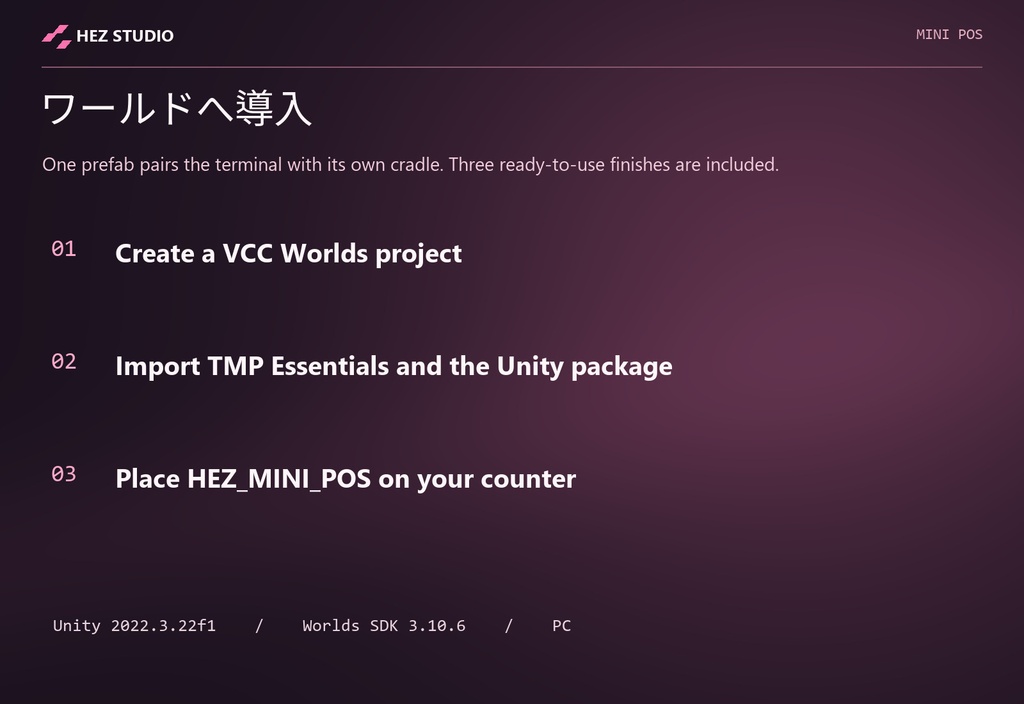
Turn around at spawn and pick up the MINI POS in the product gallery. Try the terminal in VRChat “One coffee, please.” Ring up the total and turn the screen toward your guest. A glass pad slides out from beneath the terminal. As your guest holds their fingers over it, a line of light sweeps across the glass. A beep finishes the sale, and the pad slides back inside. ■ In the set The handheld terminal comes with a countertop dock. The UnityPackage includes Black, White and Pink prefabs and a demo scene where you can try all three side by side. The download also includes Blender and FBX models, textures, a sample logo, eight sound effects and guides in Japanese, Korean and English. ■ Ring up a sale Staff and guests share the same screen. Check the amount and currency, then request payment. The scanner slides out and tilts up 35°. Anyone can cancel the order from the same screen. In VR, hold the four fingers of your free hand over the pad for about 1.2 seconds, keeping your thumb clear. If you pull away early, bring your hand back to try again. On desktop, click “Scan fingers” or the pad to play the same sequence. Checkout is for roleplay. No money changes hands, and the terminal collects no biometric data. ■ Turn the screen and return it to the dock In VR, grip the edge of the terminal and tilt it so your guest can see the total. Let go and it floats at that angle while you take hold of another edge. After the sale, release it near the dock and the contacts line up as it settles into place. By default, the terminal returns to the dock after 20 seconds unattended, or if it falls 1.25 m below the dock. You can adjust the return delay and docking distance. To leave the terminal floating, turn off Automatic Return. ■ Add your shop name and logo Select the terminal in Unity and open Tools → HEZ MINI POS → Customize selected terminal. Under Display Name, replace “HEZ STUDIO” with your shop name. If any letters are missing, choose a TMP font that contains them under Display Name Font. For the logo, import a transparent PNG as Sprite (2D and UI) in Single mode and assign it to Custom Logo. The pink demo terminal shows the “PETAL” example. Use Exterior Material to change the finish on both the terminal and dock. You can also adjust the LED colors and scan line. Button taps, scanner sounds and result cues each have their own switch. Use Touch Clip and Touch Volume to change the button sound and its volume. Each player can choose English, Japanese, Korean or Simplified Chinese for their own screen. Set each terminal to JPY, KRW, USD, CNY, EUR, GBP, TWD or HKD, or give your shop a custom currency unit. ■ Set it up in your world HEZ MINI POS is a VRChat world prop for Windows PC. The tested setup uses Unity 2022.3.22f1, the Built-in Render Pipeline, VRChat Worlds SDK 3.10.6 with its bundled UdonSharp, and TextMeshPro 3.0.6. Open a Worlds project in VCC and run Window → TextMeshPro → Import TMP Essential Resources. Unzip the download, then use Assets → Import Package → Custom Package to import the package from the Unity folder. Place Assets/HEZMiniPOS/Prefabs/HEZ_MINI_POS.prefab on your counter with its root scale set to 1, and check that your scene has an EventSystem. To try all three finishes first, open Assets/HEZMiniPOS/Demo/HEZ_MiniPOS_Demo.unity. Checks covered operation in Unity and ClientSim and a Windows SDK world build. Testing on a VR headset, across multiple VRChat clients and on standalone Quest is still pending. ■ Terms of use Individuals and businesses may modify the assets, place them in public or commercial worlds, and use them in videos, streams and monetized content. Sharing, redistributing or reselling the original or modified asset files to third parties is prohibited. Use a logo you have the rights to use. The included fonts are licensed under the SIL OFL. External SDKs are subject to their providers’ terms.