[WARUDO] Photo Filter 0.1.1|フォトフィルター
- Digital5,900 JPY
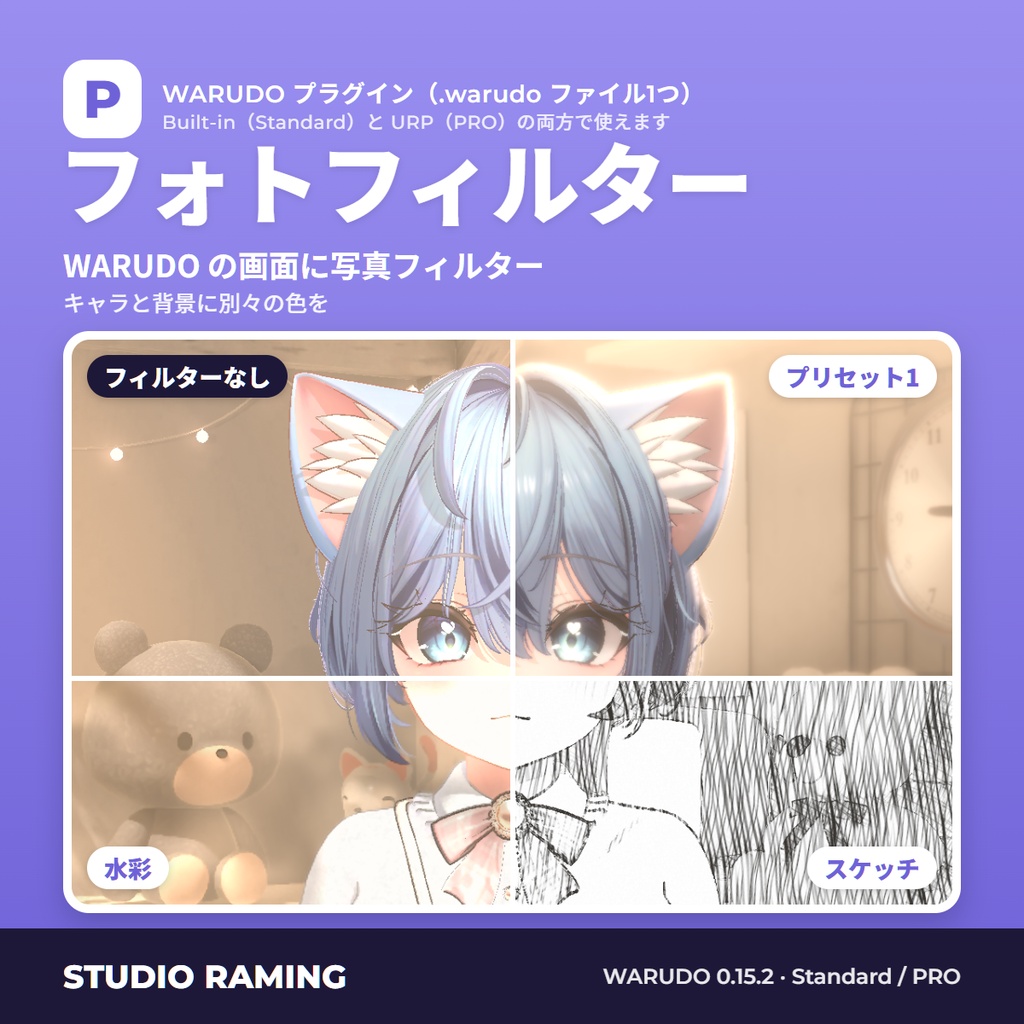


【Photo Filter 0.1.1】WARUDO 用フォトフィルター WARUDO プラグイン(.warudo ファイル1つ)です。キャラと背景に別々の色補正と画面効果をかけられます。Built-in(Standard)と URP(PRO)の両方で動きます。 ダウンロード後の返金不可(購入ミスを含む)。ご購入前に必ずご確認ください。 ■ Photo Filter とは WARUDO の画面全体に写真のようなフィルターをかけるプラグインです。キャラを自動で見つけるので、キャラと背景に違う値を設定できます。モデルや環境のファイルは変更しません。オフにすれば元の画面です。 ■ 主な機能 ・色補正:露出・コントラスト・色相・彩度・明度・ティント、ブルーム、LUT 画像。「キャラクターを個別に設定」をオンにすると、キャラと背景で別の値になります。 ・キャラの自動認識:MingToon・NiloToon・lilToon のキャラを自動で見つけます。「手前の物で隠す」をオンにすると、手前の壁や物がキャラを隠す部分をマスクから除きます(初期はオフ)。マスクはグレーで確認できます。 ・絵のような画面:線画、スケッチ(鉛筆ハッチング)、水彩、階調化、色分け、網点、特定色の保持、集中線。 ・線画は、絵の輪郭と境界を見つけて線として描きます。スケッチをオンにしなくても単独で使えます。初期は元の絵の上に線を重ね、「色の保持」を0にすると、「紙の色」の上に線だけが残ります(白い紙の線画)。「適用対象」で画面全体・キャラクターのみ・背景のみを選べます。「画風」グループの最初の効果です。 ・スケッチ・水彩は「背景を紙に」で、背景を白紙にしてキャラだけに描けます。 ・アンビエントオクルージョン(AO):くぼみや物が接している部分を暗くして、立体感を出します。「AO除外メッシュ」で選んだメッシュ(顔だけ、キャラ全体など)には AO をかけないようにできます。除外したメッシュも周囲には AO を落とします。キャラ用の強さと色合いは別に設定できます。「光の効果」グループにあります。 ・光とレンズ:星の光条、ディフュージョン、背景のぼかし、オーラ、ドロップシャドウ、色収差、フィルムグレイン、ビネット。 ・効果ごとにキャラ別の設定:星の光条・ディフュージョン・アンビエントオクルージョン・色収差・スケッチ・水彩は、キャラだけ別の値にできます。 ・画面効果:キラキラ、形ボケ(ハート・星)、影色、キャラのアウトライン、リムライト、放射・ティルトシフトブラー。キラキラ・形ボケ・影色・ブラーは、キャラの強さと背景の強さを別々に設定できます。 ・背景になじませる:キャラの色と明るさを周りの背景に寄せます(「キャラクター強調」グループ)。リムライトは明るさを 1 より上げると白を超えて光ります。 ・画面グラデーション:上と下の色、HDR の色、合成モード。 ・プリセット:自分のプリセットを保存、環境に合わせて自動切替、環境ごとにプリセットを連携。マイプリセットは WARUDO のプラグインデータに保存され、この PC のすべてのシーンで共通に使えます。プリセットはファイル(.pfpreset)として保存・読み込みもできます。 ・ブループリントノード3つ:プリセット切り替え(切り替え時間をかけて変え、終わったら次のノードへ)、値の切り替え、複数の値の切り替え。値のノードは「オン」でプリセットの上に値を一時的に重ね、「オフ」で元の値に戻します(オン/オフ切り替え、出力「オン中」、「恒久的に適用」もあります)。プリセットとシーンファイルには元の値が残ります。 ・パネルは8つのグループ:有効・プリセット / 色補正 / 色・トーン / 光の効果 / キャラクター強調 / ぼかし・レンズ / 画風 / キャラクター認識。オフの効果は、スイッチ1行だけが見えます。 ・画面の言語は 한국어・English・日本語。 ■ 動作環境 ・WARUDO(Steam)0.15.2(Built-in・URP)と 0.14.3(Built-in)で確認 ・WARUDO の Built-in(Standard)と URP(PRO)の両方(同じファイルで動作、切り替えにも追従) ・キャラの自動認識:MingToon・NiloToon・lilToon ・Windows ■ インストール PhotoFilter.warudo を WARUDO の Plugins フォルダに入れて、WARUDO を再起動するだけです。 1. ダウンロードした PhotoFilter_v0.1.1.zip を展開します。 2. Steam ライブラリで WARUDO を右クリック → 管理 → ローカルファイルを閲覧 → Warudo_Data → StreamingAssets → Plugins を開きます。(通常は Steam\steamapps\common\Warudo\Warudo_Data\StreamingAssets\Plugins) 3. 古い PhotoFilter*.warudo があれば先に削除して、新しい PhotoFilter.warudo をここに入れます。 4. WARUDO を再起動します。 5. WARUDO で アセット追加 → Studio Raming → Photo Filter / 포토필터。「有効」をオンにすると始まります。 ・削除:PhotoFilter.warudo を消すだけです。 説明書:GUIDE_PhotoFilter.md(한국어・English・日本語) ■ 知っておくこと ・Built-in(Standard)では、効果は WARUDO のトーンマッピング後の画像にかかります。URP と色味が違って見えることがあります。 ・Built-in(Standard)では、キャラの範囲はキャラクターとプロップのアセットのレンダラーだけを探します。プロップはキャラと一緒にマスクされ、キャラ用の値がかかります。環境の中の物のようにアセットではないものは、キャラとして扱われません。 ・「手前の物で隠す」をオンにしたとき、Built-in(Standard)では、判定できるのは影のパスを持つシェーダーの物だけです(Unlit/Texture などは除く)。 ・自動認識はベースアルファだけを読みます。頂点変形やディゾルブは対象外です。自動認識の対象は MingToon・NiloToon・lilToon です。 ・同時に動かせる Photo Filter のアセットは1つだけです。 ・出力サイズが大きく、グラフィックメモリが足りないときは、画面効果をスキップします。 ・使用しているオープンソースの表記は、ZIP 内の THIRD_PARTY_NOTICES.md と WARUDO のプラグイン設定で確認できます。 ■ 更新履歴 0.1.1 ・ライセンス確認なしで、そのまま動作します。ログインや別のアプリも不要です。 ・新しい効果「背景になじませる」(「キャラクター強調」グループ):キャラの色と明るさを周りの背景に寄せます。 ・基本プリセットに「ポップアート」「スケッチブック」「水彩イラスト」が増えました。 ・プリセットをファイル(.pfpreset)として保存・読み込みできます。 ・リムライト:明るさを 1 より上げると白を超えて光り、背景の色をリムライトにのせられます。 ・MToon のキャラも自動でキャラとして認識します。 ・トゥーンシェーダーがキャラの外側に描くアウトライン(lilToon・NiloToon)もキャラマスクに入ります。 ・修正:Built-in でリムライトが白く飛ぶ問題、カメラの設定によってアウトラインが背景全体を染める問題、ブラシで描いている間キャラがちらつく問題。 ・使用しているオープンソースの表記は、プラグイン設定と ZIP 内(THIRD_PARTY_NOTICES.md)にあります。 ・更新方法:WARUDO を終了し、Warudo_Data/StreamingAssets/Plugins の古い PhotoFilter.warudo を削除して、新しい PhotoFilter.warudo を入れます。プラグイン ID は同じなので、保存したシーンとプリセットはそのまま開けるように作っています。 ・確認した範囲:WARUDO 0.14.3(Built-in)でストア版がライセンス表示なしで有効になり、キャラの色はそのままで背景だけに補正がかかるところまで確認しました。NiloToon キャラのアウトライン、MToon の認識、URP、0.1.0 からの更新は、まだ WARUDO で確認していません。 ■ 利用規約 ・WARUDO プラグインファイル(.warudo)として提供されます。ファイル・コードの再配布・再販売・流出を固く禁止します。 ・✓ 非営利/営利の配信・デジタルグッズ・個人YouTube 可 ・セッティング共有時は受け取る全員が購入済みであること。法人利用・収益化は要問い合わせ。 ■ 返金 ・DL0回はお問い合わせで返金可。1回以上はデジタル商品につき返金不可。 ■ お問い合わせ studioraming@gmail.com(インストールや使い方の質問は商品の Q&A でも受け付けます)
🇺🇸 English
【Photo Filter 0.1.1】Photo filters for WARUDO A WARUDO plugin (one .warudo file). Gives characters and backgrounds separate color grading and screen effects. Works in both Built-in (Standard) and URP (PRO). No refunds after download (incl. purchase mistakes). Please confirm before buying. ■ What it is A plugin that puts a photo filter over the whole WARUDO screen. It finds the characters by itself, so characters and backgrounds can have different values. Your model and environment files are never changed. Turn it off and the screen is as before. ■ Main features ・Color grading: exposure, contrast, hue shift, saturation, brightness, tint, bloom, LUT image. Turn on "Set characters separately" and characters and background get their own values. ・Automatic character recognition: finds MingToon, NiloToon and lilToon characters by itself. Turn on "Objects in front hide characters" and walls and objects in front of a character are cut out of the mask (off by default). You can view the mask in grey. ・Picture-like looks: line art, sketch (pencil hatching), watercolor, posterize, split tone, halftone, keep color, speed lines. ・Line art finds the outlines and borders in the picture and draws them as lines. It works on its own, without turning the sketch on. By default the lines sit over the original picture; set "Keep color" to 0 and only the lines remain on the "Paper color" (a line drawing on white paper). "Target" picks the whole screen, character only or background only. It is the first effect of the "Art style" group. ・Sketch and watercolor have "Background as paper": the background becomes clean paper and the effect is drawn on the character only. ・Ambient occlusion (AO): darkens creases and the places where objects touch, for more depth. The meshes you pick in "AO excluded meshes" (only the face, a whole character, and so on) get no AO; they still shade what is around them. The character can have its own AO intensity and tint. It is in the "Light" group. ・Light and lens: star streak, diffusion, background blur, aura, drop shadow, chromatic aberration, film grain, vignette. ・Character set per effect: star streak, diffusion, ambient occlusion, chromatic aberration, sketch and watercolor can use different values on the character only. ・Screen effects: sparkle, shape bokeh (hearts and stars), shadow tint, character outline, rim light, radial and tilt-shift blur. Sparkle, shape bokeh, shadow tint and blur have separate character strength and background strength. ・Screen gradient: top and bottom colors, HDR color, blend mode. ・Presets: save your own presets, switch automatically by environment, link a preset to each environment. My presets are kept in WARUDO's plugin data, so every scene on this PC shares them. Presets can also be saved to and loaded from a file (.pfpreset). ・Three blueprint nodes: Switch Preset (moves over a transition time, then runs the next node), Change Value and Change Values. The value nodes lay values over the preset with On and take them back to the original values with Off (Toggle, an Is on output and Apply permanently too). The preset and the scene file keep the original values. ・The panel has 8 groups: Enable and presets / Color grading / Color and tone / Light / Character accents / Blur and lens / Art style / Character detection. An effect that is off shows only its switch row. ・UI in 한국어・English・日本語. ■ Supported environment ・Checked on WARUDO (Steam) 0.15.2 (Built-in and URP) and 0.14.3 (Built-in) ・Both WARUDO Built-in (Standard) and URP (PRO), one file, follows a pipeline switch ・Automatic recognition: MingToon, NiloToon, lilToon ・Windows ■ Install Put PhotoFilter.warudo in WARUDO's Plugins folder and restart WARUDO. That's it. 1. Unzip the downloaded PhotoFilter_v0.1.1.zip. 2. In your Steam library, right-click WARUDO → Manage → Browse local files → Warudo_Data → StreamingAssets → Plugins. (Usually Steam\steamapps\common\Warudo\Warudo_Data\StreamingAssets\Plugins) 3. Delete any older PhotoFilter*.warudo there, then put the new PhotoFilter.warudo in. 4. Restart WARUDO. 5. In WARUDO: Add asset → Studio Raming → Photo Filter / 포토필터. Turn on "Enabled" to start. ・Uninstall: just delete PhotoFilter.warudo. Manual: GUIDE_PhotoFilter.md (한국어・English・日本語) ■ Good to know ・In Built-in (Standard) the effects are applied on the image after WARUDO's tone mapping. The colors can look different from URP. ・In Built-in (Standard) the character area searches only the renderers of the characters and of prop assets. A prop asset is masked together with the characters and gets the character values. Objects that are not assets, such as things inside the environment, are not counted as characters. ・When "Objects in front hide characters" is on, Built-in (Standard) can check only objects whose shader has a shadow pass (Unlit/Texture and similar are not covered). ・Automatic recognition reads base alpha only, so vertex deformation and dissolve are not covered. Automatic recognition covers MingToon, NiloToon and lilToon. ・Only one Photo Filter asset can work at a time. ・When graphics memory is short at a large output size, the screen effects are skipped. ・Notices for the open-source parts used are in THIRD_PARTY_NOTICES.md in the ZIP and in WARUDO's plugin settings. ■ Update history 0.1.1 ・It works right away, with no license check. No login or other app is needed. ・New effect "Blend character into background" (Character accents group): moves the character's color and brightness toward the background around it. ・New basic presets: Pop Art, Sketchbook and Watercolor Illustration. ・Presets can be saved to and loaded from a file (.pfpreset). ・Rim light: raise Brightness above 1 and it glows past white; the background color can tint the rim. ・MToon characters are now recognized as characters automatically. ・The outline a toon shader draws around the character (lilToon, NiloToon) is now part of the character mask. ・Fixed: in Built-in the rim light clipped to white; with some camera settings the outline tinted the whole background; the character flickered while painting with a brush. ・The open-source notices are in the plugin settings and in the ZIP (THIRD_PARTY_NOTICES.md). ・How to update: close WARUDO, delete the old PhotoFilter.warudo in Warudo_Data/StreamingAssets/Plugins, and put in the new PhotoFilter.warudo. The plugin id is unchanged, so saved scenes and presets are meant to open as they are. ・What was checked: on WARUDO 0.14.3 (Built-in) the store build turned on with no license prompt and graded the background while the character kept its colors. NiloToon character outlines, MToon recognition, URP and the update from 0.1.0 have not been checked in WARUDO yet. ■ Terms ・Provided as a WARUDO plugin file (.warudo). Redistribution, resale, or leaking of files/code is strictly prohibited. ・✓ Non-commercial/commercial streaming・digital goods・personal YouTube allowed ・When sharing files (e.g. commissions), every recipient must own this product. Corporate/monetized use: inquire. ■ Refund ・Download count 0: refund possible via inquiry. 1+: no refund (digital goods). ■ Contact studioraming@gmail.com (installation and usage questions can also go through the product Q&A)
🇰🇷 한국어
【Photo Filter 0.1.1】WARUDO 포토필터 플러그인 WARUDO 플러그인(.warudo 파일 1개)이에요. 캐릭터와 배경에 따로 색 보정과 화면 효과를 줘요. Built-in(Standard)과 URP(PRO) 둘 다 써요. 다운로드 후 환불 불가(구매 착오 포함). 구매 전에 꼭 확인해 주세요. ■ Photo Filter란 WARUDO 화면 전체에 사진 필터를 거는 플러그인이에요. 캐릭터를 자동으로 찾아서 캐릭터와 배경에 서로 다른 값을 줄 수 있어요. 모델과 환경 파일은 건드리지 않아요. 끄면 원래 화면이에요. ■ 주요 기능 ・색 보정: 노출・대비・색조・채도・명도・틴트, 블룸, LUT 이미지. "캐릭터 따로 설정하기"를 켜면 캐릭터와 배경이 각자 다른 값을 가져요. ・캐릭터 자동 인식: MingToon・NiloToon・lilToon 캐릭터를 자동으로 찾아요. "앞 물체 가림"을 켜면 캐릭터 앞의 벽이나 물체가 가리는 부분을 마스크에서 빼요(기본은 꺼짐). 마스크는 회색으로 볼 수 있어요. ・그림 같은 화면: 선 따기, 스케치(연필 해칭), 수채화, 명암 단계화, 색 분리, 만화 도트, 특정 색 유지, 집중선. ・선 따기는 그림의 윤곽과 경계를 찾아 선으로 그려요. 스케치를 켜지 않아도 혼자 쓸 수 있어요. 기본은 원래 그림 위에 선을 얹고, "색 유지"를 0으로 내리면 "종이 색" 위에 선만 남아요(흰 종이에 선화). "적용 대상"에서 화면 전체・캐릭터만・배경만을 골라요. "그림체" 그룹의 첫 효과예요. ・스케치・수채화는 "배경을 종이로"로 배경을 깨끗한 종이로 만들고 캐릭터에만 그릴 수 있어요. ・주변광 차폐(AO): 접힌 곳과 물체가 맞닿은 부분을 어둡게 해서 입체감을 줘요. "AO 제외 메시"에서 고른 메시(얼굴만, 캐릭터 전체 등)에는 AO가 들지 않아요. 제외한 메시도 주변에는 AO를 드리워요. 캐릭터용 강도와 색조는 따로 줄 수 있어요. "빛 효과" 그룹에 있어요. ・빛과 렌즈: 별빛 줄기, 디퓨전, 배경 흐림, 아우라, 드롭 섀도우, 색수차, 필름 그레인, 비네팅. ・효과별 캐릭터 따로: 별빛 줄기・디퓨전・주변광 차폐・색수차・스케치・수채화는 캐릭터에만 다른 값을 줄 수 있어요. ・화면 효과: 반짝이, 모양 보케(하트・별), 그림자 색, 캐릭터 외곽선, 림라이트, 방사・틸트시프트 블러. 반짝이・모양 보케・그림자 색・블러는 캐릭터 세기와 배경 세기를 따로 줘요. ・화면 그라데이션: 위쪽・아래쪽 색, HDR 색, 합성 모드. ・프리셋: 내 프리셋 저장, 환경에 맞춰 자동 전환, 환경마다 프리셋 연결. 내 프리셋은 WARUDO 플러그인 데이터에 저장돼서 이 PC의 모든 씬에서 같이 써요. 프리셋을 파일(.pfpreset)로 저장하고 불러올 수도 있어요. ・블루프린트 노드 3개: 프리셋 전환(전환 시간 동안 바뀌고, 끝나면 다음 노드 실행), 값 전환, 여러 값 전환. 값 노드는 켜기로 프리셋 위에 값을 잠시 덮어씌우고, 끄기로 원래 값에 돌아가요(켜기/끄기 전환, 켜져 있음 출력, 영구 적용도 있어요). 프리셋과 씬 파일에는 원래 값이 남아요. ・패널은 8개 그룹이에요: 사용·프리셋 / 색 보정 / 색·톤 효과 / 빛 효과 / 캐릭터 강조 / 흐림·렌즈 / 그림체 / 캐릭터 인식. 꺼진 효과는 켜기 스위치 한 줄만 보여요. ・화면 언어 한국어・English・日本語. ■ 지원 환경 ・WARUDO (Steam) 0.15.2(Built-in・URP)와 0.14.3(Built-in)에서 확인 ・WARUDO Built-in(Standard)과 URP(PRO) 둘 다 (같은 파일, 전환해도 따라가요) ・캐릭터 자동 인식: MingToon・NiloToon・lilToon ・Windows ■ 설치 PhotoFilter.warudo를 WARUDO의 Plugins 폴더에 넣고 WARUDO를 다시 켜면 끝이에요. 1. 받은 PhotoFilter_v0.1.1.zip을 풀어요. 2. Steam 라이브러리에서 WARUDO 우클릭 → 관리 → 로컬 파일 보기 → Warudo_Data → StreamingAssets → Plugins 를 열어요. (보통 Steam\steamapps\common\Warudo\Warudo_Data\StreamingAssets\Plugins) 3. 예전 PhotoFilter*.warudo가 있으면 먼저 지우고, 새 PhotoFilter.warudo를 여기에 넣어요. 4. WARUDO를 다시 켜요. 5. WARUDO에서 에셋 추가 → Studio Raming → Photo Filter / 포토필터. "적용"을 켜면 시작돼요. ・삭제: PhotoFilter.warudo 파일을 지우면 끝이에요. 설명서: GUIDE_PhotoFilter.md (한국어・English・日本語) ■ 알아 두기 ・Built-in(Standard)에서는 효과가 WARUDO가 톤매핑을 끝낸 화면에 걸려요. URP와 색 느낌이 다르게 보일 수 있어요. ・Built-in(Standard)에서는 캐릭터 영역을 캐릭터와 프롭 에셋의 렌더러에서만 찾아요. 프롭 에셋은 캐릭터와 함께 마스크돼서 캐릭터 값을 받아요. 환경 속 물체처럼 에셋이 아닌 것은 캐릭터로 잡히지 않아요. ・"앞 물체 가림"을 켜면, Built-in(Standard)에서는 그림자 패스가 있는 셰이더의 물체만 판정해요(Unlit/Texture 등은 제외). ・자동 인식은 기본 알파만 읽어요. 버텍스 변형과 디졸브는 제외예요. 자동 인식 대상은 MingToon・NiloToon・lilToon이에요. ・포토필터 에셋은 동시에 하나만 작동해요. ・출력 크기가 커서 그래픽 메모리가 부족하면 화면 효과를 건너뛰어요. ・사용한 오픈소스 고지는 ZIP 안 THIRD_PARTY_NOTICES.md와 WARUDO의 플러그인 설정에서 볼 수 있어요. ■ 업데이트 내역 0.1.1 ・라이선스 확인 없이 바로 작동해요. 로그인이나 별도 프로그램은 필요 없어요. ・새 효과 "배경에 어울리게"(캐릭터 강조 그룹): 캐릭터의 색과 밝기를 주변 배경 쪽으로 맞춰요. ・기본 프리셋에 팝 아트, 스케치북, 수채 일러스트가 늘었어요. ・프리셋을 파일(.pfpreset)로 저장하고 불러올 수 있어요. ・림라이트: 밝기를 1보다 올리면 흰색을 넘어 빛나고, 배경 색을 림라이트에 입힐 수 있어요. ・MToon 캐릭터도 자동으로 캐릭터로 인식해요. ・툰 셰이더가 캐릭터 바깥에 그리는 외곽선(lilToon・NiloToon)도 캐릭터 마스크에 들어가요. ・고친 점: Built-in에서 림라이트가 하얗게 뭉치던 문제, 카메라 설정에 따라 외곽선이 배경 전체를 물들이던 문제, 브러시로 그리는 동안 캐릭터가 깜빡이던 문제. ・사용한 오픈소스 고지가 플러그인 설정과 ZIP 안(THIRD_PARTY_NOTICES.md)에 들어 있어요. ・업데이트 방법: WARUDO를 종료하고, Warudo_Data/StreamingAssets/Plugins 폴더의 예전 PhotoFilter.warudo를 지운 뒤 새 PhotoFilter.warudo를 넣어 주세요. 플러그인 ID가 같아서 저장한 씬과 프리셋도 그대로 열리도록 만들었어요. ・확인한 범위: WARUDO 0.14.3(Built-in)에서 스토어판이 라이선스 표시 없이 켜지고, 캐릭터 색은 그대로 두고 배경에만 보정이 걸리는 데까지 확인했어요. NiloToon 캐릭터의 외곽선, MToon 인식, URP, 0.1.0에서 올리는 업데이트는 아직 WARUDO에서 확인하지 못했어요. ■ 사용 약관 ・WARUDO 플러그인 파일(.warudo)로 제공됩니다. 파일・코드의 재배포・재판매・유출을 엄격히 금지합니다. ・✓ 비상업/상업 방송・디지털 굿즈・개인 유튜브 허용 ・커미션 등 파일 공유 시 받는 모든 당사자가 본 상품 구매자여야 합니다. 기업 사용・수익성 콘텐츠는 문의. ■ 환불 ・다운로드 0회는 문의로 환불 가능, 1회 이상은 디지털 상품 특성상 환불 불가. ■ 문의 studioraming@gmail.com (설치와 사용 문의는 상품 Q&A로도 받아요)
FAQ / よくある質問 / 자주 묻는 질문
■ FAQ / よくある質問 / 자주 묻는 질문 Q. 캐릭터와 배경에 따로 효과를 줄 수 있나요? / Can characters and backgrounds get different effects? / キャラと背景に別々の効果をかけられますか? A. 네. 색 보정은 "캐릭터 따로 설정하기"를 켜면 돼요. 별빛 줄기・디퓨전・주변광 차폐(AO)・색수차・스케치・수채화는 효과마다 캐릭터 설정이 따로 있어요. Yes. For color grading, turn on "Set characters separately". Star streak, diffusion, ambient occlusion (AO), chromatic aberration, sketch and watercolor each have their own character set. はい。色補正は「キャラクターを個別に設定」をオンにします。星の光条・ディフュージョン・アンビエントオクルージョン(AO)・色収差・スケッチ・水彩は、効果ごとにキャラ用の設定があります。 Q. 선 따기는 무엇인가요? / What is line art? / 線画とは何ですか? A. "그림체" 그룹의 "선 따기 켜기"를 켜면 돼요. 그림의 윤곽과 경계를 찾아 선으로 그려요. 스케치를 켜지 않아도 혼자 쓸 수 있어요. 기본은 원래 그림 위에 선을 얹고, "색 유지"를 0으로 내리면 "종이 색" 위에 선만 남아요. "적용 대상"에서 화면 전체・캐릭터만・배경만을 골라요. Turn on "Enable line art" in the "Art style" group. It finds the outlines and borders in the picture and draws them as lines. It works without turning the sketch on. By default the lines sit over the original picture; set "Keep color" to 0 and only the lines remain on the "Paper color". "Target" picks the whole screen, character only or background only. 「画風」グループの「線画を有効化」をオンにします。絵の輪郭と境界を見つけて線として描きます。スケッチをオンにしなくても単独で使えます。初期は元の絵の上に線を重ね、「色の保持」を0にすると、「紙の色」の上に線だけが残ります。「適用対象」で画面全体・キャラクターのみ・背景のみを選べます。 Q. 캐릭터 얼굴에만 AO가 안 들게 할 수 있나요? / Can I keep AO off only the character's face? / キャラの顔だけ AO をかけないようにできますか? A. 네. "빛 효과" 그룹의 "AO 제외 메시"에서 "메시 추가"를 누르고 얼굴 메시를 골라요. 캐릭터 전체를 빼려면 그 캐릭터의 메시를 모두 넣어요. 제외한 메시도 주변에는 그대로 AO를 드리워서 발밑 바닥은 계속 어두워져요. 이 목록은 씬마다 달라서 프리셋에는 저장되지 않아요. Yes. In the "Light" group, press "Add a mesh" under "AO excluded meshes" and pick the face mesh. To leave out a whole character, add all of its meshes. Excluded meshes still shade what is around them, so the floor under the feet still darkens. The list differs per scene and is not saved in presets. はい。「光の効果」グループの「AO除外メッシュ」で「メッシュを追加」を押し、顔のメッシュを選びます。キャラ全体を除くには、そのキャラのメッシュを全部入れます。除外したメッシュも周囲には AO を落とすので、足元の床は暗くなったままです。この一覧はシーンごとに違うので、プリセットには保存されません。 Q. Standard와 PRO 둘 다 되나요? / Does it work in both Standard and PRO? / Standard と PRO の両方で使えますか? A. 네. WARUDO의 Built-in(Standard)과 URP(PRO) 둘 다 같은 파일로 써요. 파이프라인을 바꿔도 따라가요. 다만 Standard에는 알아 두기에 적은 제한이 있어요. Yes. One file works on both WARUDO Built-in (Standard) and URP (PRO), and it follows a pipeline switch. Standard has the limits listed under "Good to know". はい。WARUDO の Built-in(Standard)と URP(PRO)の両方で同じファイルが動き、切り替えにも追従します。Standard には「知っておくこと」の制限があります。 Q. 캐릭터가 인식되지 않아요. / A character is not recognized. / キャラが認識されません。 A. "캐릭터 인식" 그룹에서 "고급 보기"를 켜고, "마스크 보기"에서 "캐릭터 마스크"를 골라 확인한 뒤 "새로고침"을 눌러 보세요. 자동 인식은 MingToon・NiloToon・lilToon만 대상이에요. In the Character detection group, turn on "Show advanced", set "Debug view" to "Character mask" to check it, then press Refresh. Automatic recognition covers MingToon, NiloToon and lilToon only. 「キャラクター認識」グループで「詳細を表示」をオンにし、「デバッグ表示」で「キャラクターマスク」を選んで確認してから「更新」を押してください。自動認識の対象は MingToon・NiloToon・lilToon だけです。 Q. 넣었는데 화면이 안 바뀌어요. / I added it but nothing changes. / 入れても画面が変わりません。 A. 에셋의 "적용"이 꺼져 있으면 아무것도 안 해요. 켜고 상태 줄을 확인해 주세요. 값이 모두 기본이면 화면이 그대로예요. The asset does nothing while "Enabled" is off. Turn it on and read the status line. With every value at its default the screen stays the same. アセットの「有効」がオフのままだと何もしません。オンにして、ステータス行を確認してください。値がすべて初期値なら画面は変わりません。 Q. 내 프리셋을 다른 씬에서도 쓸 수 있나요? / Can I use My presets in other scenes? / マイプリセットはほかのシーンでも使えますか? A. 네. 내 프리셋은 씬 파일이 아니라 WARUDO 플러그인 데이터에 저장돼서 이 PC의 모든 씬에서 같은 목록이 보여요. 예전 씬 파일에 들어 있던 내 프리셋은 그 씬을 열면 여기로 옮겨지고, 이름이 같은 다른 프리셋이 이미 있으면 이름 뒤에 씬 이름이 붙어요. 씬 파일만 다른 PC로 옮기면 내 프리셋은 따라가지 않아요. Yes. My presets are stored in WARUDO's plugin data, not in the scene file, so every scene on this PC shows the same list. My presets an older scene file still holds move there when that scene is opened; if a different preset already has the name, the scene name is added after it. Moving only a scene file to another PC does not take your presets along. はい。マイプリセットはシーンファイルではなく WARUDO のプラグインデータに保存されるので、この PC のすべてのシーンで同じ一覧が表示されます。古いシーンファイルに入っていたマイプリセットは、そのシーンを開くとこちらに移され、同じ名前の別のプリセットがすでにあるときは名前のあとにシーン名が付きます。シーンファイルだけをほかの PC に移しても、マイプリセットは付いていきません。 Q. 업데이트와 삭제는 어떻게 하나요? / How do I update or uninstall? / 更新と削除はどうしますか? A. 업데이트는 새 PhotoFilter.warudo로 바꿔 넣고 WARUDO를 다시 켜요. 삭제는 파일을 지우면 끝이에요. To update, replace it with the new PhotoFilter.warudo and restart WARUDO. To uninstall, delete the file. 更新は新しい PhotoFilter.warudo に入れ替えて WARUDO を再起動します。削除はファイルを消すだけです。