
瓦屋根工事の班別 延期・再開予定重複確認表 / Tile Roofing Work: Crew-by-Crew Postponement and Resumption Schedule Overlap Checklist
- ダウンロード商品¥ 100
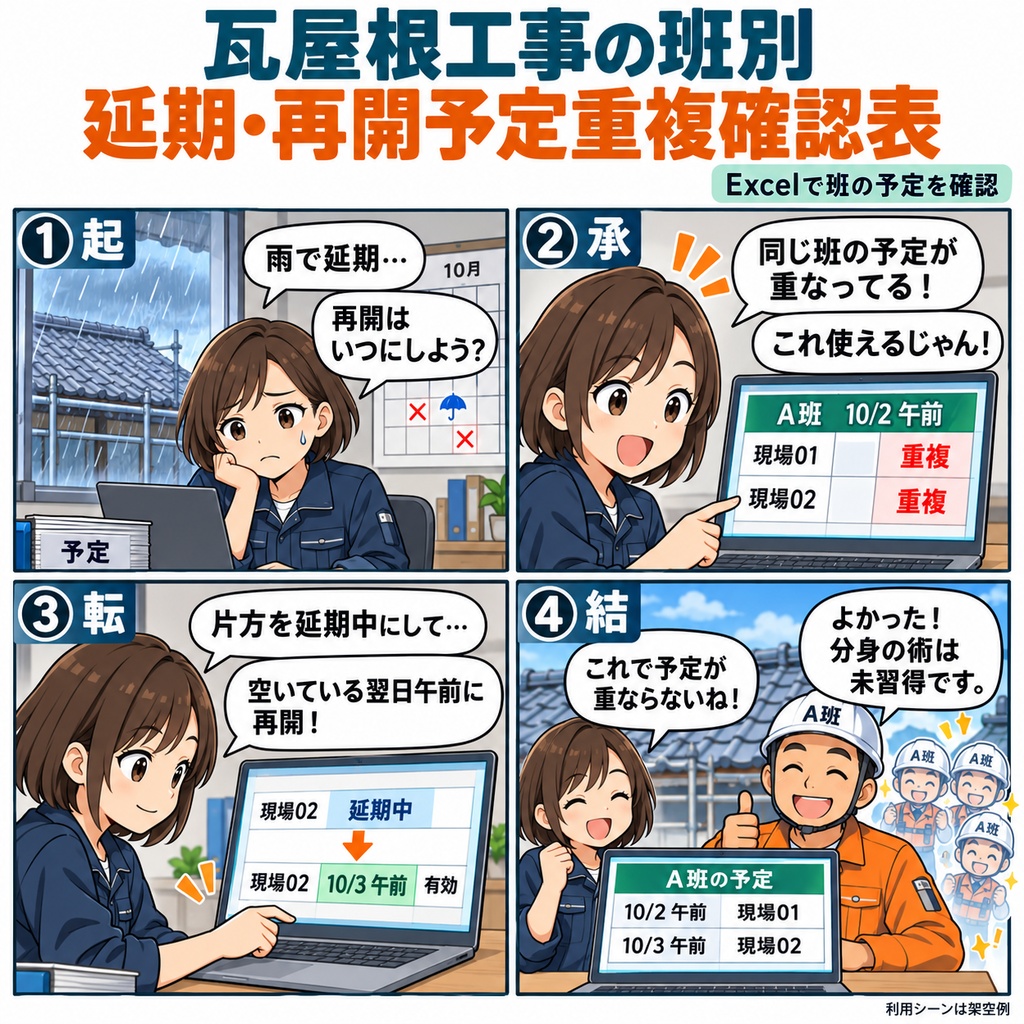



雨で延期になった瓦屋根工事。再開日を相談しているときに、 「その日の午前は、同じ班が別の現場に入っていたかもしれない」 と、予定を見返すことはありませんか。 「瓦屋根工事の班別 延期・再開予定重複確認表」は、 非金属屋根工事を扱う工事店の予定担当者に向けたExcelの表です。 同じ班・日付・午前または午後の枠で、 有効な予定が重なっていないかを画面上で確認できます。 使い始めは、予定の原資料と、予定ID・現場ID・班IDを用意します。 日付、午前/午後、状態、理由、原資料を探せる参照情報などを入力すると、 入力不備と予定の重複判定が表示されます。 入力と結果の確認は、ひとつのシートで行えます。 終日の作業は、午前と午後に別の予定IDを付けて2行に分けて登録します。 たとえば、雨で作業を延期することになったら、 元の予定の状態を「延期中」に変え、理由を記入します。 再開日や時間枠がまだ決まっていなくても、延期中一覧で確認できます。 現場や班と相談して再開予定が決まったら、同じ行の日付・半日枠・班を更新し、 状態を「有効」に戻して、ほかの予定との重なりをもう一度確認します。 月をまたぐ変更も、同じ予定IDの行で扱えます。 最後に、確認したい日付と班を指定して「班別当日一覧」へ。 その日の有効な予定と、全期間の「延期中一覧」を見ながら、 当日の予定と再開を待つ現場を確認できます。全班の表示も選べます。 重複判定だけでなく、入力不備やシート上部の全体注意も読み、 原資料や現場・班の状況と照らし合わせて、担当者が再開予定を決めるための表です。 1ブックで1工事店を管理し、入力欄は記入例2件を含めて1,000行です。 ご利用には、Windows 11と日本語のMicrosoft 365デスクトップ版Excel 64bitが必要です。 一人で編集する運用でお使いください。 お仕事の依頼は下記メールまで ramaya08010801@gmail.com Crew Schedule Overlap Checker for Tile Roofing Projects Rain has put a roofing job on hold, and you're looking at a new morning to bring the crew back. Before you settle on that date, there's another detail to check: what else is already scheduled for the same crew? This Excel workbook is made for the person who coordinates schedules at a roofing contractor handling non-metal roofing work. It brings scheduled jobs, postponed work, and crew assignments together on one sheet, so you can review the details as you plan a restart. Start with your original schedule records. Enter a unique schedule ID, site ID, crew ID, date, morning or afternoon slot, status, and a reference to the source record. Add a reason when postponing or cancelling a job. Each row represents one crew at one site for one half-day. For a full-day job, use two rows with different schedule IDs: one for the morning and one for the afternoon. The workbook checks active entries for matching crew IDs, dates, and half-day slots across all entered periods. It shows schedule overlaps alongside separate input issues, with notices at the top of the sheet when information needed for checking is incomplete. Choose a review date and, if needed, a crew ID to see that day's active schedule. A second list shows postponed jobs across all periods, including those whose restart date is still undecided. Imagine Crew A has two sites entered for the same morning. Both entries show an overlap. When one site is postponed because of rain, change its status to postponed and record the reason on the original row. It then appears in the postponed list. Once you've chosen a restart date from your site and crew information, update that same row's date and half-day slot, adjust the crew if necessary, and return its status to active. The workbook checks it again against the other active schedules, even when the new date falls in another month. You can then review the day's crew list, the remaining postponed jobs, and any input notices together with your source records before confirming the arrangements. Schedule IDs and source references stay with the entries as you make changes. Two included sample entries and the PDF user guide walk you through this postponement and restart sequence. The workbook manages one contractor and provides 1,000 input rows, including the two sample entries. Use it in Windows 11 with the Japanese-language, 64-bit Microsoft 365 desktop version of Excel, with one person editing at a time. Have your source schedule records and IDs ready, and keep Excel calculation set to Automatic so the displayed results update as you enter changes. For work inquiries or collaborations, please feel free to contact me at the email address below. ramaya08010801@gmail.com