

stelliume - VRChat Hair / CP18
- Earrings (Free)ダウンロード商品¥ 0
- stelliume Hairダウンロード商品¥ 1,000
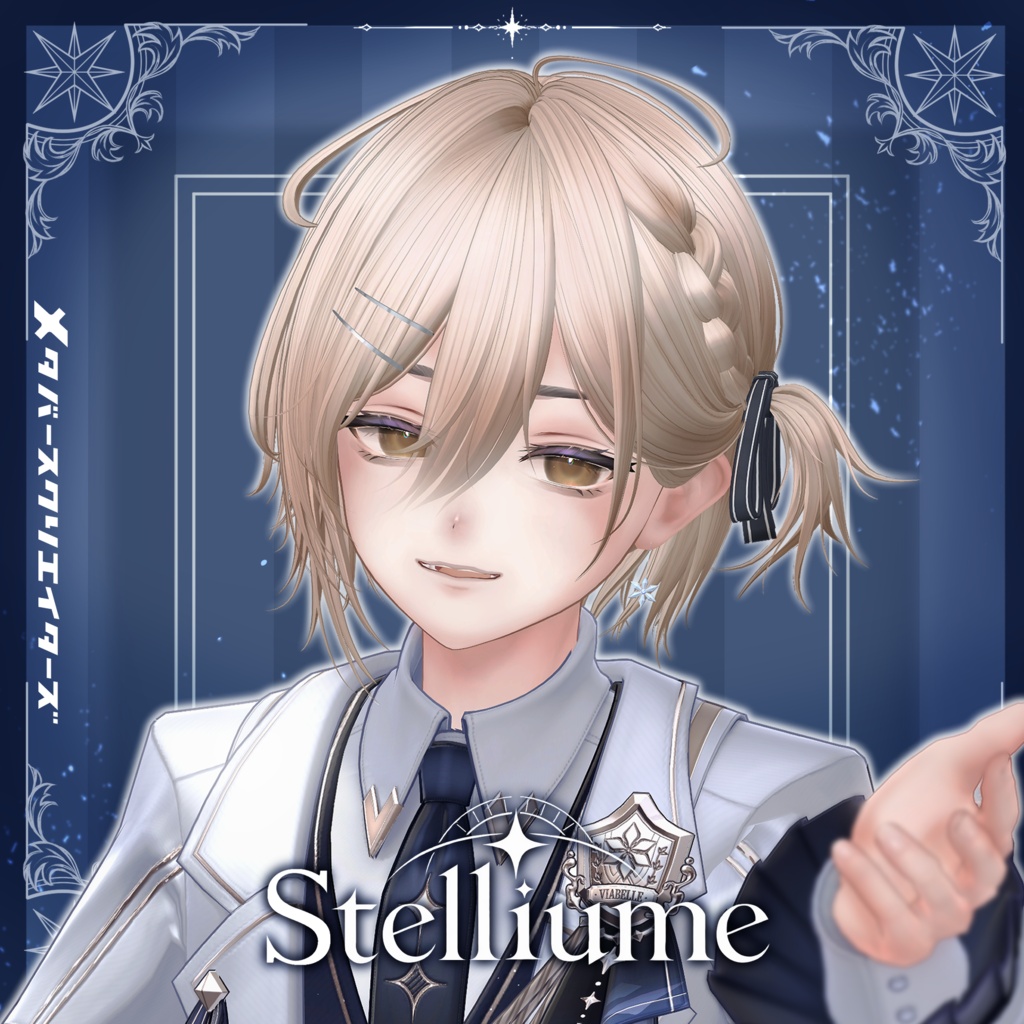
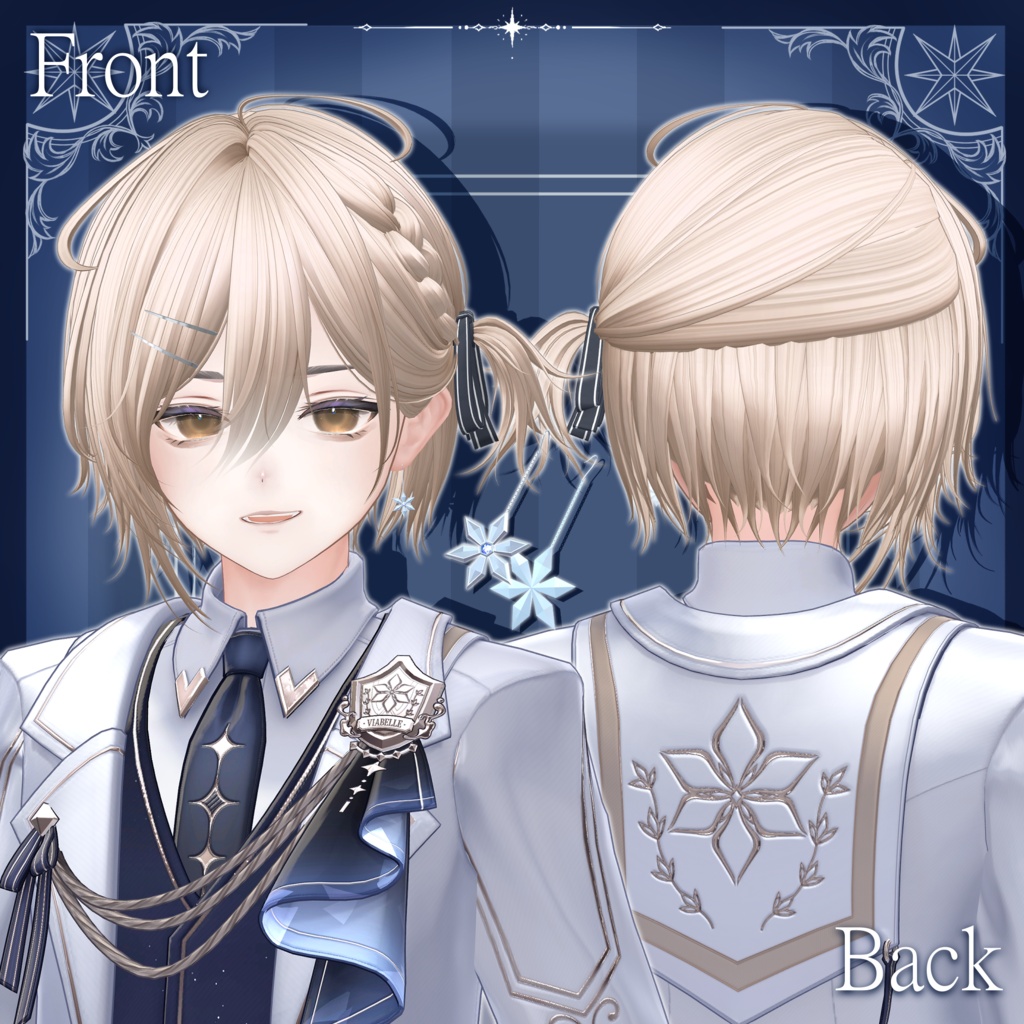
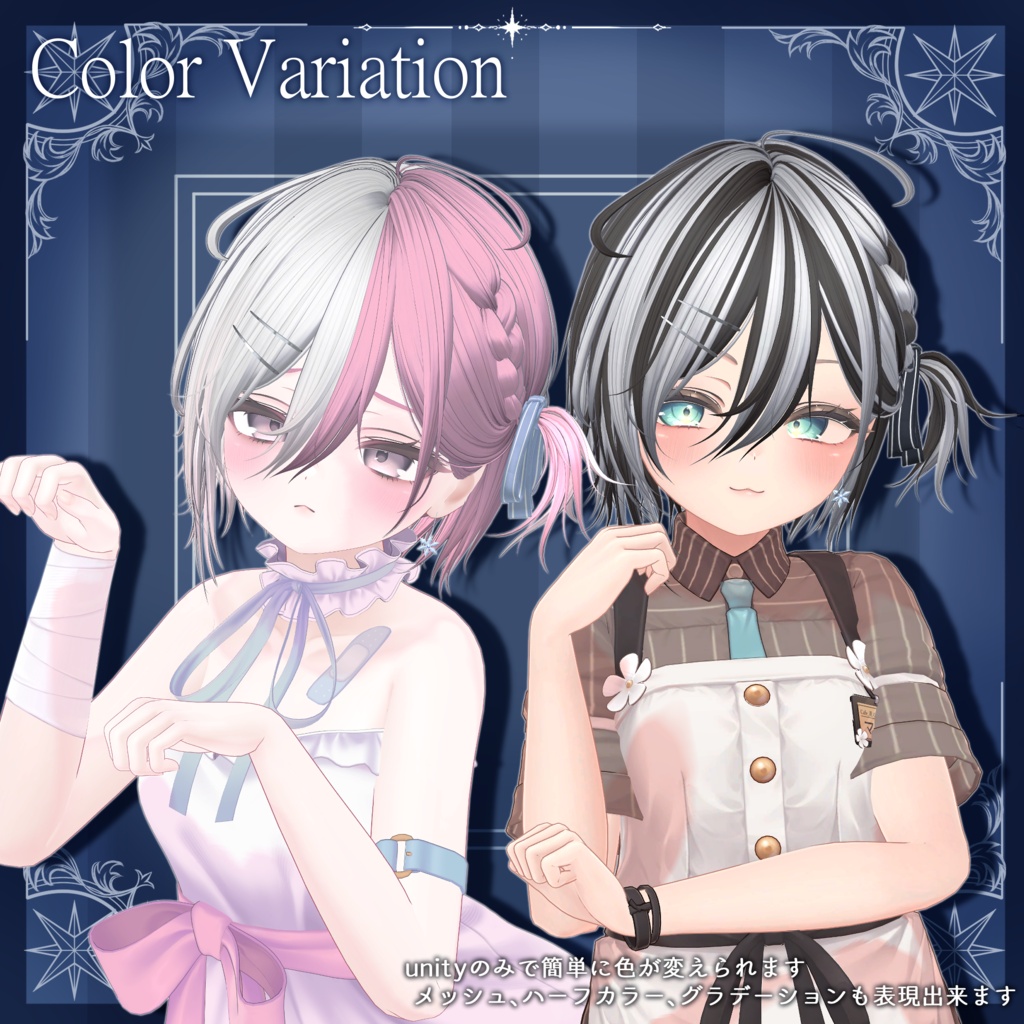
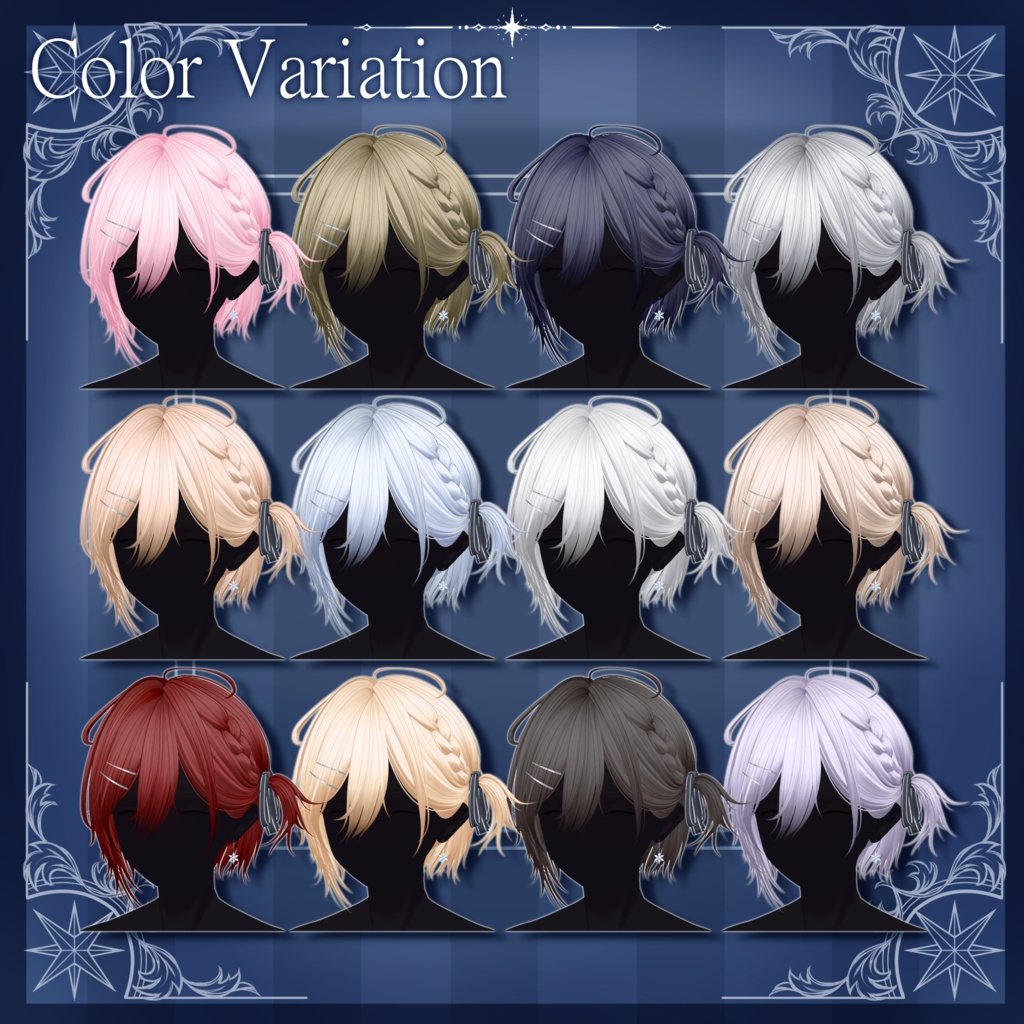
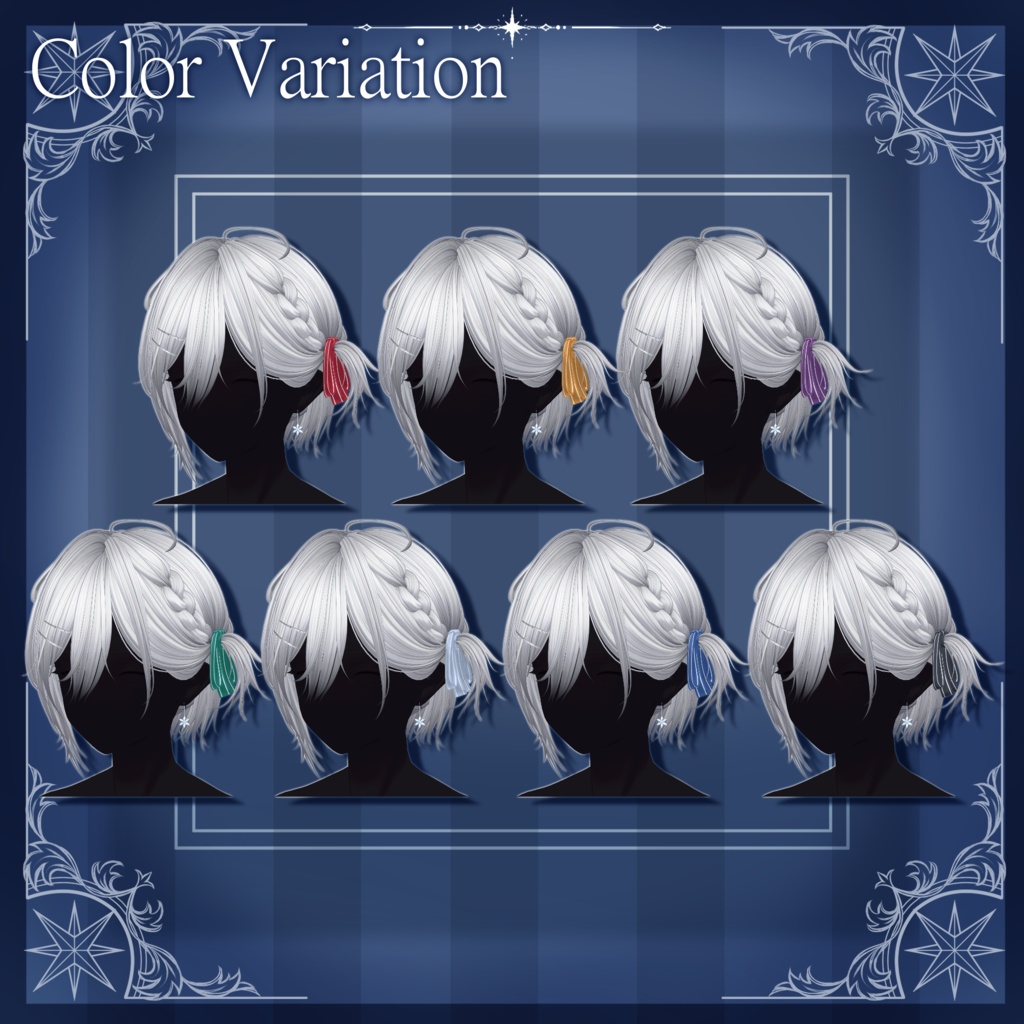
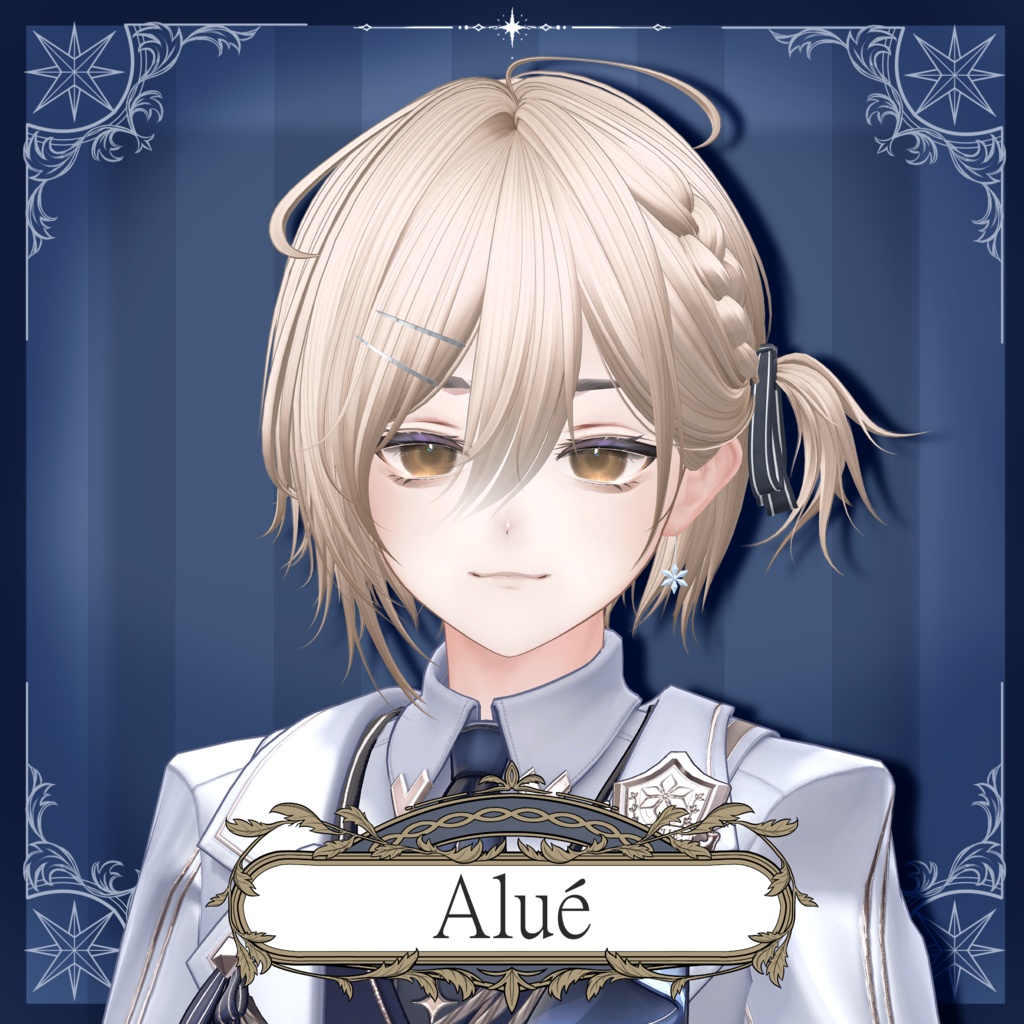
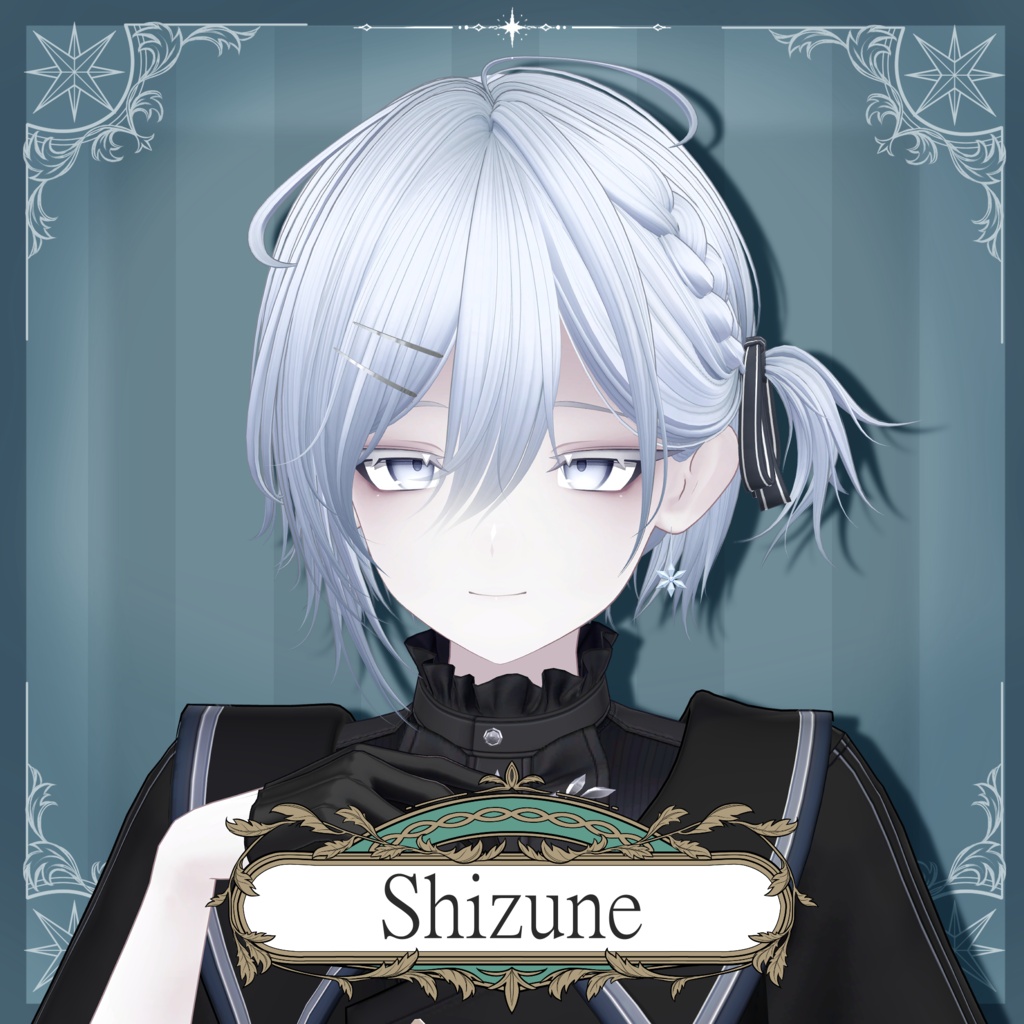
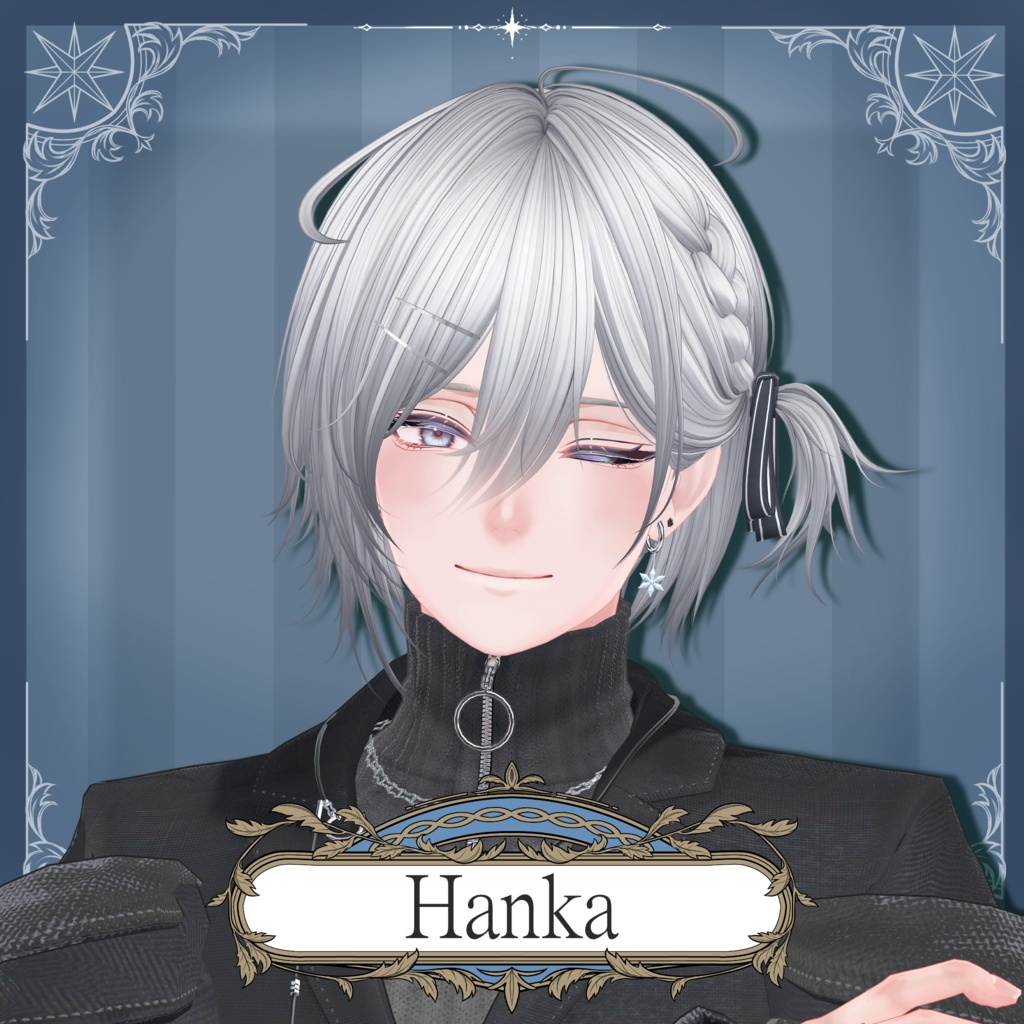
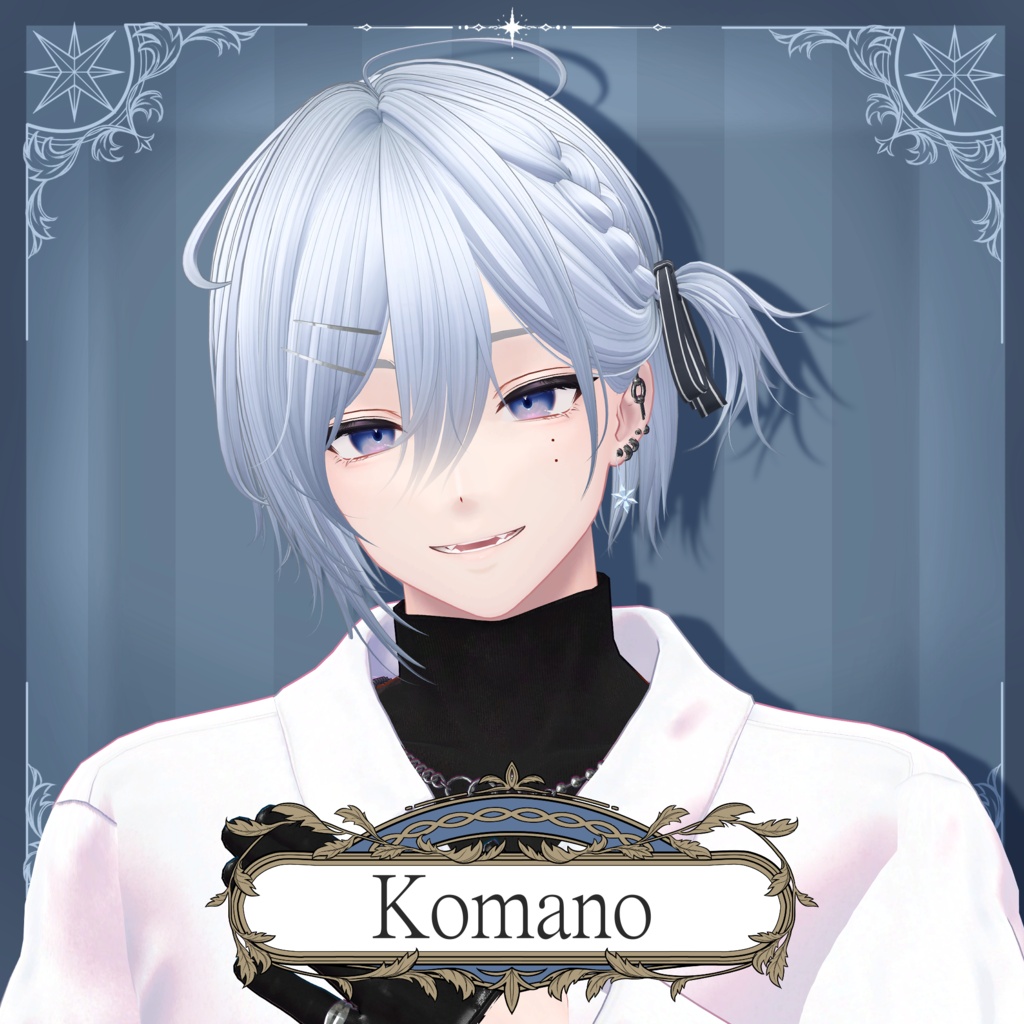
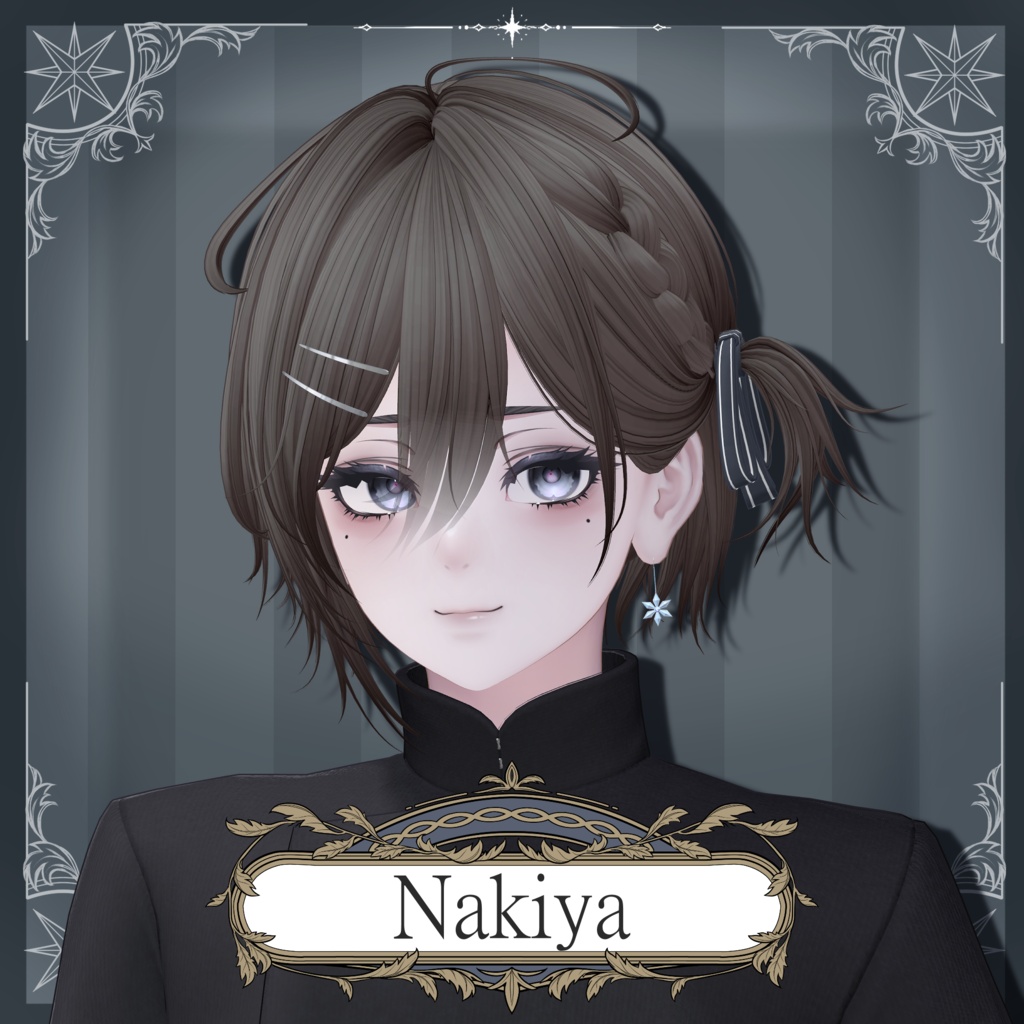
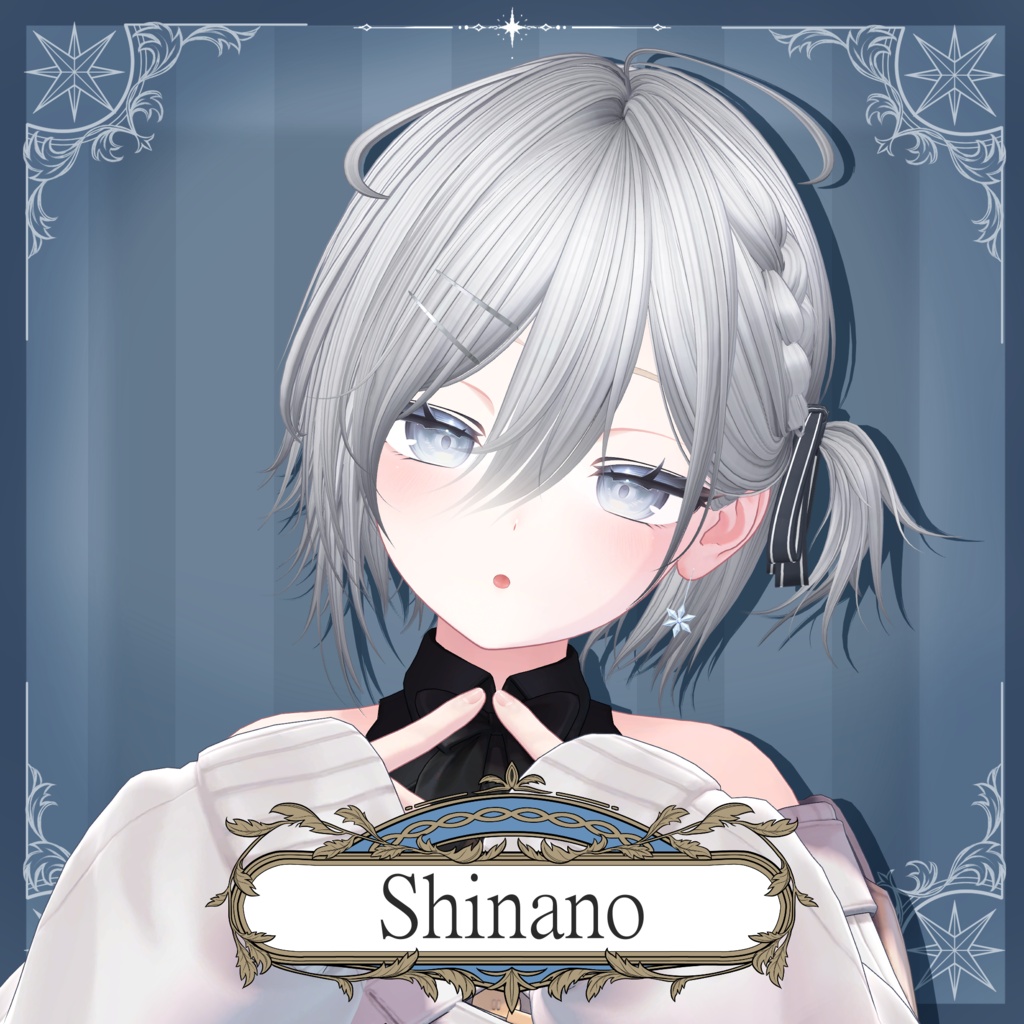
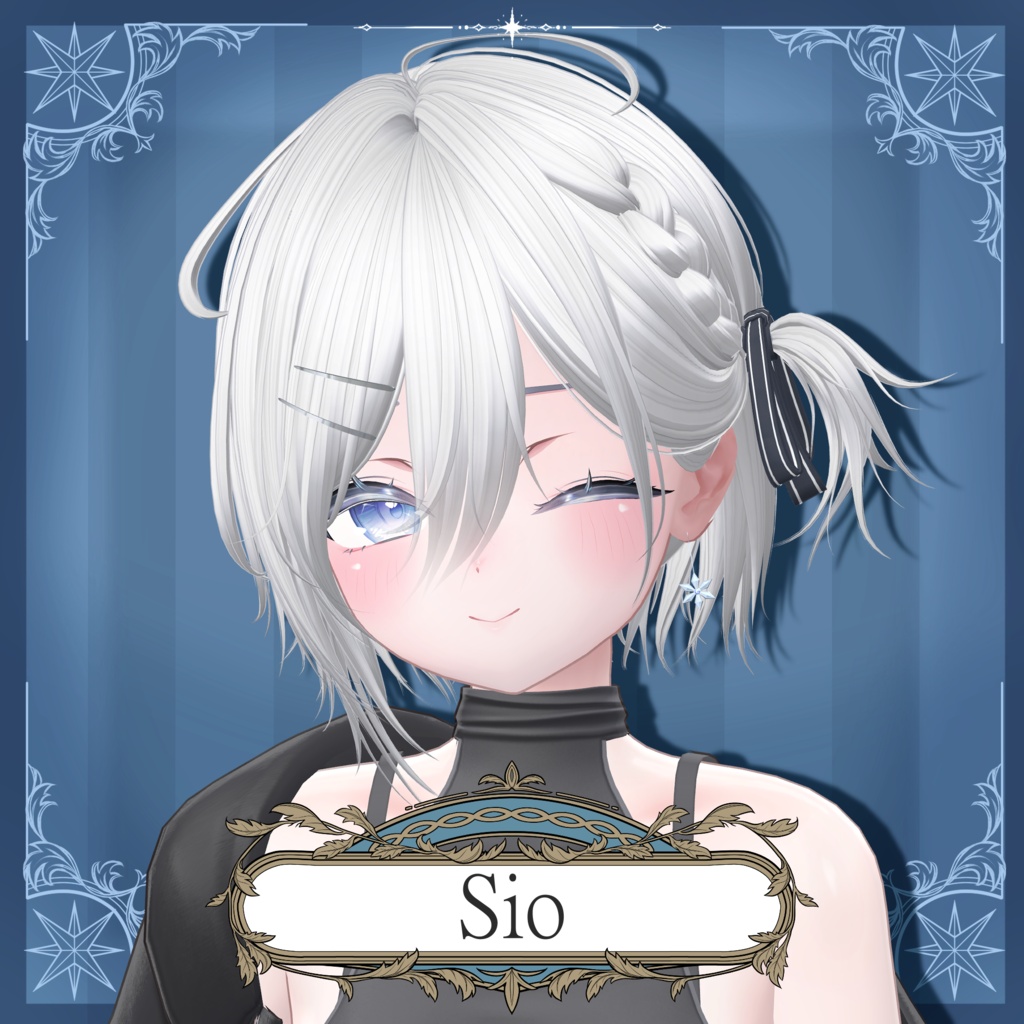
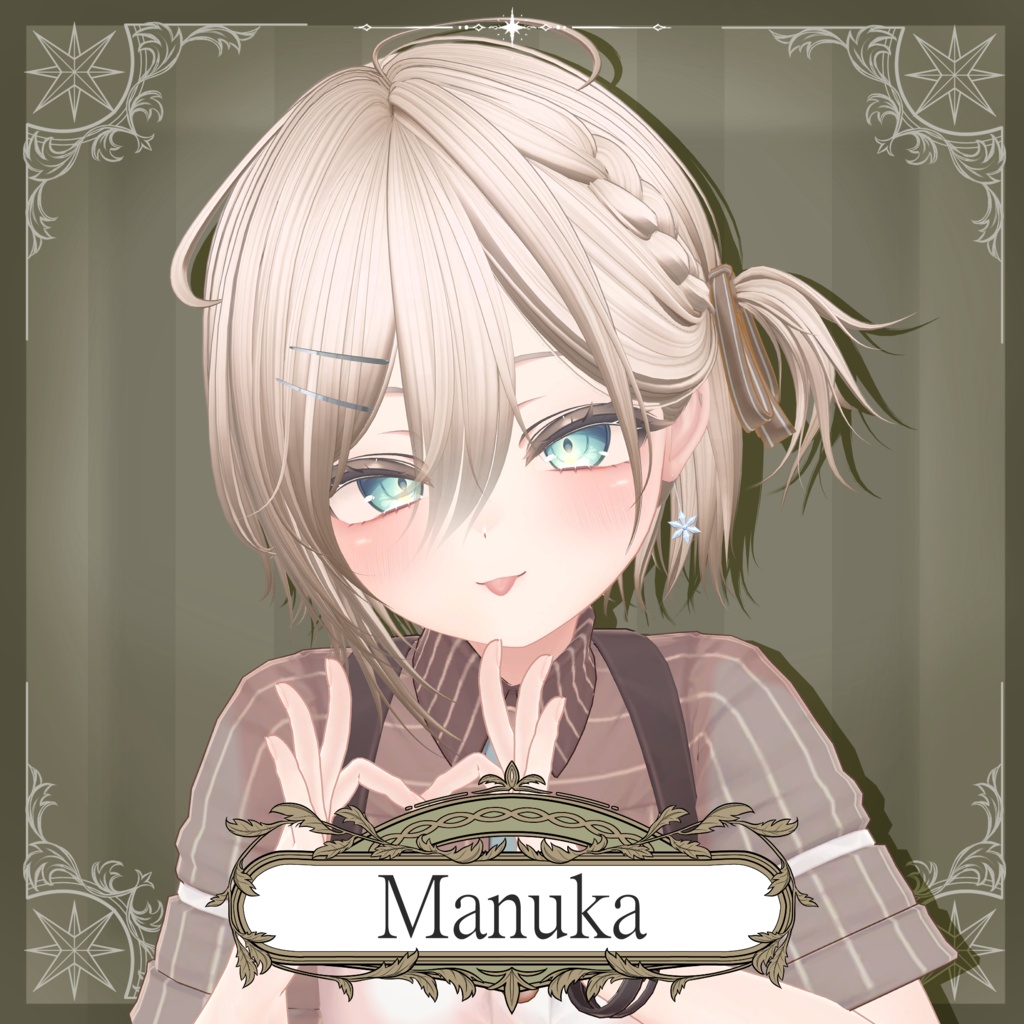
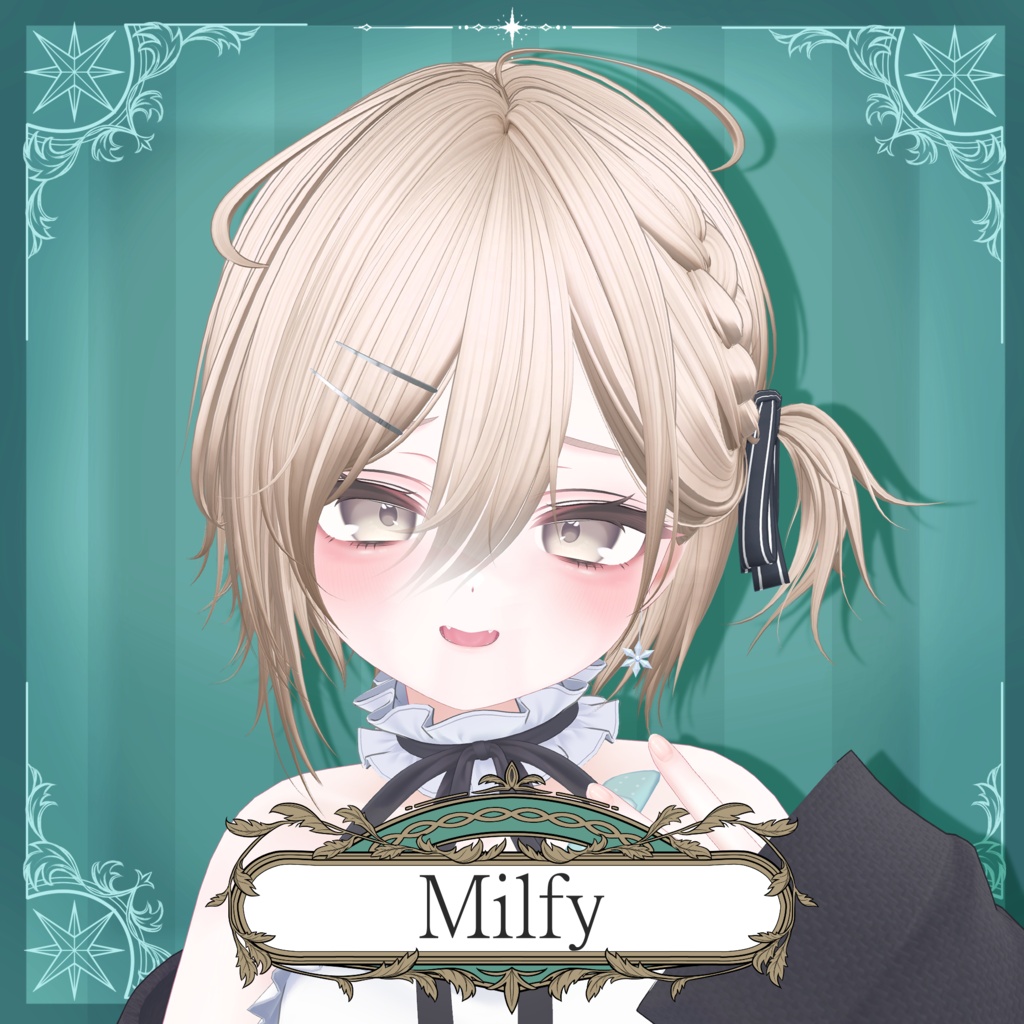
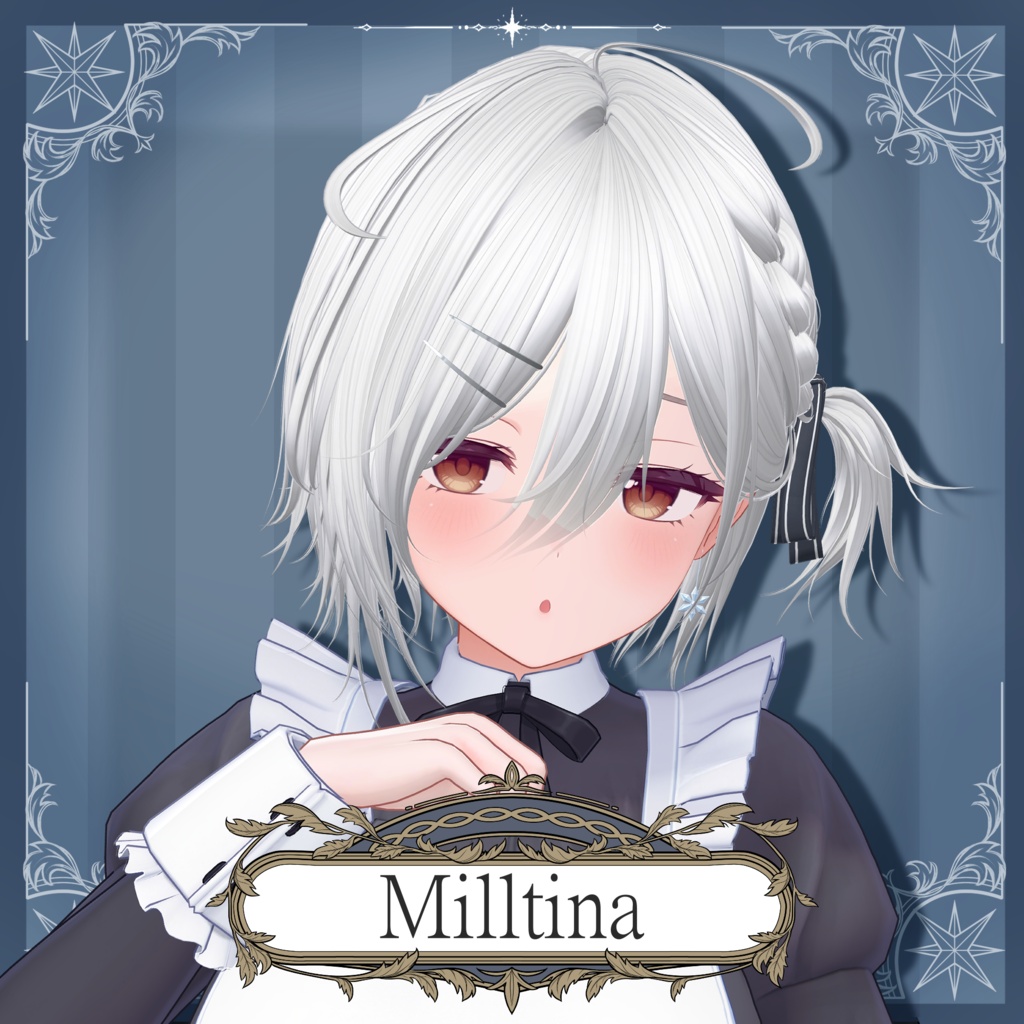
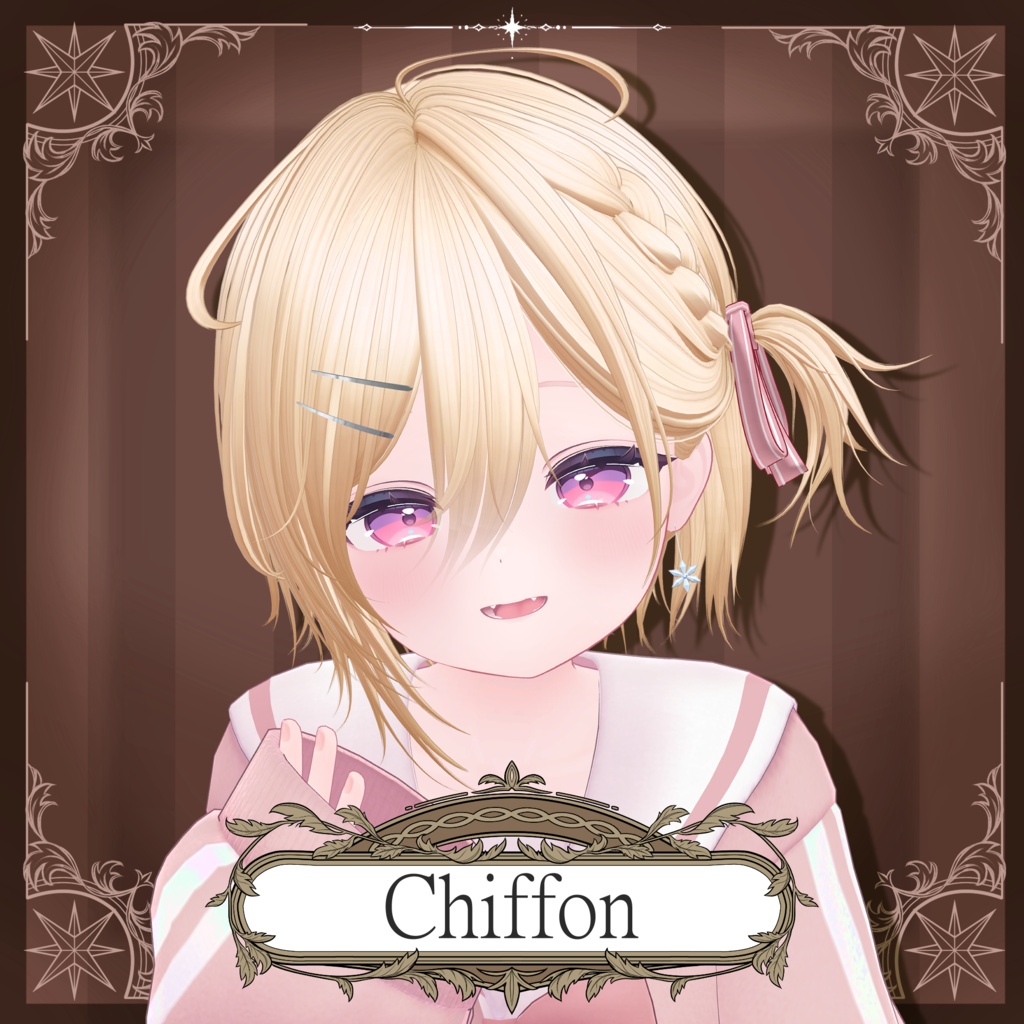
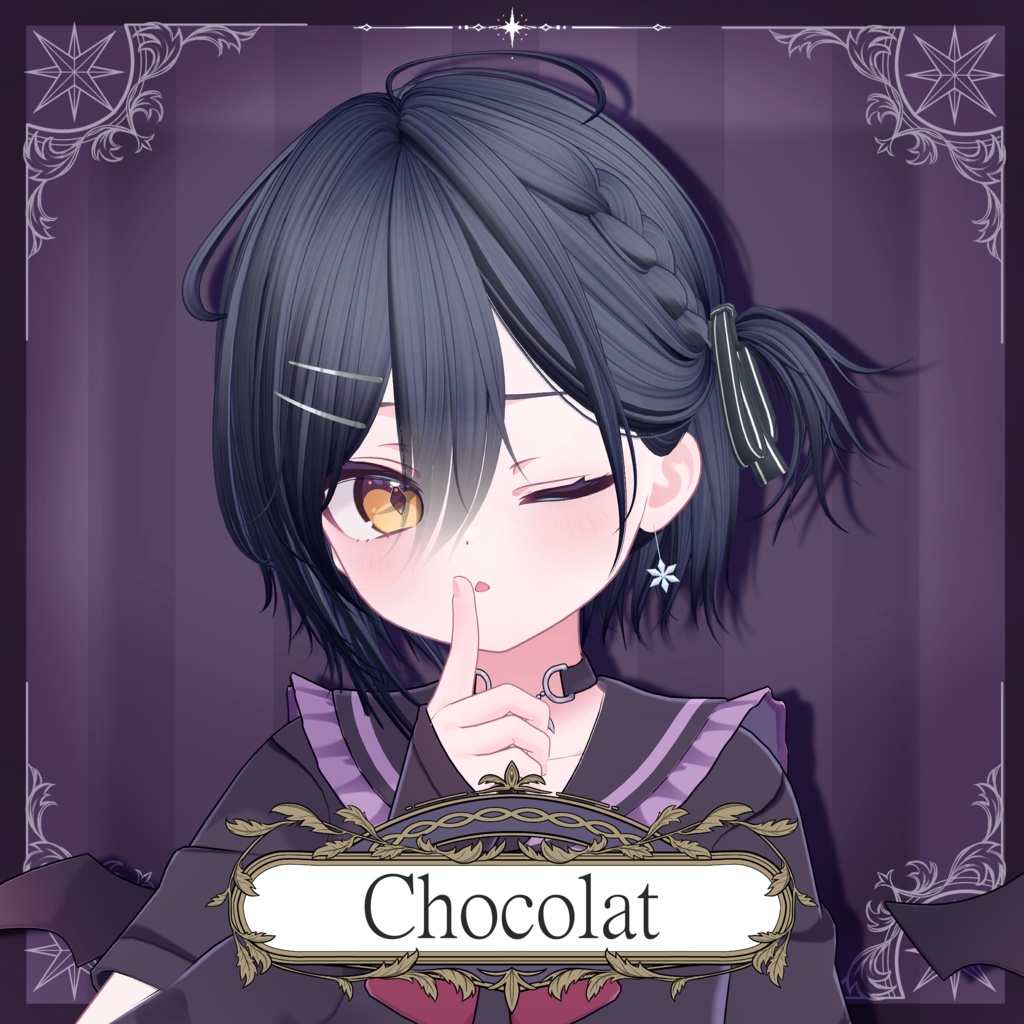
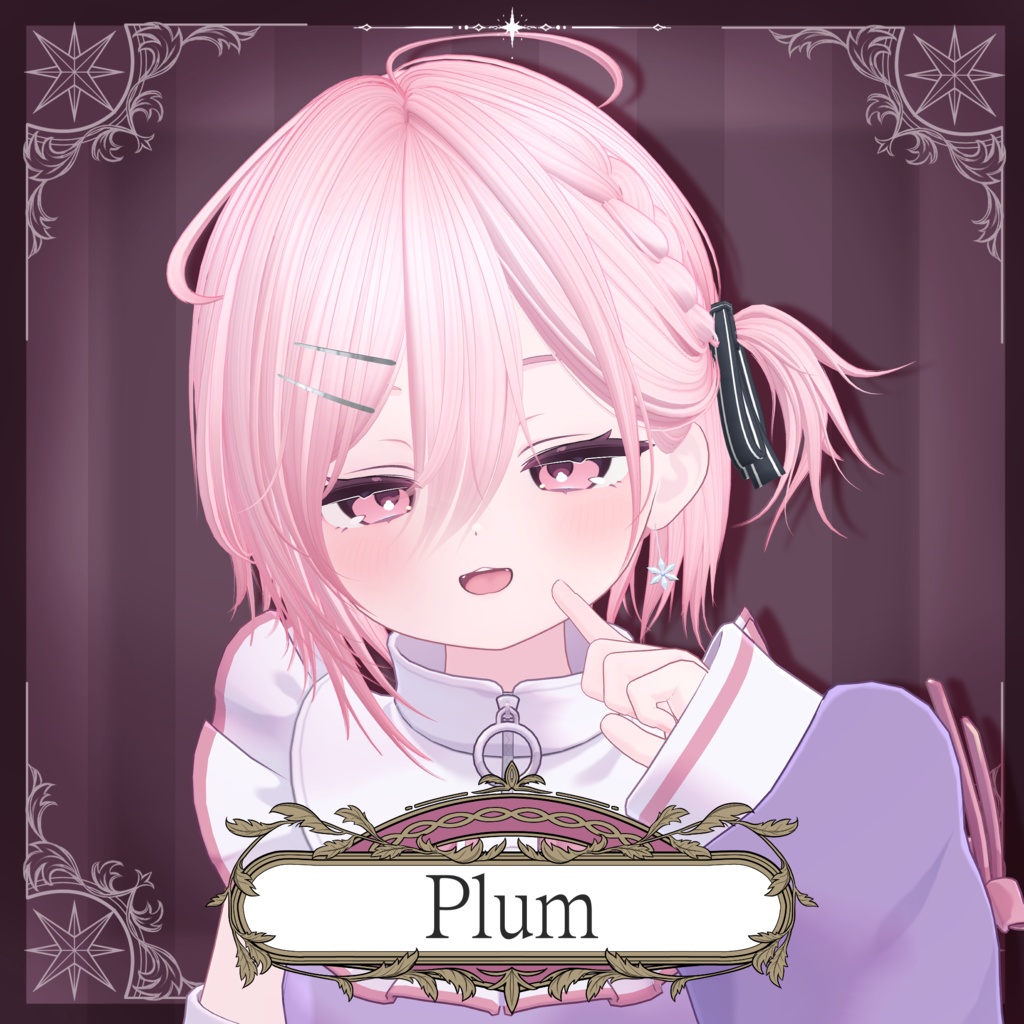
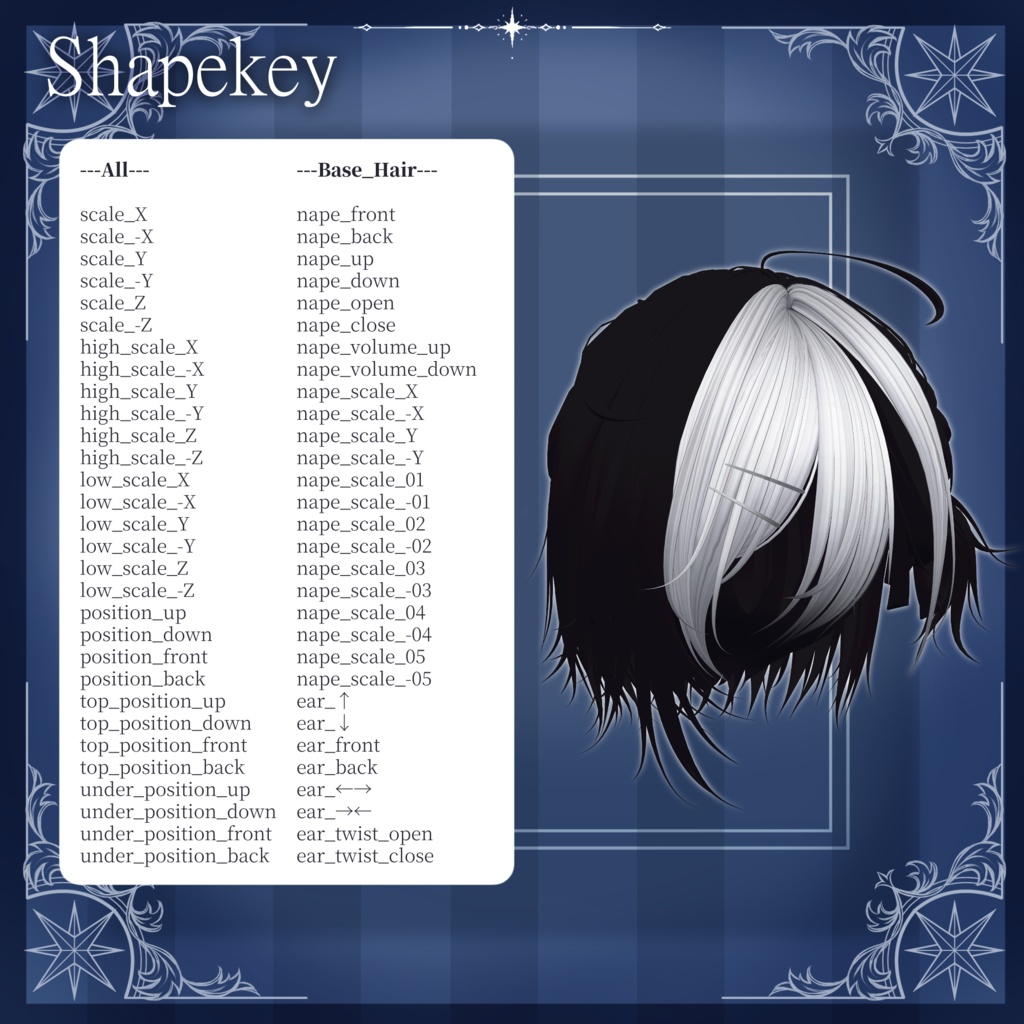
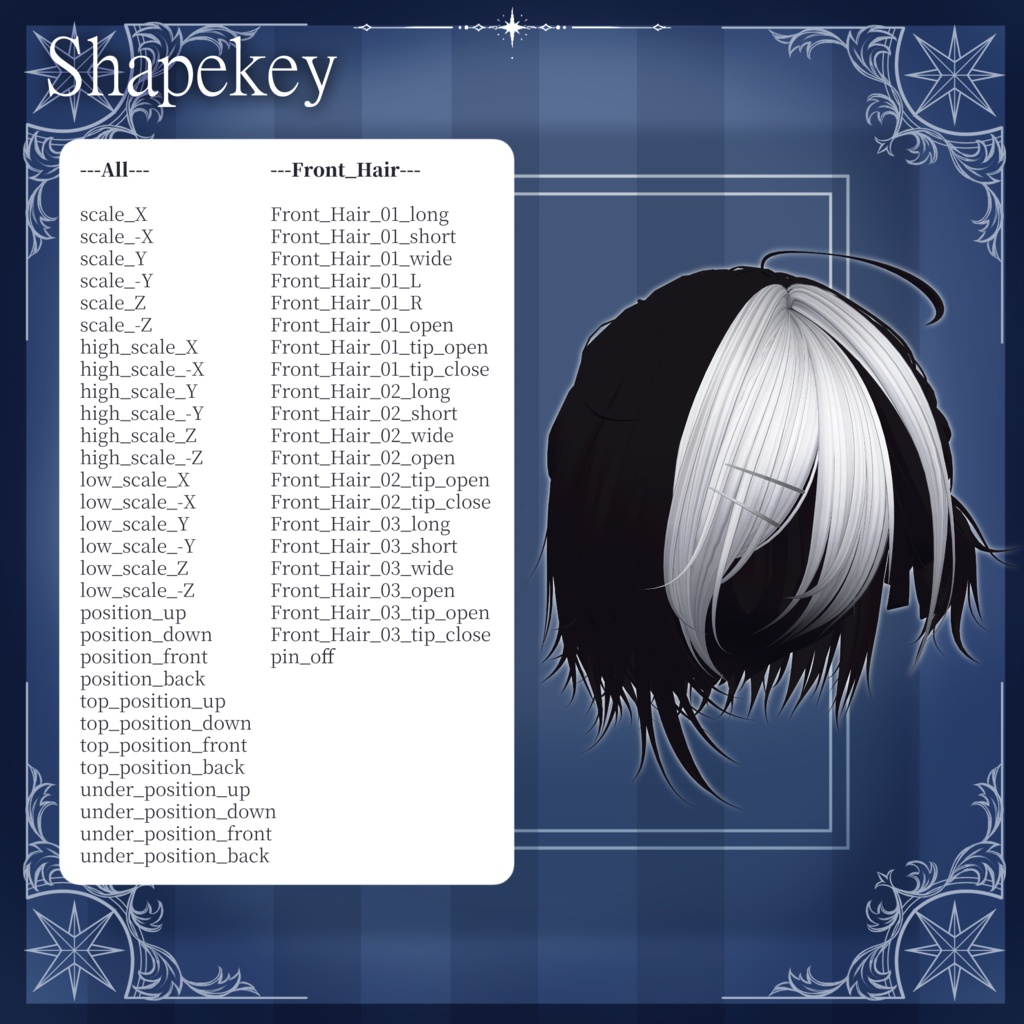
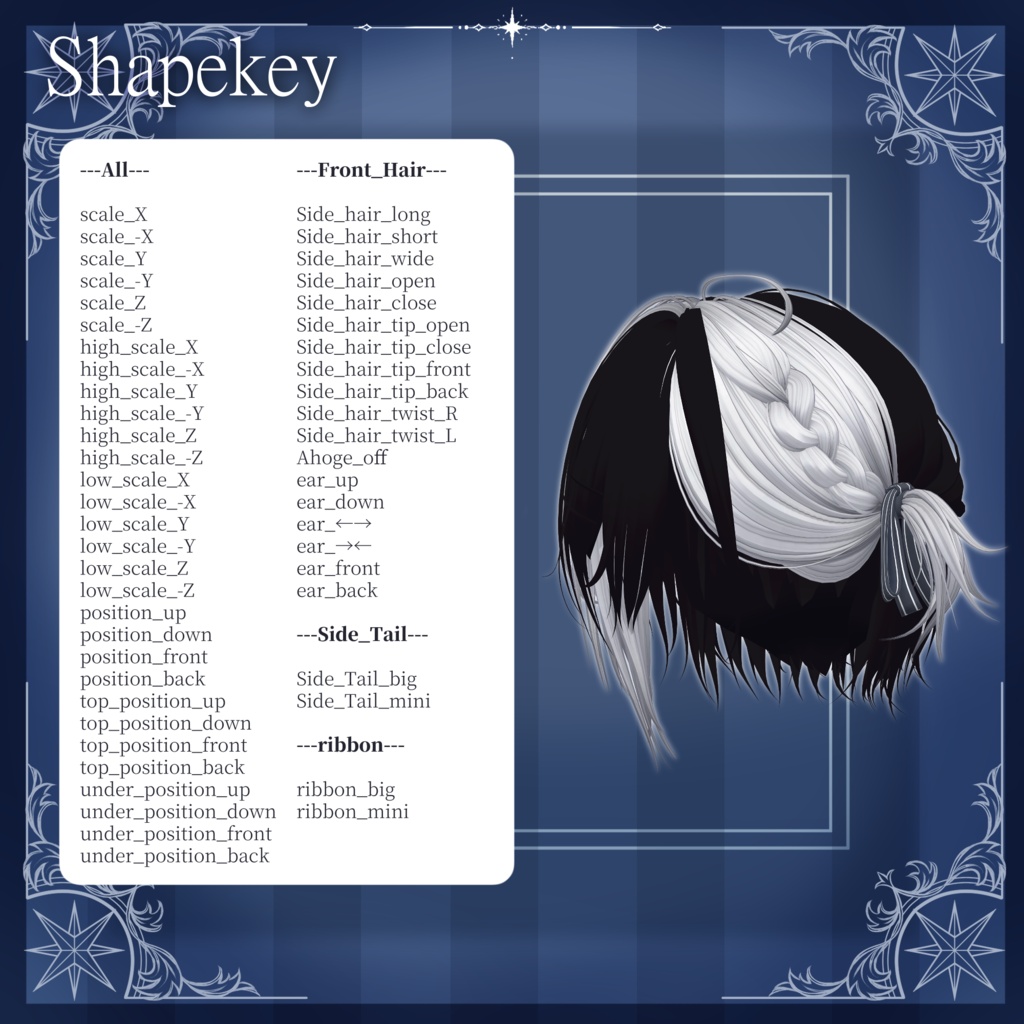
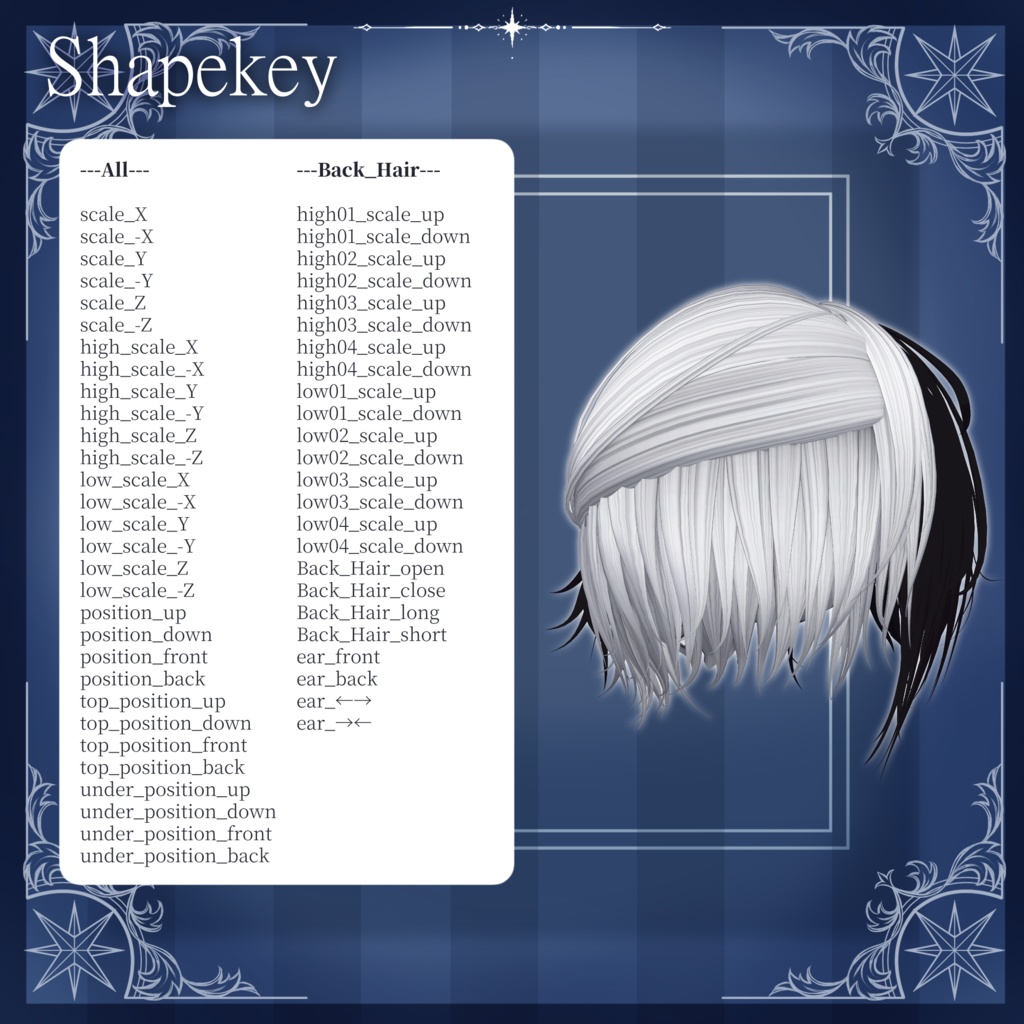


Stelliume – Asymmetrical Side-Tail Hairstyle An asymmetrical hairstyle featuring a side ponytail and braided details. Designed with the world of Clarivia in mind! Important Notes This product is a hairstyle model for VRChat avatars. The avatar itself is not included. Due to the digital nature of this product, refunds and returns are not accepted. Please read and agree to the product description and Terms of Use before purchasing. ◆ Item Details Included Files stelliume_1.0.0.Unitypackage FBX files PSD file for customization ReadMe.txt (instructions) Shader lilToon https://lilxyzw.booth.pm/items/3087170 Required Asset Modular Avatar https://modular-avatar.nadena.dev/ja/docs/intro Model Specifications Stelliume Hairstyle Total Polygons: 23,549 Back_Hair: 8,015 Base_Hair: 348 Side_Hair: 8,794 Side_Tail: 1,504 Front_Hair: 3,780 Ribbon: 1,108 Meshes: 6 Materials: 4 PhysBone Components: 4 Earrings Polygons: 2,260 Meshes: 1 Materials: 2 PhysBone Components: 1 Import Folder Assets > MetaverseCreators_CP > Maori > stelliume ◆ Supported Avatars Fully Supported Alué Semi-Supported The following avatars have been adjusted in Unity based on the original model. Additional adjustments may be required. Komano Nakiya Shizune Hanka Shinano Manuka Sio Milltina Chocolat Chiffon Plum Milfy Numerous shape keys are included for adjusting the size and position of each individual hair part. Feel free to try fitting the hairstyle to avatars not listed above! Adjustment Tips If different objects share shape keys with the same name, setting them to the same value will help ensure consistent adjustments. To adjust the side-tail position, move its bone manually. In the Hierarchy, open Armature and locate Hair_root > Side_Tail_root. For a detailed list of shape keys, please refer to the product images. ◆ Installation Guide Set up the latest VRChat SDK through VCC. Install the required assets (lilToon and Modular Avatar) through VCC. Import the latest package for each avatar you wish to use. Import this product's Unity package. Drag and drop your avatar into the Scene Hierarchy. If available, use the prefab intended for outfit changes or customization. If necessary, hide or set the avatar's original parts (such as its existing hairstyle or animal ears) to Editor Only. Drag and drop the stelliume_[Avatar Name]_.Prefab directly under the avatar. Adjust the scale, position, and shape key values to fit the avatar. This step is unnecessary if a pre-adjusted prefab is included. Upload your avatar through the VRChat SDK. For unsupported avatars, more complex adjustments, including manual bone positioning, may be required. ◆ Customizing Colors Color variation materials are included in the Mat folder. Replace the default materials with your preferred versions. Please note: The materials are divided into Base and A/B variations. A general-purpose material named kaihen is also included in the Mat folder. The Main Color is assigned a gray texture, allowing you to choose any color using HDR. You can also replace the gray texture with a different colored texture for more customization options. Main Color 2nd and Main Color 3rd use half-tone and gradient masks. Alternative masks are available in Tex > option. Replace the masks assigned to Main Color 2nd and Main Color 3rd to try different patterns. For more detailed customization, use the included PSD file. ◆ Terms of Use https://drive.google.com/drive/folders/1qRMXoIxM1ZgacBPfwOigQRtXP1vCbNMn?usp=sharing Please make sure to follow the terms of use of the original avatar as well. ◆ Development Environment Modeling: Blender 3.2.0 Texturing: CLIP STUDIO PAINT Setup: Unity 2022.3.22f1 VRChat SDK - Avatars 3.10.1 (VCC) lilToon 2.3.2 Modular Avatar 1.15.1 ◆ Credits Creator: Maori Gangu Shop https://maorigangu.booth.pm/ Thumbnail Creator: Jikaumu https://x.com/zikaumuvrc?s=11 For inquiries or support, please contact us via BOOTH messages.