
バス営業所の清掃予定・未完了確認表 / Bus Depot Cleaning Schedule and Outstanding Tasks Checklist
- ダウンロード商品¥ 100
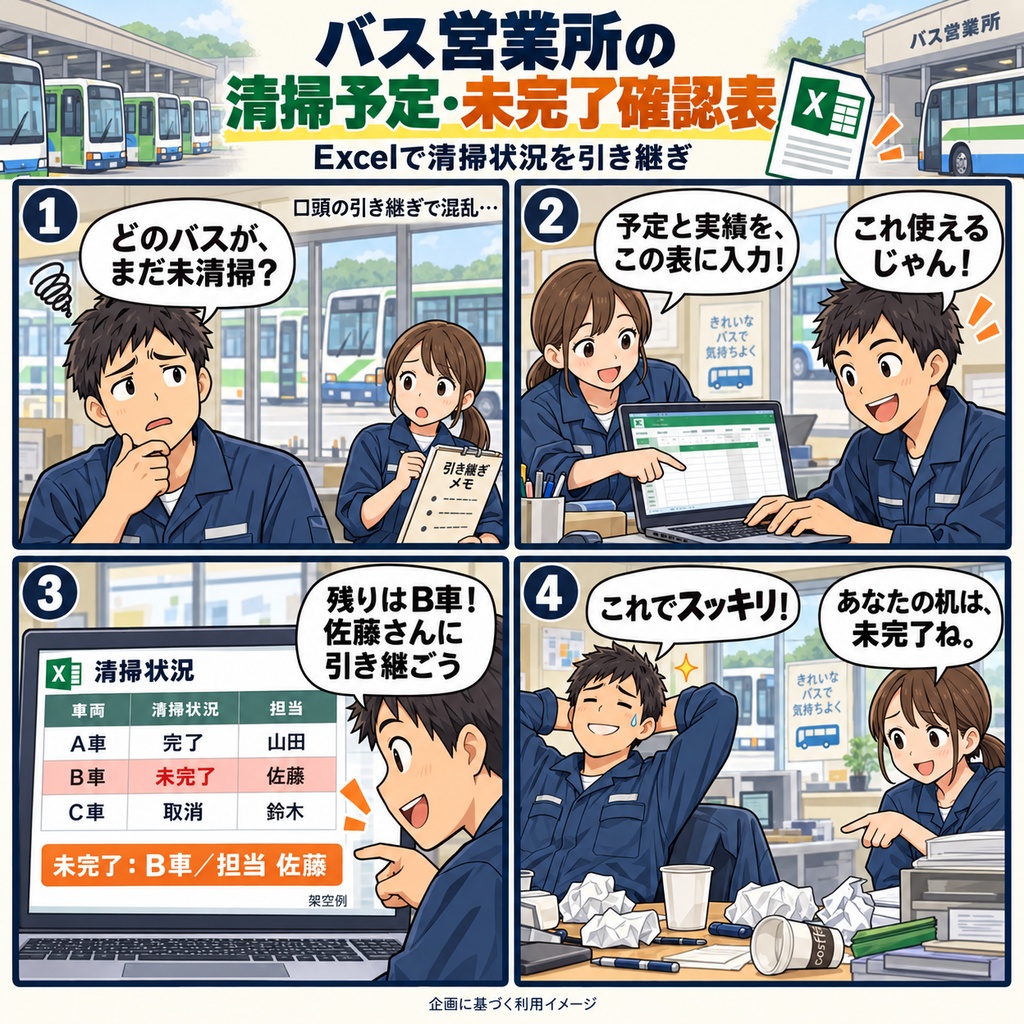
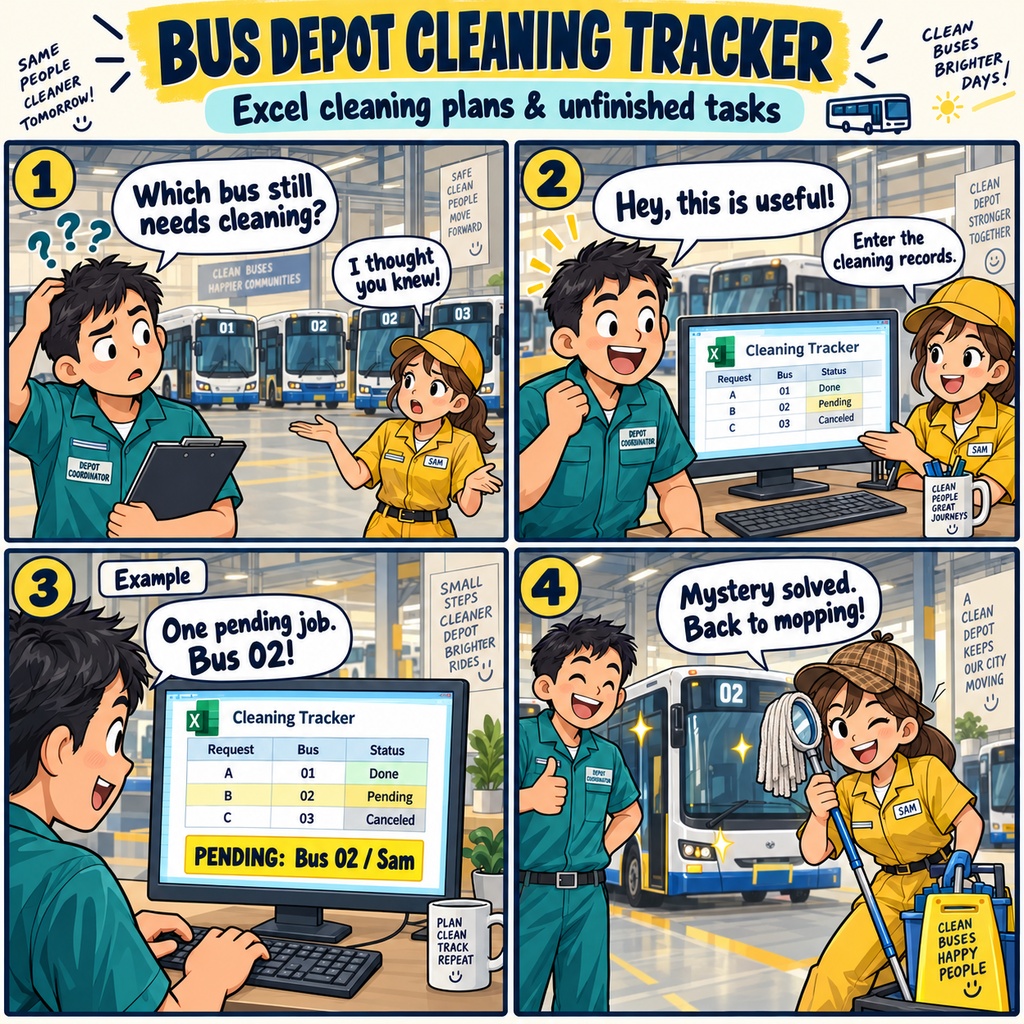


バス営業所の清掃予定・未完了確認表 「今日の清掃、どの車両がまだ残っていたかな」 担当を交代する時間に、口頭のやり取りを思い返しながら、 清掃の予定と終わった作業を確かめることはありませんか。 この商品は、バス営業所を支える清掃部門のためのExcelテンプレートです。 清掃依頼ごとの予定と実績を記録し、 当日の残作業を次の担当者へ引き継ぐ場面でお使いいただけます。 使い始めは、確定した清掃指示を手元に用意するところから。 営業日を入力し、依頼ID、車両ID、清掃予定内容、担当、予定日時を登録します。 清掃が終わったら、実際に完了した日付と時刻を同じ行へ。 必要なことは実施メモに添えて、ひとつのシートで記録と確認を進められます。 入力した内容に応じて、「未完了」「完了」「取消」「要確認」を自動で表示。 必須項目の抜けや依頼IDの重複などがある場合は、 「要確認」とともに不備理由を確認できます。 シート上部には、総登録件数と状態ごとの件数が表示されます。 たとえば、3件の依頼のうち、1件は清掃済み、1件は作業待ち、 もう1件は入庫変更で取り消しになったとき。 必要な項目をそろえ、完了日時や取消理由を記録すると、 それぞれの状態を同じ表で確認できます。 引き継ぎの前には、フィルターで「未完了」を選び、 車両や担当の条件を組み合わせて、確認したい依頼を表示します。 「要確認」の依頼も別に確認し、必要なメモと一緒に次の担当者へ。 未完了が0件のときも、要確認の件数まで確かめるのが基本の使い方です。 絞り込み中に入力を直した場合は、フィルターを再適用してください。 なお、上部の件数は絞り込みにかかわらず、表全体の件数を表示します。 日付をまたいだ清掃も、予定・完了それぞれの実際の日付と時刻で記録できます。 同じ車両をもう一度清掃するときは、新しい依頼IDで別の行へ。 依頼を取り消すときは、元の予定や実施メモを残したまま取消理由を記入できます。 「どの車両の、どの清掃が残っているか」 「次の担当者に、何を確認してもらいたいか」 毎日の引き継ぎに、予定・実績・確認事項を見ながら話せる一枚を。 当日の清掃状況をExcel画面で確認するための表です。 1ブックで1営業所・1営業日を管理し、1行に1回の清掃依頼を登録します。 入力枠は記入例を含めて1,000行です。 ご利用には、Windows 11と日本語のMicrosoft 365デスクトップ版Excelをご用意ください。 マクロは使用せず、一人ずつ編集する使い方です。 お仕事の依頼は下記メールまで ramaya08010801@gmail.com Bus Depot Cleaning Schedule & Outstanding Task Tracker As the next person takes over at the depot, there is one last thing to go through: which buses still have cleaning work outstanding? Some requests are finished, others are waiting, and a change to an arrival may have altered the day's plans. When those details have been passed along in conversation, it can be hard to know where to begin. This Excel workbook gives your cleaning team a place to record those details and review them at handover. Each workbook covers one depot and one business day, with a separate row for each cleaning request for a vehicle. Start with the confirmed cleaning instructions from your operations team. Enter the business date, then add each request's unique ID, vehicle ID, cleaning task, assigned person, and scheduled date and time. Once you have confirmed that the cleaning is finished, record the actual completion date and time in the same row. There is also space for a short work note. For work that continues past midnight, simply use the actual dates and times. Then, when the day's plans change, you can keep the record with the request. Enter a cancellation reason while retaining the original schedule, completion entry, and notes. If a bus needs cleaning again, add a new request ID on a separate row, so that each cleaning request has its own status. The sheet automatically shows whether an entry is incomplete, complete, cancelled, or needs review, based on what you have entered. Missing information and duplicate request IDs are flagged with reasons beside the entry. Overall request counts appear at the top of the sheet and remain visible when you filter the table. At handover, filter for incomplete requests, then narrow the view by vehicle or assigned person as needed. Review entries that need checking as well, even if the incomplete count is zero. If you correct an entry while filtering, reapply the filter to show the rows matching the updated status. You can now go through the remaining requests with the next person: the vehicle, the cleaning task, who is assigned, the scheduled time, and any notes or details still to confirm. Save the workbook, and the day's recorded information is there for the next handover. The workbook provides 1,000 input rows, including sample entries, and uses no macros. It is intended for Windows 11 with the Japanese-language desktop version of Microsoft 365 Excel, with one person editing at a time. Use a separate workbook for each depot and business day. For work inquiries or collaborations, please feel free to contact me at the email address below. ramaya08010801@gmail.com