
金融分析担当の決算資料 対象期・受領版CSV照合表 / Financial Results Document CSV Reconciliation Table for Financial Analysts: Reporting Period and Received Version
- Digital100 JPY
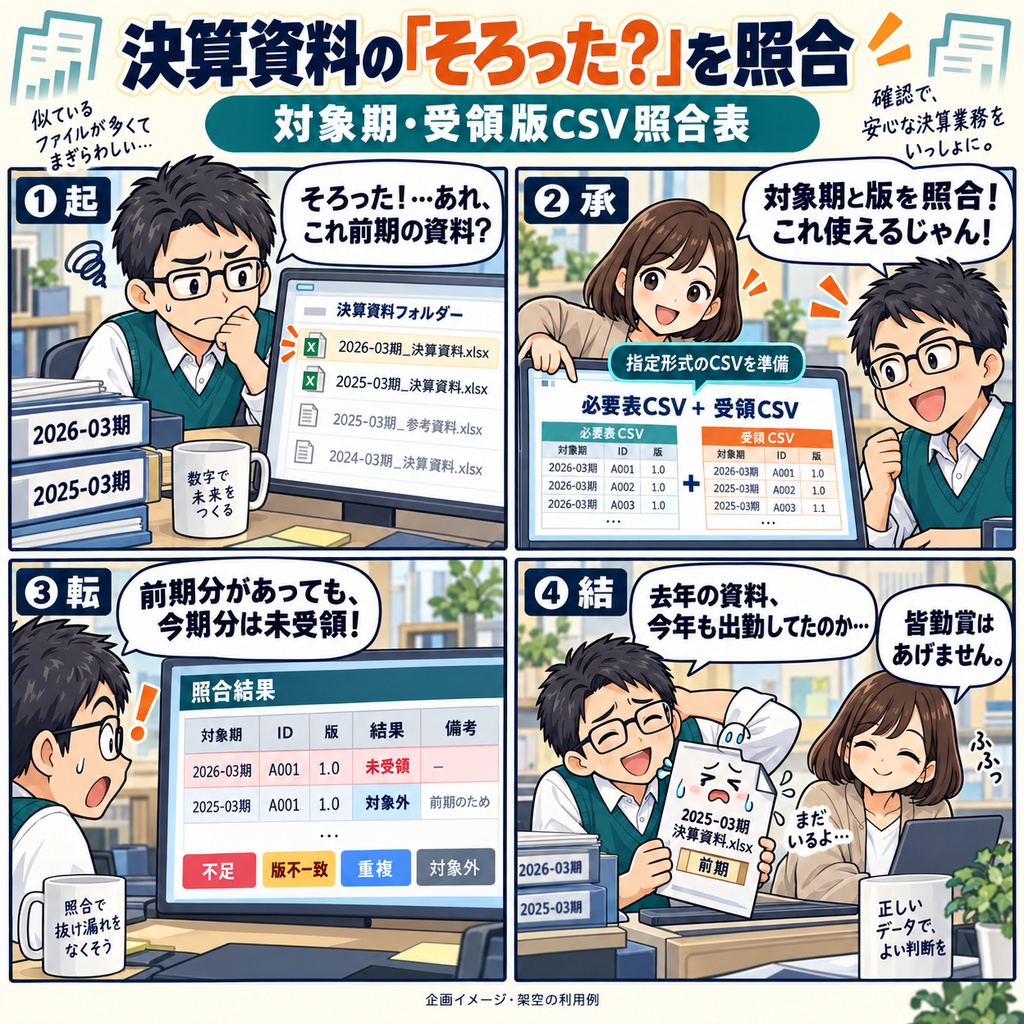
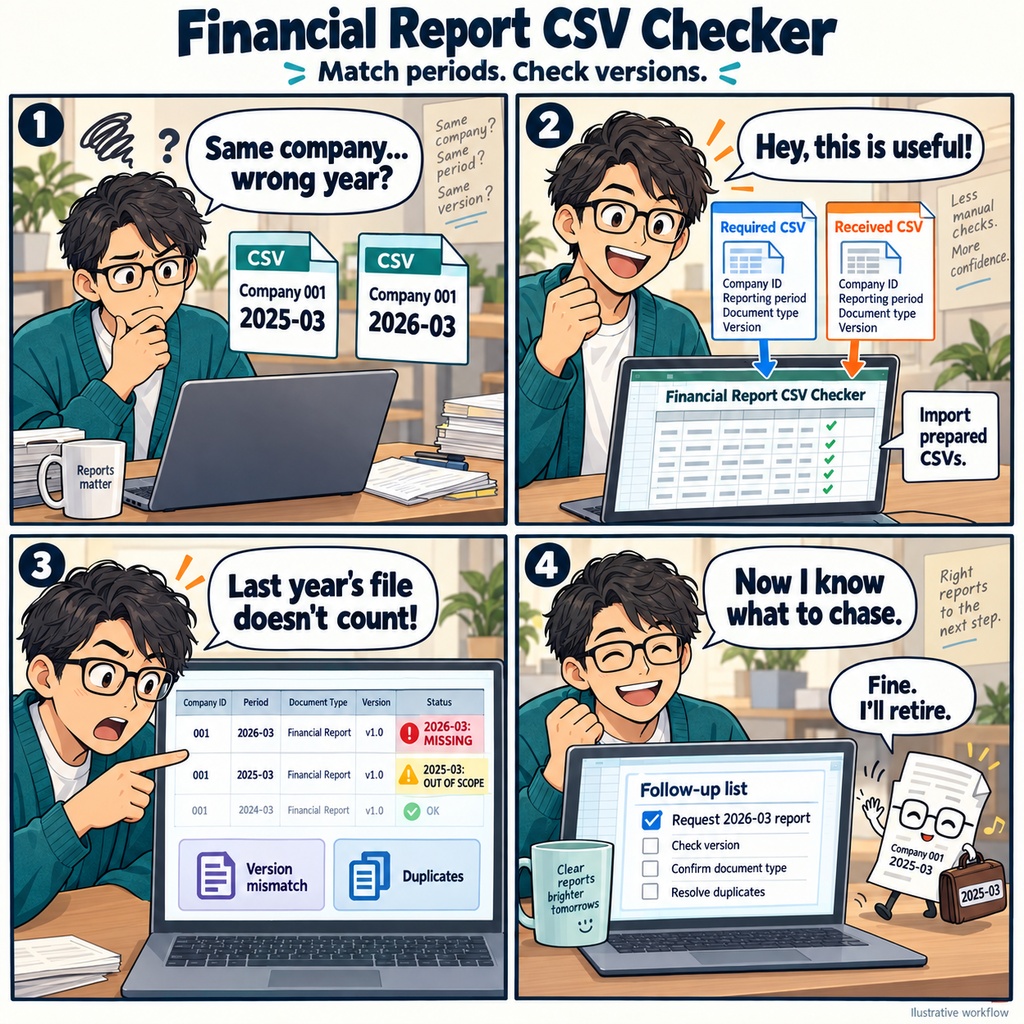


金融分析担当の決算資料 対象期・受領版CSV照合表 決算資料が集まり、いよいよ企業分析に取りかかる前に。 「今回使う期の資料はそろっているだろうか」「受け取ったのは指定した版だろうか」と、一度確かめておきたいことはありませんか。 同じ会社の資料でも、前期の決算短信が混ざっていたり、同じ資料を別の版で受け取っていたりすることがあります。 そんな資料収集の確認に使えるのが、必要な資料と受領した資料を並べて照合する、マクロ付きのExcelブックです。 使い始めは、原資料を見ながら2本のCSVを用意します。 必要な資料には、企業ID・対象期・資料種別ID・指定版・確認期限・状態を。 受領した資料には、企業ID・対象期・資料種別ID・受領版・受領日・ファイル名を記入します。 指定の見出しと列順に整え、UTF-8形式で保存したら、シート「資料照合」に評価基準日を入力し、「CSV2表取込」で読み込みます。 照合に使うのは、企業ID・対象期・資料種別IDの組み合わせです。 入力した識別情報と版を完全一致で照合し、現在の必要条件に対して、基準日以前に受け取った資料の充足状況を表示します。 未受領、版不一致、重複・要確認、対象外資料などを、理由や対応する行番号と一緒に確認できます。 たとえば、必要なのが2026年3月期の決算短信で、受領表にあるのが2025年3月期のものだけなら、今回の必要分は「未受領」に。 前期の資料は「対象外資料」として表示されます。 同じ会社の資料があるかだけでなく、必要な期・種別・版がそろっているかを、入力した情報から確認する使い方です。 結果を見たら、未受領や版不一致など、調べたい行をフィルターで絞り込みます。 確認期限、受領日、ファイル名、判定理由を読み、原資料の確認や収集先への問い合わせ、再収集につなげていきます。 期限前・期限当日・期限超過のほか、充足した資料が期限内に届いたかどうかも確認できます。 訂正があれば、同じシートの入力欄を直して「再照合」を押します。 収集対象から外した資料は状態を「取消」にし、受領記録を残したまま管理できます。再び必要になったときは「必要」に戻して再照合します。 CSVを再度取り込む場合は、手修正や取消状態を含む両表がCSVの内容に置き換わるため、取り込む内容を確認してから進めてください。 分析を始める前の資料確認に、次の収集分を整理するときに。 必要な資料と手元に届いた資料を照らし合わせ、確認が残っている項目をたどるための一冊です。 ご利用には、Windows 11、日本語のMicrosoft 365デスクトップ版Excel 64bit、組織で許可されたマクロ利用環境が必要です。 1分析担当・1回の収集を1ブックで管理し、一人ずつ入力・確認します。各表は記入例を含めて1,000行まで使用できます。 企業ID・対象期・資料種別IDは両表で表記をそろえ、日付は「2026-10-03」のように文字列で入力してください。 お仕事の依頼は下記メールまで ramaya08010801@gmail.com You're getting ready to analyze a company's results, and the documents are starting to arrive. Before you begin, you want to check that you have the reporting period, document type, and version you need. A familiar company name can make an earlier report look like the right one. You may have last year's results on hand while this year's document is still missing, or two received versions that need a closer look. This Excel workbook brings your required-document list and received-document records together on one worksheet. Designed for financial professionals who analyze companies, it matches the information you enter by company ID, reporting period, and document type ID, then compares the required and received versions using exact matches. Start with two UTF-8 CSV files prepared in the manual's specified six-column format: one for required documents and one for received documents. Enter an assessment date, then import both files. The required list contains the version, review deadline, and requirement status; the received list contains the version received, receipt date, and file name. Keep identifiers consistent across both lists and enter dates as text in yyyy-MM-dd format. The results show which requirements are met, which documents have not been received, and where versions differ or duplicate records need review. Documents from another period or of another type appear separately when their identifiers do not match a requirement. Each result includes a reason and corresponding row references for checking the recorded details against your source documents. For example, if you need a report for 2026-03 but have recorded one for 2025-03, the current-period requirement remains unreceived. The earlier report appears as a document outside the current requirements. Receipt dates also matter: the workbook assesses fulfillment using eligible receipts on or before your chosen assessment date, against your current requirements. Deadline results show whether an outstanding item is due, overdue, or still before its deadline, and whether a fulfilled requirement was received on time or late. From there, filter the results to review the items that need attention. Check the referenced rows and file names, confirm the details in the original documents, and correct the input on the same worksheet. Run the comparison again after making changes and check the update status before reading the results. If a document is no longer required, you can cancel that requirement while retaining its details and received records, then restore it when needed. As you work through the collection, the worksheet gives you a place to review what has arrived and what still needs follow-up. Save the workbook in .xlsm format, then return to it with your latest collection information and run the comparison again. Use one workbook for one analyst and one document-collection round, with one person editing at a time. Each table supports up to 1,000 used rows, including the supplied examples. The workbook requires Windows 11, the Japanese-language 64-bit desktop edition of Microsoft 365 Excel, and an environment where your organization permits macros. Reimporting the CSV files replaces both tables, including manual edits and cancellation statuses, so review those entries before importing again. For work inquiries or collaborations, please feel free to contact me at the email address below. ramaya08010801@gmail.com