
運用型信託会社の定例報告資料 回収・版確認表 / Periodic Reporting Materials Collection and Version Checklist for Investment-Type Trust Companies
- Digital100 JPY
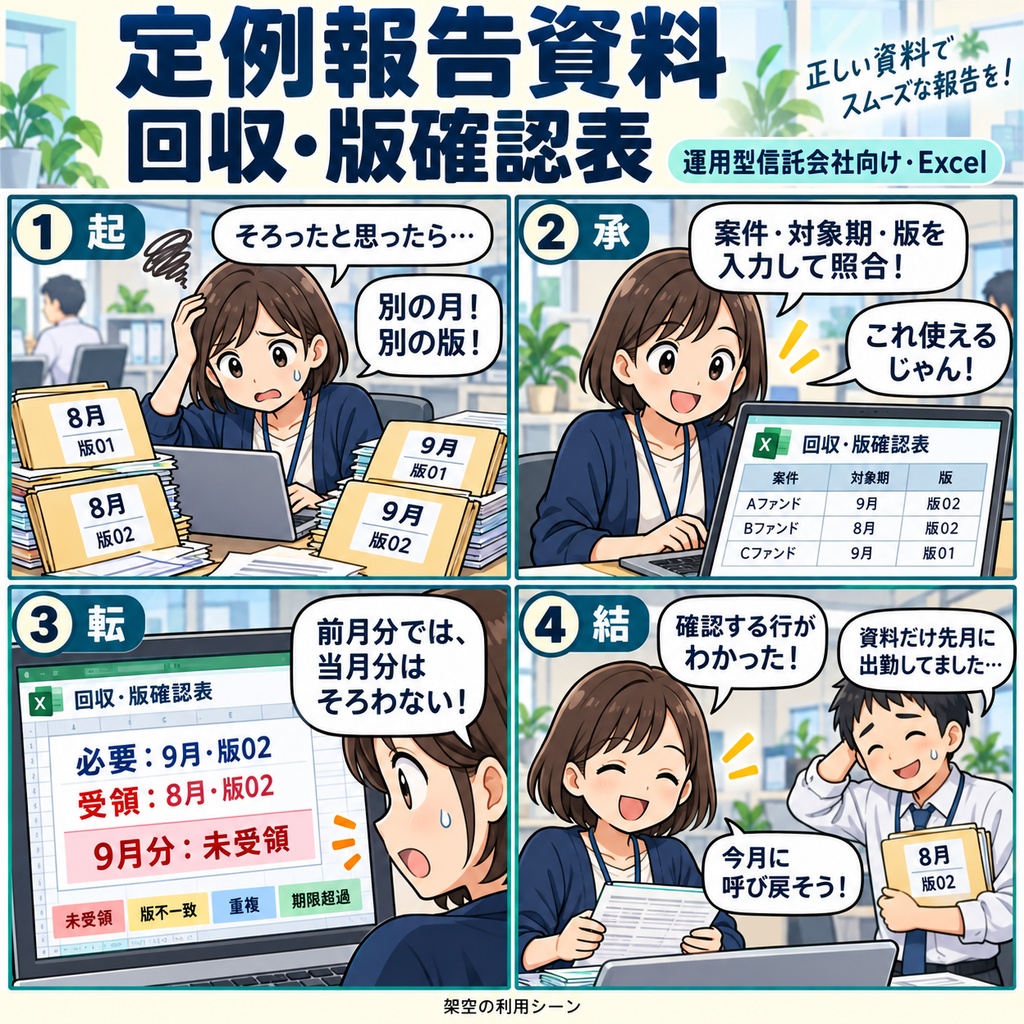
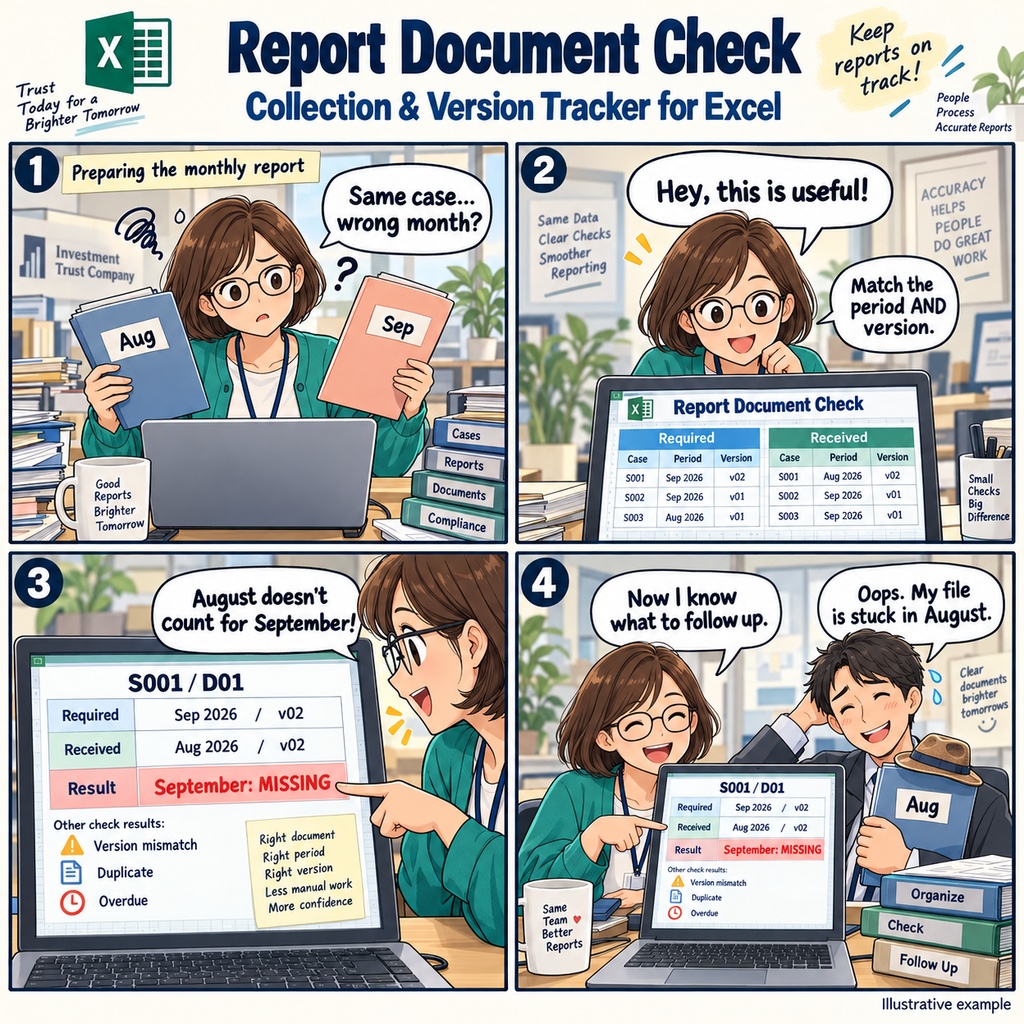


運用型信託会社の定例報告資料 回収・版確認表 定例報告の準備が始まり、案件ごとの資料を集めるころ。 届いた資料を見ながら、「今月分はそろっているかな」「指定した版で届いているかな」と、一つずつ確認していく場面はありませんか。 同じ案件の資料でも、対象の月や版が違えば、必要なものが届いたとは限りません。 前月分の資料と当月分の資料を見分けながら、受領した事実と、指定版がそろっているかを分けて整理したい。 そんな取りまとめの場面で使える、Excel形式の回収・版確認表です。 まずは部署・管理対象期・確認日を設定し、必要表に案件ID、資料種別ID、指定版、社内期限などを入力します。 資料が届いたら、同じシートの受領表へ、資料そのものの対象期、受領版、受領日、参照先を登録します。 案件ID・対象期・資料種別IDの3項目が完全に一致する記録を照合し、受領実績、版の一致・不一致、重複、社内期限の判定や入力不備を画面に表示します。 たとえば、当月分を必要としている案件に前月分の資料が届いたとき。 案件と資料の種類が同じでも、対象期が異なる記録は当月分の受領として扱いません。 また、受領実績がある資料でも、指定版と一致しているかは別の欄で確認できます。 確認したいときは、フィルターで未受領・版不一致・期限超過などの行を絞り込みます。 保留や入力不備の理由も読み、記録した原資料の番号や保存場所をたどって内容を確認してください。 版の差替えは元の受領行を更新し、必要資料の取消・再開も、記録を残したまま同じ必要行で行えます。 次に集める資料はどれか、指定版を確かめる資料はどれか。 定例報告の取りまとめに向けて、原資料と照合結果を見ながら、資料ごとの回収状況を確認していくための一冊です。 1ブックで1部署・1つの管理対象期を扱い、必要表と受領表はそれぞれ記入例を含めて1,000行です。 Windows 11、日本語のMicrosoft 365デスクトップ版Excel 64bitで、一人で編集してご利用ください。 社内で確定した必要資料・指定版・社内期限と、実際に受領した原資料を用意し、社内で使用を認められた識別情報・参照情報を入力します。 お仕事の依頼は下記メールまで ramaya08010801@gmail.com Periodic Reporting Document Collection & Version Tracker For Investment-Type Trust Companies When you are gathering documents for a regular internal report, each file needs to belong to the right case, the right reporting period, and the right version. This Excel workbook gives the person coordinating those documents a place to record what is required and what has actually arrived. A document may look familiar and still belong to last month's report. Another may cover the correct period but carry a different version from the one requested. For example, an August document for the same case and document type does not count as a September receipt. The workbook matches records by case ID, reporting period, and document type ID, with version comparison shown separately from receipt status. Start by setting your department, reporting period, and review date. In the required-documents table, enter the case ID, document type ID, specified version, internal deadline, status, and a reference to the source of those requirements. In the receipt table beside it, record each document's actual period, version, receipt date, and source reference. Enter or paste these details into the designated input fields, keeping IDs and versions as text so that leading zeros and letter case are preserved. The results appear on the same worksheet. You can review missing receipts, version differences, duplicate records, and internal deadline results, along with reasons for incomplete entries or results awaiting clarification. Receipt status and version agreement remain separate, so you can read them together before deciding what to follow up on. Deadline checks use the internal deadline and review date you enter. Use the column filters to focus on missing documents, version mismatches, duplicates, or items past their internal deadline. Matching continues across all registered rows, including those hidden by filters. The recorded source references and matching receipt-row details give you a way back to the original material when a result needs a closer look. As documents arrive or requirements change, update the original entries and review the current results. When a received version is replaced, update its existing receipt row with the new version, receipt date, reference, and reason. You can also cancel and reactivate a requirement in its original row while keeping the receipt record. At the next review, you can return to the same worksheet, read the current collection status, and choose the documents that need collection, clarification, or correction. It brings the required conditions and recorded receipts together for your day-to-day reporting preparation. Each workbook handles one department and one managed reporting period. Both tables provide 1,000 rows, including the sample entry. Use Windows 11 with the Japanese-language, 64-bit Microsoft 365 desktop version of Excel, with one person editing at a time. Have your internally confirmed requirements, specified versions, deadlines, and received source documents ready, and use identification and reference information approved for internal use. Review the results on screen and save your updates in Excel. For work inquiries or collaborations, please feel free to contact me at the email address below. ramaya08010801@gmail.com