

どこでもバスケットボールギミック【ModularAvatar対応】
- Digital500 JPY
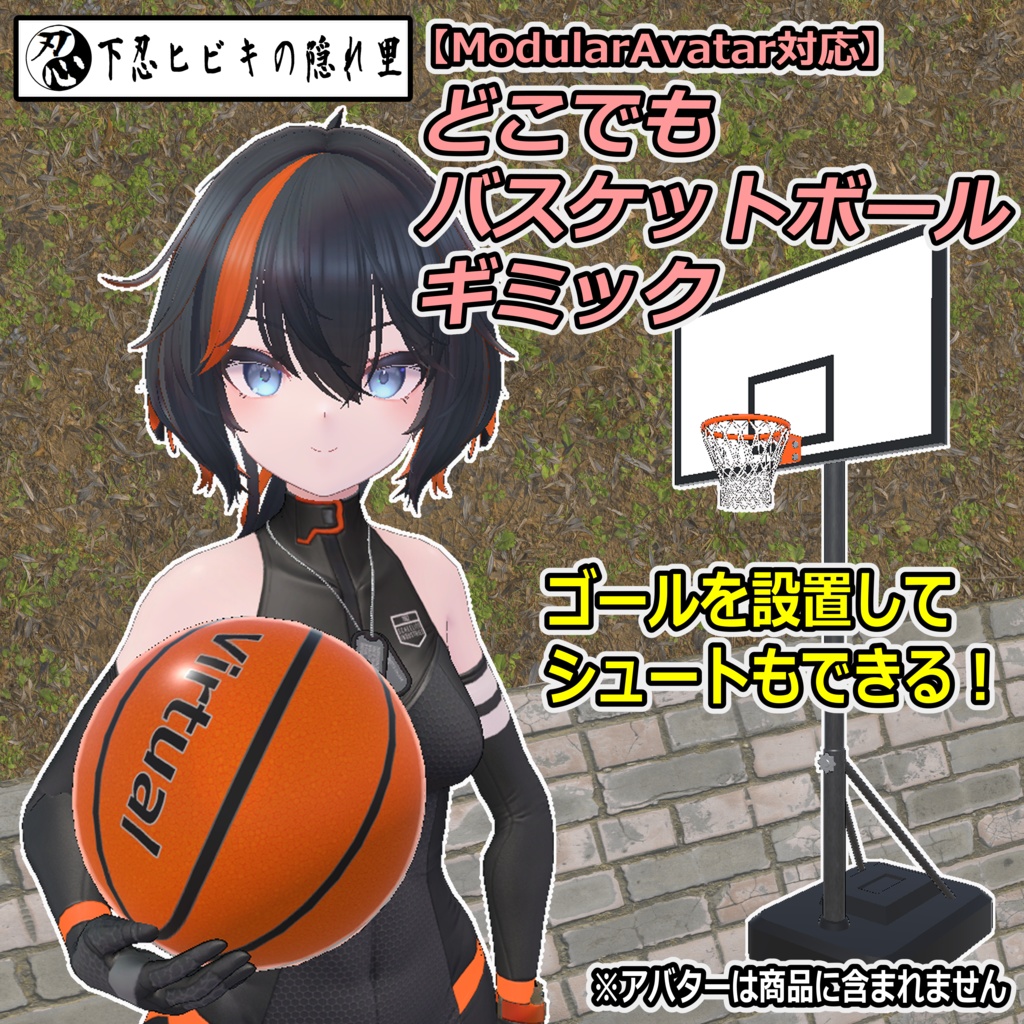
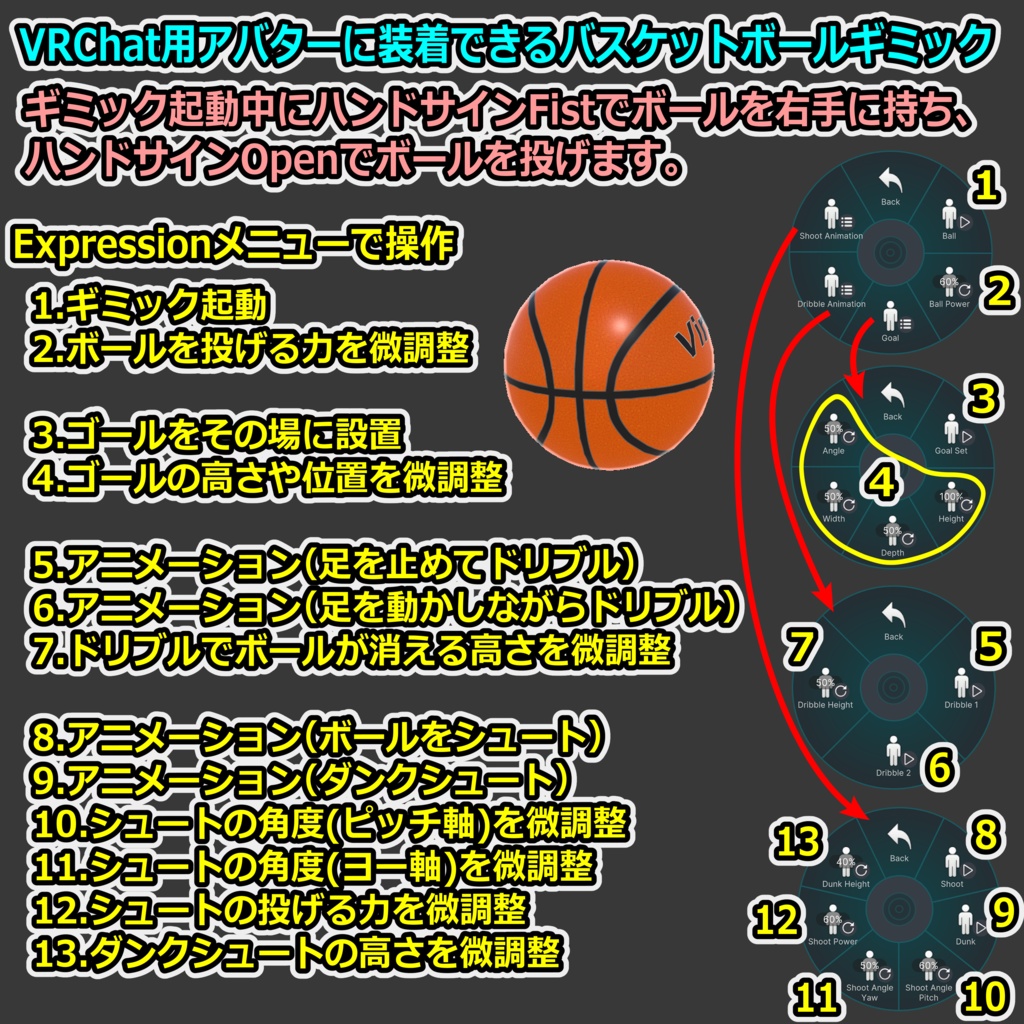
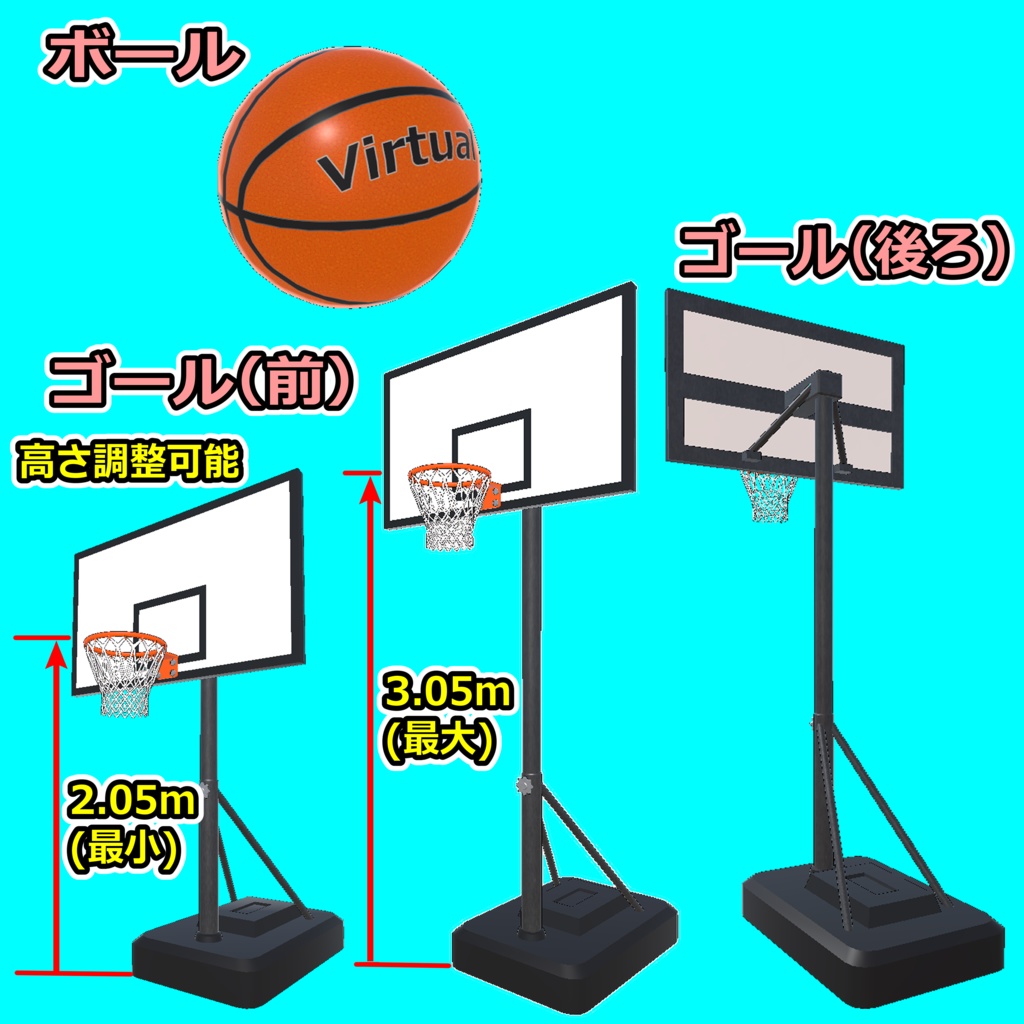
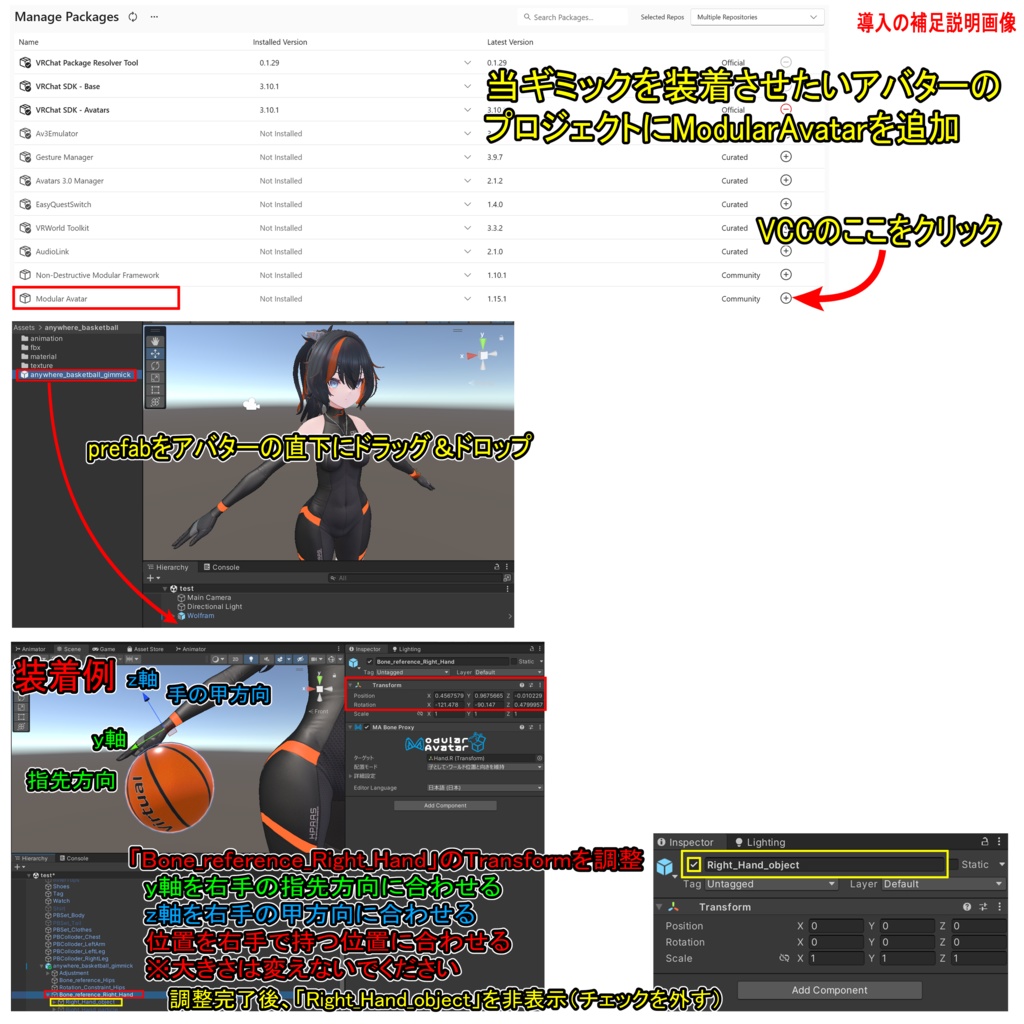


【商品名】 どこでもバスケットボールギミック【ModularAvatar対応】 【商品説明】 VRChat用アバターに装着できるバスケットボールギミックです。 VRChat内にてExpressionメニューでギミックを起動できます。ギミック起動中にハンドサインFistでバスケットボールを右手に持ち、ハンドサインOpenで投げます。ボールを投げる力は微調整可能です。 ゴールをその場に設置してバスケットボールをシュートして遊ぶ事もできます。ゴールのボードやリングなどのコライダーに当たるとボールは反射しますが、うまく当てるとリングに入ります。ゴールの高さや位置は微調整可能です。 同じギミックをそれぞれのアバターに導入すれば他の人と一緒にシュートして遊ぶ事もできます。 ※投げたボールがリングに入っても他の人から見ると同期ズレによりリングに入ってないように見える場合があります。 また、アバターに専用のアニメーションをさせることもできます(デスクトップでも可能)。アニメーションは下記の4種類です。 Dribble 1:足を止めてドリブル(ボールが消える高さを微調整可能) Dribble 2:足を動かしながらドリブル(ボールが消える高さを微調整可能) Shoot:ボールをシュート(角度(ピッチ軸)、角度(ヨー軸)、投げる力を微調整可能) Dunk:ダンクシュート(高さを微調整可能) ※アバターのアニメーションは、一般的なボーン構造のヒューマノイドアバターなら使えると思います。なお、段差やジャンプでアニメーションが解除される場合があります。 ※装着例のアバター「Wolfram( https://flastore.booth.pm/items/5769373 )」は商品に含まれません。 【VRChatへの導入方法】※詳しくは導入の補足説明画像を参照 1.ModularAvatarをVCCにダウンロード。 https://modular-avatar.nadena.dev/ja/ 2.当セットを装備させたいアバターのプロジェクトにModularAvatarを追加 3.シェーダー(liltoon)をインポート https://booth.pm/ja/items/3087170 4.本商品(anywhere_basketball_1.0.unitypackage)をインポート 5.プロジェクト内(Assets/anywhere_basketball)にあるanywhere_basketball_gimmick.prefabをアバターの直下にドラッグ&ドロップ 6.バスケットボールをアバターの右手に合わせて調整 ・Hierarchy上のオブジェクト「Bone_reference_Right_Hand」のTransformの角度を調整(y軸を右手の指先方向、z軸を右手の甲方向に合わせる)。位置を右手で持つ位置に合わせる。 ※大きさは変えないでください ・調整完了後、Hierarchy上のオブジェクト「Right_Hand_object」を非表示にする 7.通常の手順でVRChatにアップロード(必ずPrivate 設定で) 【ポリゴン数】 ボール:△960 ゴール:△8330 【内容物】 Unitypackage readme FBX テクスチャ(PNG) 導入の補足説明画像 【利用規約】 改変可 商用利用可 再配布不可 再販売不可 公序良俗に反する使用を禁止 【免責事項】 制作者は本データを利用したことにより発生した損害、損失、その他の不利益に対して一切の責任を負いません。 【Quest対応する方法】 ・マテリアル「basketball_ball」と「basketball_goal」のシェーダーを「VRChat/Mobile/Toon Lit」に変更 ※ボールは投げると暗い色になります。全体的に見た目は大きく劣化します。 ・Hierarchy上のオブジェクト「Collider」を削除 ※ボールをゴールに投げてもボードに反射させたりリングに入れたりできなくなります。 【更新履歴】 2026/2/2 リリース 【追記】 ギミックが正常に機能しない場合 →VCC、VRChat SDK、Modular Avatarのバージョンを最新にしてから【VRChatへの導入方法】の5.からやり直してください。 アニメーション中にアバターの動きが大きく崩れたり移動速度が遅くなる場合 →VRで頭の位置が低いと起きる場合があります。姿勢を高くしてみて下さい。 フルトラで正常にアニメーションが動かない場合 →当ギミックを使用する場合は一時的に3点トラッキングに切り替えてください。なお、VRChatのメニューの「設定(歯車アイコン)」の「トラッキングとIK」の「フルボディトラッキングを許可」をOFFにすると切り替えできます。 他のツールやギミックなどと干渉して当ギミックが正常に機能しない場合 →それらを削除してお使い下さい。 シュートしたボールが他の人に見えない場合 →他の人の視界外からシュートしたボールは他の人に見えない場合があります。視界内でシュートしてみて下さい。
English
[Product Name] Anywhere Basketball Gimmick [Compatible with Modular Avatar] [Product Description] This is a basketball gimmick that can be attached to VRChat avatars. The gimmick can be activated in VRChat via the Expression menu. While the gimmick is activated, hold the basketball in your right hand with the Fist hand sign and throw it with the Open hand sign. The force of the ball's throw can be fine-tuned. You can also set up a goal and shoot the basketball. If the ball hits a collider such as the goal board or ring, it will bounce off, but if you hit it well it will go into the ring. You can fine-tune the height and position of the goal. You can also play shooting games with other people by installing the same gimmick on each avatar. *Even if the ball you throw lands in the hoop, it may appear to other people that it did not go in due to a synchronization error. You can also assign custom animations to your avatar (this can also be done on desktop). There are four animation types available: Dribble 1: Dribble with your feet still (you can fine-tune the height at which the ball disappears) Dribble 2: Dribble while moving your feet (you can fine-tune the height at which the ball disappears) Shoot: Shoot the ball (you can fine-tune the angle (pitch axis), angle (yaw axis), and throwing force) Dunk: Dunk shot (you can fine-tune the height) *Avatar animations should work with any humanoid avatar with a standard bone structure. Please note that animations may be canceled when stepping over obstacles or jumping. *The avatar shown in the example, "Wolfram ( https://flastore.booth.pm/items/5769373 )," is not included with the product. [How to Install in VRChat] *For details, see the supplementary installation instructions. 1. Download ModularAvatar to VCC. https://modular-avatar.nadena.dev/ja/ 2. Add ModularAvatar to the project of the avatar you want to equip with this set. 3. Import the shader (liltoon) https://booth.pm/ja/items/3087170 4. Import this product (anywhere_basketball_1.0.unitypackage) 5. Drag and drop the anywhere_basketball_gimmick.prefab from your project (Assets/anywhere_basketball) directly below your avatar. 6. Adjust the basketball to fit the avatar's right hand. - Adjust the Transform angle of the "Bone_reference_Right_Hand" object in the Hierarchy (align the y-axis toward the fingertips of the right hand and the z-axis toward the back of the right hand). Adjust the position to match the position held in the right hand. *Do not change the size. - After completing the adjustments, hide the "Right_Hand_object" object in the Hierarchy. 7. Upload to VRChat using the standard procedure (make sure to use the Private setting). [Polygon Count] Ball: △960 Goal: △8330 [Contents] Unity package Readme FBX Texture (PNG) Supplementary installation instructions [Terms of Use] Modifications permitted Commercial use permitted No redistribution No resale Prohibition of use that violates public order and morals [Disclaimer] The creator assumes no responsibility for any damage, loss, or other inconvenience caused by the use of this data. [Quest Compatibility] - Change the shader for the "basketball_ball" and "basketball_goal" materials to "VRChat/Mobile/Toon Lit." *The ball will darken when thrown. This will significantly degrade the overall appearance. - Delete the "Collider" object in the Hierarchy. *Throwing the ball into the goal will prevent it from bouncing off the board or going into the hoop. [Update History] 2026/2/2 release [Additional Note] If the gimmick isn't working properly → Update your VCC, VRChat SDK, and Modular Avatar to the latest versions, then start again from step 5 of the [How to install in VRChat]. If the avatar's movement becomes significantly disrupted or slow during animation → This may occur if your head is positioned too low in VR. Try raising your posture. If it doesn't work properly with full tracking →When using this gimmick, temporarily switch to 3-point tracking. You can also switch to this mode by turning off "Allow FullBody Tracking FBT" under "Tracking & IK" in "Settings (gear icon)" in the VRChat menu. If this gimmick is interfering with other tools or gimmicks and isn't functioning properly →Delete them before using. If the ball you shot isn't visible to others →If you shoot the ball from outside the other person's field of vision, they may not be able to see it. Please try shooting within their field of vision.