
顔のゆがみ補正 LensFit【無料お試し版あり】
- 製品版ダウンロード商品¥ 480
- 無料お試し版ダウンロード商品¥ 0
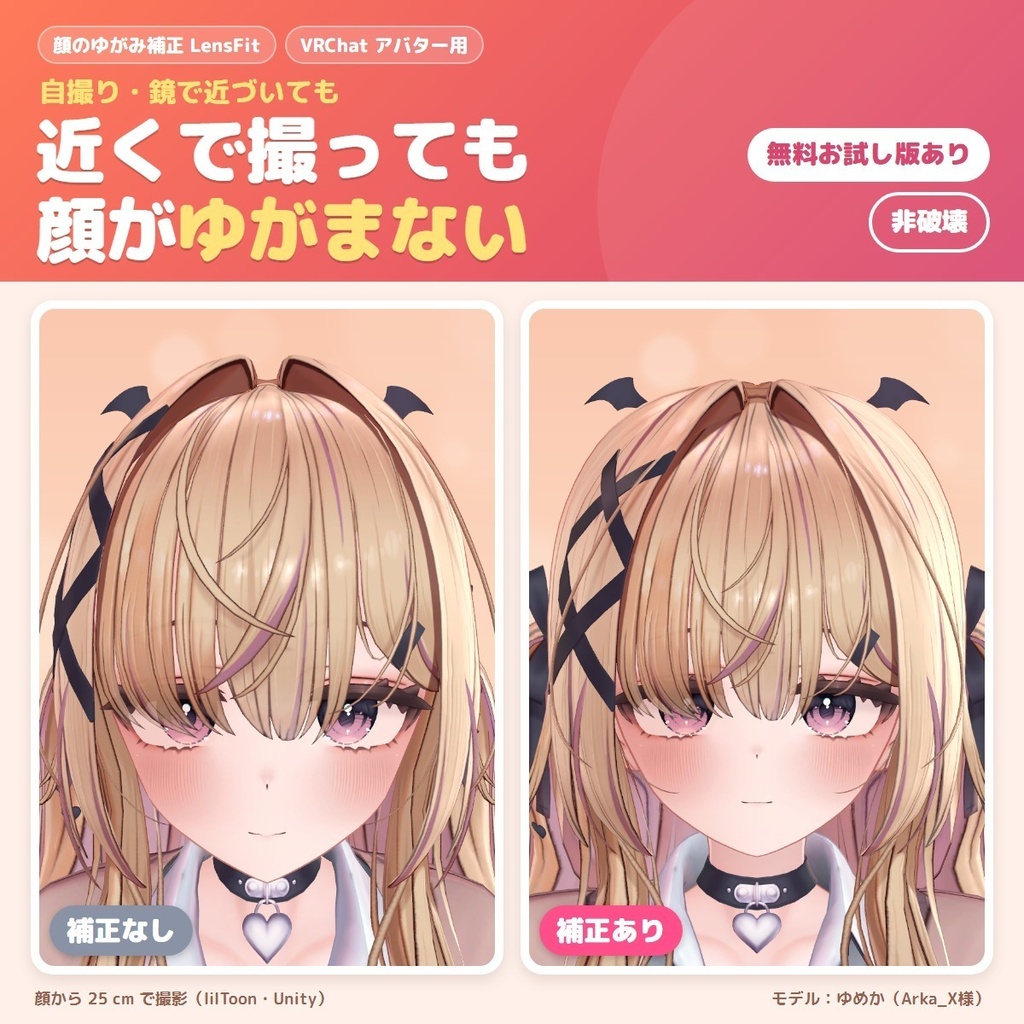
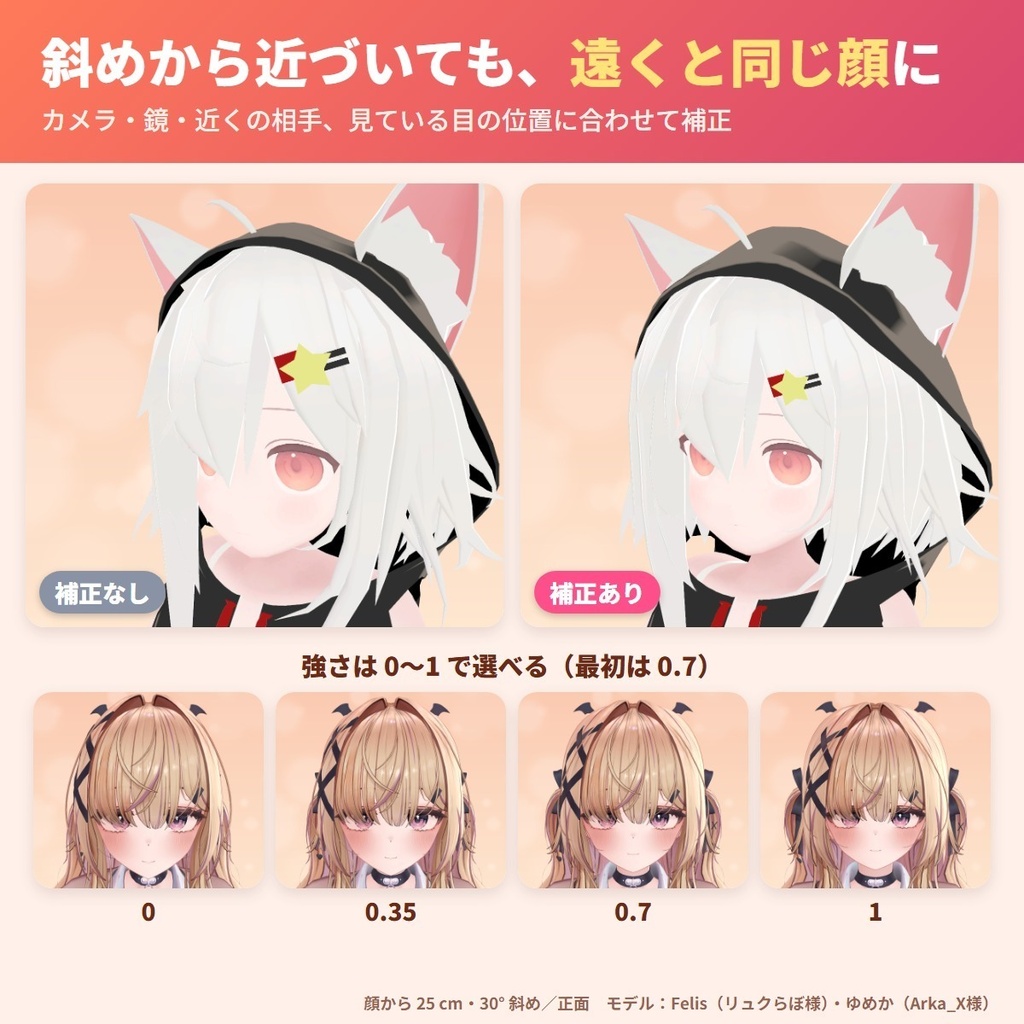
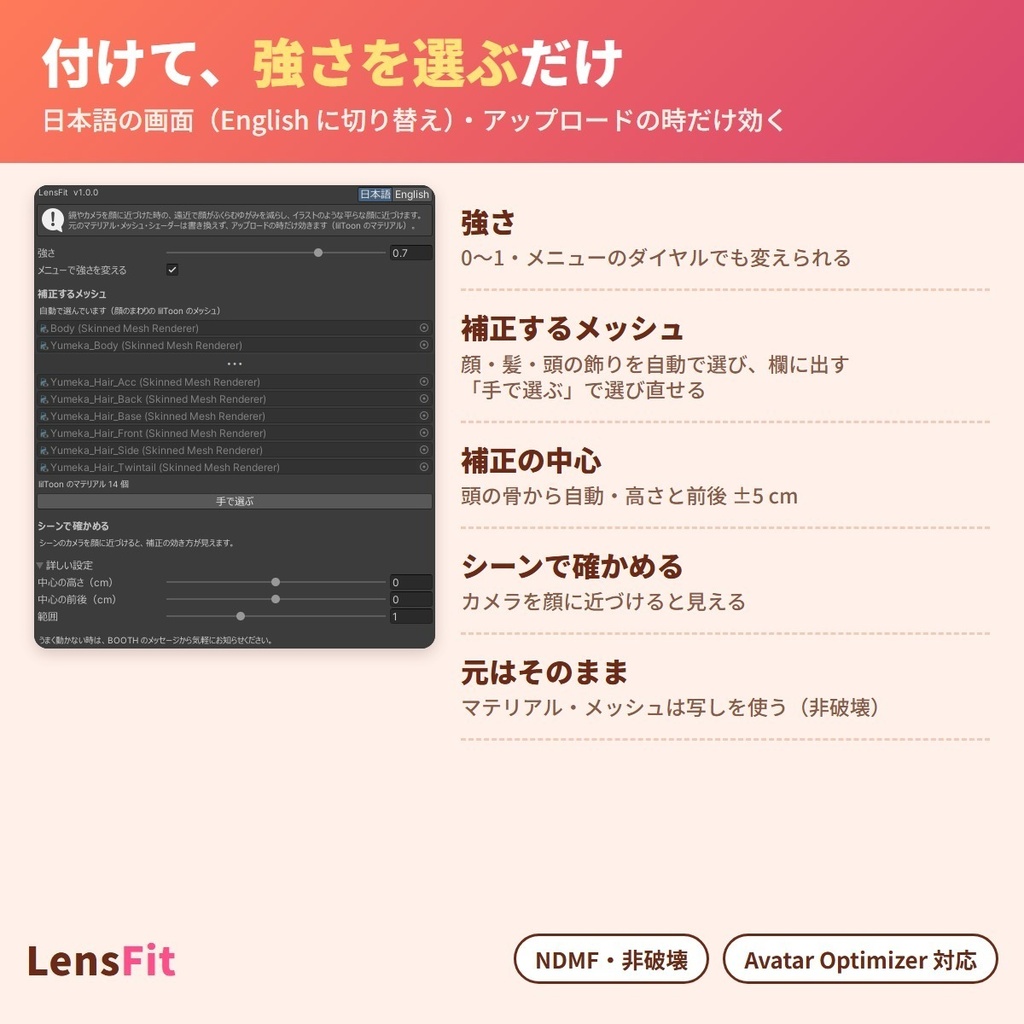
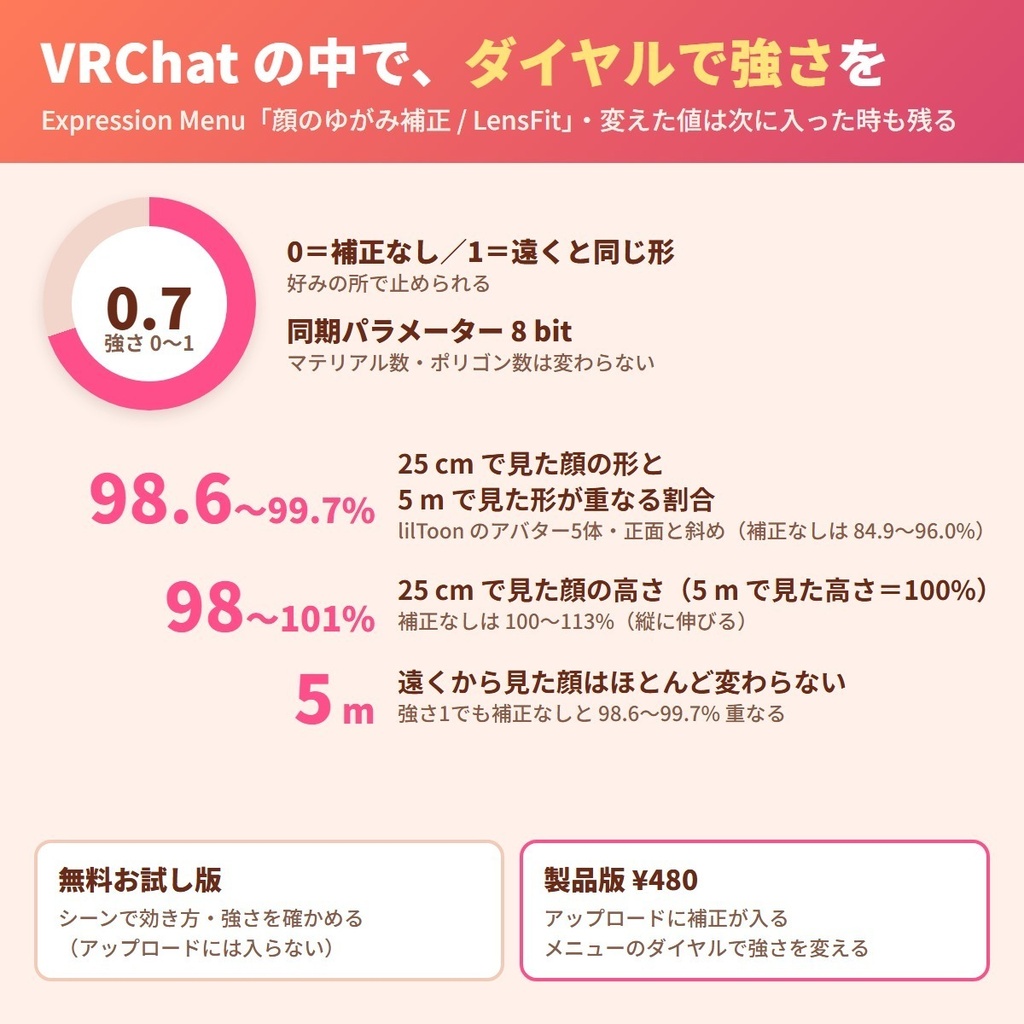


自撮りや鏡で顔に近づいた時の、顔の真ん中がふくらんで輪郭が縦に伸びる「近くで撮った時のゆがみ」を抑える、VRChat アバター用のツールです。強さ 1 では、カメラが顔から 25 cm の時の顔の形が、5 m 離れて見た時の形とほぼ同じになり(lilToon のアバター5体で、形の重なり 98.6〜99.7%)、離れて見た時の顔はほとんど変わりません。元のアバターとマテリアルはそのまま(非破壊・NDMF)で、Modular Avatar を入れていれば Expression Menu のダイヤルで強さを 0〜1 に変えられます。 補正は、見ている位置(カメラ・鏡・近くにいる相手の目)に合わせて入る作りです。補正するのは lilToon のマテリアル(通常・カットアウト・半透明・輪郭線つき・ファー)で、見た目の設定はそのままです。買う前に無料お試し版で、自分のアバターのシーンで効き方を確かめられます。PC 版 VRChat 向けです。 English / 简体中文 / 한국어:下の段落に説明があります(descriptions below) ■ まずは無料お試し版で、自分のアバターを確かめる ・お試し版(無料):シーンのカメラを顔に近づけて、補正の効き方と強さ・範囲を確かめられます。アップロードするアバターに入れるのは製品版です ・製品版(480円):上に加えて、アップロードするアバターに補正が入り、メニューのダイヤルで強さを変えられます。製品版は単体でも、お試し版の上からでも入れられます ■ できること ・近くから見た時の顔のふくらみ・縦の伸びを抑え、遠くから見た時の形に近づける ・強さ 0〜1(最初は 0.7)。メニューのダイヤルで VRChat の中で変えられ、変えた値は次に入った時も残る(一度入った後はメニューで変えた値が残るので、インスペクターの値を変えた時はメニューで合わせ直す) ・見ている位置に合わせて補正(カメラ・鏡・近くの相手の目)。顔から約 18 cm より近いと補正を少しずつ弱め、約 10 cm より近い所では補正しないので崩れない ・補正の中心は頭の骨から自動で決まり、ポーズや首の向きに付いてくる。中心の高さ・前後(±5 cm)と範囲(0.5〜2 倍)も変えられる ・補正するメッシュは顔のまわりの lilToon のメッシュを自動で選び、欄に出す。「手で選ぶ」で選び直せる。見つからない時はその場で知らせる ・アップロードの時だけ、マテリアルの写しを LensFit 入りの lilToon(同じ設定のまま)に差し替える。元のマテリアル・シェーダーは変わらない ・Avatar Optimizer(Trace and Optimize・Merge Skinned Mesh)と一緒に使える ・シーンのカメラを顔に近づけると、アップロード前に効き方が見える(保存されない) ・日本語/English 切り替え ■ 使う前に ・アバターの規約で、マテリアル・シェーダーを差し替える改変が許されているか確かめてください ・補正するのは lilToon のマテリアルだけです ・メニューを付けると、同期パラメーターを 8 bit 使います(メニューを付けない時は 0) ・マテリアル数・ポリゴン数は変わりません ■ 使い方 1. VRChat SDK - Avatars 3.7.0 以上・lilToon 2.3 以上・NDMF 1.14 以上(Modular Avatar 1.18 以上に含まれます)を入れてから、unitypackage をプロジェクトに入れる 2. アバターの一番上(VRC Avatar Descriptor の付いた物)に「Add Component → GRAMSHIFT → LensFit」を付ける(ヒエラルキーの右クリック → GRAMSHIFT → LensFit でも付きます) 3. 強さを選び、シーンのカメラを顔に近づけて効き方を見る 4. いつもどおり PC 向けにアップロードし、VRChat の Expression Menu の「顔のゆがみ補正 / LensFit」で強さを変える ■ 動作環境 ・PC 版 VRChat・lilToon 2.3 以上(2.3.4 で試験)・VRChat SDK3 Avatars 3.7.0 以上(3.10.5 で試験)/ Unity 2022.3 / NDMF 1.14 以上(Modular Avatar 1.18 以上に含まれます) ・強さのメニュー:Modular Avatar 1.18 以上(無い時は、インスペクターの強さのままで入ります) ・Avatar Optimizer 1.9(Trace and Optimize・Merge Skinned Mesh)と一緒に使えます ・Quest(Android)・iOS 向けのアップロードでは何も足さず、そのままアップロードします(Quest・スマホのアバターは lilToon を使えないため) ・試したアバター:ゆめか(Arka_X 様)・Felis(リュクらぼ 様)・RadDollV3(三丁目の魔界 様)・HAOLAN(かなリぁ 様)・早川葵(WARPSTORE 様) ■ 試した結果 ・lilToon のアバター5体で、アップロードと同じ組み立てを流しました。5体とも組み立てのエラーは0、元のマテリアル・メッシュの変更は0でした ・顔から 25 cm の正面と斜め 30° で、顔の形を 5 m 先から見た形と比べました。補正なしの重なり 84.9〜96.0% が、強さ 1 で 98.6〜99.7% に。顔の縦の長さは、補正なしで遠くの形の 100〜113% だったのが 98〜101% になりました ・5 m 離れて見た時の顔は、強さ 1 でも補正なしとの重なり 98.6〜99.7% でした ・強さ 0 の見た目は、差し替える前と同じでした ・lilToon の19の種類(通常・カットアウト・半透明・輪郭線つき・ファー・Multi など)で、描き方の段(パス)と設定の項目を減らさずに差し替わりました ・Avatar Optimizer の Trace and Optimize・Merge Skinned Mesh を入れた5体でも補正が入り、まとめたメッシュも補正され、メニューのダイヤルも補正するメッシュに届いていました ・lilToon のマテリアルが無いアバターでは何も変えず、お知らせを出しました ■ よくある質問 Q. 鏡に映った自分にも効きますか? A. 鏡は鏡のカメラから描かれるので、そのカメラの位置に合わせて補正する作りです。 Q. 近くにいる相手から見た時も補正されますか? A. 補正は見ている人の画面で、その人の目の位置に合わせて入ります。 Q. 遠くから見た時の顔は変わりますか? A. 5 m 離れて見た時の顔の形は、強さ 1 でも補正なしとほぼ同じでした(重なり 98.6〜99.7%)。 Q. 髪やアクセサリーも一緒に補正されますか? A. 顔のまわりの lilToon のメッシュ(髪・頭の飾りなど)を自動で選び、顔と一緒に補正します。選ばれた物は欄に出て、「手で選ぶ」で変えられます。 Q. lilToon でないマテリアルはどうなりますか? A. そのままアップロードし、補正しなかったマテリアルの名前を知らせます。 ■ 制限 ・PC 版 VRChat だけです。Quest(Android)では使えません ・補正するのは lilToon の通常・カットアウト・半透明・輪郭線つき・ファー・Multi(通常と輪郭線つき)・輪郭線だけ(不透明)です。Lite・Gem・屈折・テッセレーション・Overlay・FakeShadow、Multi のファー・宝石・屈折、輪郭線だけのカットアウト・半透明は補正せず、名前を知らせます ・Poiyomi など lilToon でないシェーダーには対応していません ・一部の作りのメッシュは補正できません(補正しなかったメッシュの名前を知らせます) ・顔から約 18 cm より近いと補正が少しずつ弱まり、約 10 cm より近い所では補正しません ・お試し版はシーンの見た目だけで、アップロードしたアバターには入りません ・LensFit はアバター1体に1つだけ付けてください ■ これからの版 ・ご要望の多いものから、次の版に入れていきます。「ショップへのお問い合わせ」から気軽にお寄せください ■ 困った時は うまく動かない時は、このページの「ショップへのお問い合わせ」から気軽にどうぞ(アバターの名前と、表示された文があると早く調べられます)。
利用規約
・VRChat などで使うアバターの改変に、個人・法人・商用を問わず使えます ・このツールを使って作ったアバター・改変データの公開・販売に、このツール側の制限はありません(元のアバターの規約に従ってください) ・ツール(製品版・お試し版・同梱のシェーダー)の改変・逆コンパイル・解析はできません(同梱の lilToon 由来の部分は MIT License に従います) ・ツールのファイルの再配布・転売・共有、買っていない人への譲渡はできません ・お試し版を製品版の形にして配ること、お試し版の制限を外すための改変はできません ・同梱の「利用規約_Terms.txt」が正です Terms (summary): you may use it to modify avatars for VRChat etc., for personal, corporate or commercial use; this tool puts no limit on publishing or selling avatars or edit data made with it (follow the original avatar's terms); you may not modify, decompile or analyze the tool (full, trial or the included shaders; the parts that come from lilToon follow the MIT License); the tool files may not be redistributed, resold, shared or given to people who did not buy it; you may not turn the trial into the full version or remove its limits. The included "利用規約_Terms.txt" is authoritative.
更新履歴
1.0.0(2026-11)公開 1.0.0 (2026-11) released
English
A tool for VRChat avatars that reduces the face distortion you get when a camera or mirror is close to your face: the middle of the face bulges and the outline stretches vertically. At strength 1, the face shape seen from 25 cm becomes almost the same as the shape seen from 5 m away (on 5 lilToon avatars, shape overlap 98.6-99.7%), and the face seen from a distance barely changes. Your original avatar and materials stay as they are (non-destructive, NDMF), and with Modular Avatar a dial in the Expression Menu changes the strength from 0 to 1. The correction is built to follow the viewing position (a camera, a mirror or a nearby player's eyes). It works on lilToon materials (normal, cutout, transparent, outline and fur) and keeps their look settings. Before you buy, the free trial lets you see how it works on your own avatar in the scene. For PC VRChat. ■ Try it on your avatar with the free trial first ・Trial (free): move the scene camera close to the face to see the correction, the strength and the area. The full version adds it to the avatar you upload ・Full version (480 yen): in addition, the correction is added to the avatar you upload, and a menu dial changes the strength. The full version can be imported on its own or on top of the trial ■ What it does ・Reduces the bulge and vertical stretch of the face seen up close, bringing it close to the shape seen from a distance ・Strength 0-1 (default 0.7). A menu dial changes it in VRChat, and the value stays the next time you join (after you have joined once, the menu value is kept, so if you change the Inspector value, set the menu again) ・The correction follows the viewing position (camera, mirror, a nearby player's eyes). Closer than about 18 cm from the face, the correction is gradually reduced, and closer than about 10 cm it is off, so the face does not break up ・The correction center is set from the head bone and follows poses and neck turns. The center height and depth (+-5 cm) and the area (0.5-2x) can also be changed ・The lilToon meshes around the face are picked automatically and listed. "Pick by hand" lets you choose them yourself. If none are found, it tells you right away ・Only at upload, copies of the materials are switched to a LensFit build of lilToon (with the same settings). The original materials and shaders are not changed ・Works with Avatar Optimizer (Trace and Optimize, Merge Skinned Mesh) ・Move the scene camera close to the face to see the correction before uploading (not saved) ・Japanese / English switch ■ Before you use it ・Check that your avatar's terms allow edits that switch materials and shaders ・Only lilToon materials are corrected ・With the menu, it uses 8 bits of synced parameters (0 without the menu) ・Material and polygon counts do not change ■ How to use 1. Add VRChat SDK - Avatars 3.7.0 or later, lilToon 2.3 or later and NDMF 1.14 or later (included in Modular Avatar 1.18 or later), then import the unitypackage into the project 2. Add "Add Component -> GRAMSHIFT -> LensFit" to the top of the avatar (the object with the VRC Avatar Descriptor) (right-click in the Hierarchy -> GRAMSHIFT -> LensFit also adds it) 3. Pick the strength, and move the scene camera close to the face to see the correction 4. Upload for PC as usual, and change the strength with "顔のゆがみ補正 / LensFit" in the VRChat Expression Menu ■ Requirements ・PC VRChat, lilToon 2.3 or later (tested with 2.3.4), VRChat SDK3 Avatars 3.7.0 or later (tested with 3.10.5) / Unity 2022.3 / NDMF 1.14 or later (included in Modular Avatar 1.18 or later) ・Strength menu: Modular Avatar 1.18 or later (without it, the correction is applied at the strength set in the Inspector) ・Works with Avatar Optimizer 1.9 (Trace and Optimize, Merge Skinned Mesh) ・Android (Quest) and iOS uploads get nothing added and are uploaded as they are (Quest and mobile avatars cannot use lilToon) ・Avatars tested: Yumeka (Arka_X), Felis (リュクらぼ), RadDollV3 (三丁目の魔界), HAOLAN (かなリぁ), Hayakawa Aoi (WARPSTORE) ■ Test results ・On 5 lilToon avatars, the same build as an upload was run. All 5 had 0 build errors and 0 changes to the original materials and meshes ・At 25 cm from the face, front and 30° diagonal, the face shape was compared with the shape seen from 5 m. The overlap of 84.9-96.0% without correction became 98.6-99.7% at strength 1. The face height went from 100-113% of the far shape without correction to 98-101% ・Seen from 5 m, the face at strength 1 overlapped 98.6-99.7% with no correction ・At strength 0 the look was the same as before the switch ・On 19 lilToon kinds (normal, cutout, transparent, outline, fur, Multi and more), the switch kept every render pass and setting ・With Avatar Optimizer Trace and Optimize or Merge Skinned Mesh on the 5 avatars, the correction was added, merged meshes were corrected, and the menu dial reached the corrected meshes ・On an avatar with no lilToon materials, nothing was changed and a notice was shown ■ FAQ Q. Does it work on my reflection in a mirror? A. A mirror is drawn from the mirror's camera, and the correction is built to follow that camera's position. Q. Is it corrected when a nearby player looks at me? A. The correction is applied on each viewer's screen, following that viewer's eye position. Q. Does my face change when seen from far away? A. Seen from 5 m, the face shape at strength 1 was almost the same as with no correction (overlap 98.6-99.7%). Q. Are hair and accessories corrected too? A. The lilToon meshes around the face (hair, head accessories and so on) are picked automatically and corrected with the face. The picked meshes are listed, and "Pick by hand" lets you change them. Q. What happens to materials that are not lilToon? A. They are uploaded as they are, and it tells you the names of the materials it did not correct. ■ Limitations ・PC VRChat only. Not for Quest (Android) ・It corrects lilToon normal, cutout, transparent, outline, fur, Multi (normal and outline) and Outline Only (opaque). Lite, Gem, Refraction, Tessellation, Overlay, FakeShadow, Multi Fur/Gem/Refraction and Outline Only cutout/transparent are not corrected, and their names are shown ・Shaders other than lilToon, such as Poiyomi, are not supported ・Some meshes cannot be corrected because of how they are built (the tool shows the names of meshes it did not correct) ・Closer than about 18 cm from the face, the correction gradually gets weaker, and closer than about 10 cm it is off ・The trial only changes the look in the scene and is not added to uploaded avatars ・Use one LensFit per avatar ■ Next versions ・We add the most-requested features to the next version first. Feel free to send requests with "Contact this Shop" ■ Need help? If something does not work, feel free to send us a message with "Contact this Shop" on this page (your avatar name and any message shown help us look into it faster).
简体中文
这是一款面向 VRChat 头像的工具,可减轻镜头或镜子靠近脸部时产生的面部变形:脸部中央鼓起、轮廓被纵向拉长。强度为 1 时,从 25 cm 处看到的脸型几乎与从 5 m 外看到的脸型一致(在 5 个 lilToon 头像上,形状重合度为 98.6-99.7%),而从远处看脸几乎没有变化。原头像和材质保持原样(非破坏性,NDMF),配合 Modular Avatar,可通过 Expression Menu(表情菜单)中的旋钮在 0 到 1 之间调节强度。 校正会根据观察位置(镜头、镜子或附近玩家的视线)进行。支持 lilToon 材质(普通、镂空、透明、描边和毛发),并保留其外观设置。购买前,可以通过免费试用在场景中查看它在你自己头像上的效果。适用于 PC 版 VRChat。 ■ 先用免费试用在你的头像上试一试 · 试用版(免费):将场景相机靠近脸部,即可查看校正效果、强度和范围。上传的头像需使用正式版 · 完整版(480 日元):此外,校正会添加到你上传的头像中,并可通过菜单旋钮调节强度。完整版可单独导入,也可以在试用版之上导入 ■ 功能 · 减轻近距离观看时脸部的鼓起和纵向拉伸,使其接近远处看到的形状 · 强度 0-1(默认 0.7)。在 VRChat 中可通过菜单旋钮调节,数值会在下次进入时保留(进入过一次后会保留菜单中设定的值,因此在 Inspector 中更改数值后,请在菜单中重新调整) · 校正跟随观察位置(镜头、镜子、附近玩家的视线)。距离脸部约 18 cm 以内时会逐渐减弱校正,约 10 cm 以内不再校正,以免脸部崩坏 · 校正中心根据头部骨骼设定,并跟随姿势和颈部转动。中心的高度和深度(±5 cm)以及范围(0.5-2 倍)也可以调整 · 自动选取脸部周围的 lilToon 网格并列出。通过 "Pick by hand"(手动选择)可自行选择。如果一个也没找到,会立即提示 · 仅在上传时,材质的副本会被切换为 LensFit 版 lilToon(设置相同)。原始材质和着色器不会被更改 · 支持 Avatar Optimizer(Trace and Optimize、Merge Skinned Mesh) · 上传前可将场景相机靠近脸部查看校正效果(不会保存) · 日语 / 英语切换 ■ 使用前须知 · 请确认你的头像使用条款允许切换材质和着色器的修改 · 只校正 lilToon 材质 · 使用菜单时,会占用 8 位同步参数(不使用菜单则为 0) · 材质数量和多边形数量不会改变 ■ 使用方法 1. 添加 VRChat SDK - Avatars 3.7.0 或更高版本、lilToon 2.3 或更高版本以及 NDMF 1.14 或更高版本(包含在 Modular Avatar 1.18 或更高版本中),然后将 unitypackage 导入项目 2. 在头像顶层(带有 VRC Avatar Descriptor 的对象)添加 "Add Component -> GRAMSHIFT -> LensFit"(添加组件 -> GRAMSHIFT -> LensFit)(在 Hierarchy(层级)中右键 -> GRAMSHIFT -> LensFit 也可添加) 3. 选择强度,并将场景相机靠近脸部查看校正效果 4. 照常上传 PC 版,然后在 VRChat 的 Expression Menu 中通过 "顔のゆがみ補正 / LensFit" 调节强度 ■ 运行环境 · PC 版 VRChat、lilToon 2.3 或更高版本(已在 2.3.4 上测试)、VRChat SDK3 Avatars 3.7.0 或更高版本(已在 3.10.5 上测试)/ Unity 2022.3 / NDMF 1.14 或更高版本(包含在 Modular Avatar 1.18 或更高版本中) · 强度菜单:需要 Modular Avatar 1.18 或更高版本(没有它时,校正将按 Inspector 中设置的强度应用) · 支持 Avatar Optimizer 1.9(Trace and Optimize、Merge Skinned Mesh) · Android(Quest)和 iOS 上传时不会添加任何内容,按原样上传(Quest 和移动端头像无法使用 lilToon) · 已测试的头像:Yumeka (Arka_X)、Felis (リュクらぼ)、RadDollV3 (三丁目の魔界)、HAOLAN (かなリぁ)、Hayakawa Aoi (WARPSTORE) ■ 测试结果 · 在 5 个 lilToon 头像上,运行了与上传时相同的构建。5 个头像均为 0 个构建错误,原始材质和网格的更改为 0 · 在距离脸部 25 cm 的正面和 30° 斜角处,将脸型与 5 m 处看到的形状进行了比较。未校正时 84.9-96.0% 的重合度,在强度 1 时变为 98.6-99.7%。脸部高度从未校正时远处形状的 100-113% 变为 98-101% · 从 5 m 处观看时,强度 1 的脸与未校正的脸重合度为 98.6-99.7% · 强度为 0 时,外观与切换前相同 · 在 19 种 lilToon 类型(普通、镂空、透明、描边、毛发、Multi 等)上,切换后保留了所有渲染通道和设置 · 在这 5 个头像上配合 Avatar Optimizer 的 Trace and Optimize 或 Merge Skinned Mesh 使用时,校正均已添加,合并后的网格也得到校正,菜单旋钮对校正后的网格有效 · 对于没有 lilToon 材质的头像,不做任何更改并显示提示 ■ 常见问题 Q. 对镜子里的我自己的倒影有效吗? A. 镜子是从镜子的相机绘制的,校正会跟随该相机的位置。 Q. 附近的玩家看我时也会被校正吗? A. 校正在每位观看者的画面上应用,并跟随该观看者的视线位置。 Q. 从远处看,我的脸会变化吗? A. 从 5 m 处看,强度 1 的脸型与未校正时几乎相同(重合度 98.6-99.7%)。 Q. 头发和配饰也会被校正吗? A. 脸部周围的 lilToon 网格(头发、头部配饰等)会被自动选取,并与脸一起校正。选取的网格会列出,可通过 "Pick by hand"(手动选择)更改。 Q. 非 lilToon 的材质会怎样? A. 它们会按原样上传,并会告知未被校正的材质名称。 ■ 限制 · 仅限 PC 版 VRChat。不适用于 Quest(Android) · 可校正 lilToon 的普通、镂空、透明、描边、毛发、Multi(普通和描边)以及 Outline Only(不透明)。Lite、Gem、Refraction、Tessellation、Overlay、FakeShadow、Multi Fur/Gem/Refraction 以及 Outline Only 镂空/透明不会被校正,并会显示其名称 · 不支持 Poiyomi 等非 lilToon 的着色器 · 部分结构的网格无法校正(会显示未校正网格的名称) · 距离脸部约 18 cm 以内时校正会逐渐减弱,约 10 cm 以内不再校正 · 试用版只改变场景中的外观,不会添加到上传的头像中 · 每个头像只使用一个 LensFit ■ 后续版本 · 我们会优先把呼声最高的功能加入下一个版本。欢迎通过 "Contact this Shop"(联系店铺)发送你的需求 ■ 需要帮助? 如果无法正常使用,欢迎通过本页面的 "Contact this Shop"(联系店铺)给我们留言(附上头像名称和显示的提示信息,能帮助我们更快排查)。
한국어
카메라나 거울이 얼굴에 가까울 때 생기는 얼굴 왜곡(얼굴 가운데가 부풀고 윤곽이 세로로 늘어나는 현상)을 줄여 주는 VRChat 아바타용 도구입니다. 강도 1에서는 25cm에서 본 얼굴 모양이 5m 떨어져서 본 모양과 거의 같아지며(lilToon 아바타 5종에서 형태 일치율 98.6~99.7%), 멀리서 본 얼굴은 거의 변하지 않습니다. 원본 아바타와 머티리얼은 그대로 유지되며(비파괴, NDMF), Modular Avatar를 함께 쓰면 Expression Menu(표정 메뉴)의 다이얼로 강도를 0~1 사이에서 바꿀 수 있습니다. 보정은 보는 위치(카메라, 거울, 가까이 있는 플레이어의 시점)에 맞춰 들어가도록 만들어져 있습니다. lilToon 머티리얼(일반, 컷아웃, 투명, 아웃라인, 퍼)에서 작동하며 설정된 룩은 그대로 유지됩니다. 구매 전에 무료 체험판으로 씬에서 내 아바타에 어떻게 적용되는지 확인할 수 있습니다. PC VRChat용입니다. ■ 먼저 무료 체험판으로 내 아바타에 써 보세요 · 체험판(무료): 씬 카메라를 얼굴 가까이 가져가 보정, 강도, 범위를 확인할 수 있습니다. 업로드하는 아바타에 넣는 것은 정식판입니다 · 정식판(480엔): 위 기능에 더해 업로드하는 아바타에 보정이 적용되고, 메뉴 다이얼로 강도를 바꿀 수 있습니다. 정식판은 단독으로도, 체험판 위에도 임포트할 수 있습니다 ■ 주요 기능 · 가까이서 본 얼굴의 부풀음과 세로 늘어남을 줄여 멀리서 본 모양에 가깝게 만듭니다 · 강도 0~1(기본값 0.7). VRChat에서 메뉴 다이얼로 바꿀 수 있고, 값은 다음 접속 때도 유지됩니다(한 번 접속한 뒤에는 메뉴에서 바꾼 값이 유지되므로, Inspector에서 값을 바꿨다면 메뉴에서 다시 맞춰 주세요) · 보정은 보는 위치(카메라, 거울, 가까이 있는 플레이어의 시점)를 따라갑니다. 얼굴에서 약 18cm보다 가까우면 보정을 서서히 줄이고, 약 10cm보다 가까우면 얼굴이 깨지지 않도록 보정하지 않습니다 · 보정 중심은 머리 본에서 정해지며 포즈와 목의 움직임을 따라갑니다. 중심의 높이와 깊이(±5cm), 범위(0.5~2배)도 바꿀 수 있습니다 · 얼굴 주변의 lilToon 메시를 자동으로 골라 목록으로 보여 줍니다. "Pick by hand"(직접 선택)로 직접 고를 수도 있습니다. 하나도 없으면 바로 알려 줍니다 · 업로드할 때만 머티리얼의 복사본을 LensFit용 lilToon 빌드로 바꿉니다(설정은 동일). 원본 머티리얼과 셰이더는 바뀌지 않습니다 · Avatar Optimizer(Trace and Optimize, Merge Skinned Mesh)와 함께 사용할 수 있습니다 · 업로드 전에 씬 카메라를 얼굴 가까이 가져가 보정을 확인할 수 있습니다(저장되지 않음) · 일본어 / 영어 전환 ■ 사용 전 확인 · 아바타의 이용 약관이 머티리얼과 셰이더를 바꾸는 수정을 허용하는지 확인해 주세요 · lilToon 머티리얼만 보정됩니다 · 메뉴를 쓰면 동기화 파라미터 8비트를 사용합니다(메뉴가 없으면 0) · 머티리얼 수와 폴리곤 수는 변하지 않습니다 ■ 사용 방법 1. VRChat SDK - Avatars 3.7.0 이상, lilToon 2.3 이상, NDMF 1.14 이상(Modular Avatar 1.18 이상에 포함)을 추가한 뒤 unitypackage를 프로젝트에 임포트합니다 2. 아바타 최상위(VRC Avatar Descriptor가 있는 오브젝트)에 "Add Component -> GRAMSHIFT -> LensFit"(컴포넌트 추가)을 추가합니다(Hierarchy에서 우클릭 -> GRAMSHIFT -> LensFit로도 추가할 수 있습니다) 3. 강도를 고르고 씬 카메라를 얼굴 가까이 가져가 보정을 확인합니다 4. 평소처럼 PC용으로 업로드하고, VRChat의 Expression Menu에서 "顔のゆがみ補正 / LensFit"로 강도를 바꿉니다 ■ 필요 환경 · PC VRChat, lilToon 2.3 이상(2.3.4에서 테스트), VRChat SDK3 Avatars 3.7.0 이상(3.10.5에서 테스트) / Unity 2022.3 / NDMF 1.14 이상(Modular Avatar 1.18 이상에 포함) · 강도 메뉴: Modular Avatar 1.18 이상(없으면 Inspector에서 설정한 강도로 보정이 적용됩니다) · Avatar Optimizer 1.9(Trace and Optimize, Merge Skinned Mesh)와 함께 사용 가능 · Android(Quest)와 iOS 업로드에는 아무것도 추가되지 않고 그대로 업로드됩니다(Quest 및 모바일 아바타는 lilToon을 사용할 수 없음) · 테스트한 아바타: Yumeka (Arka_X), Felis (リュクらぼ), RadDollV3 (三丁目の魔界), HAOLAN (かなリぁ), Hayakawa Aoi (WARPSTORE) ■ 테스트 결과 · lilToon 아바타 5종에서 업로드와 같은 빌드를 실행했습니다. 5종 모두 빌드 오류 0, 원본 머티리얼과 메시 변경 0이었습니다 · 얼굴에서 25cm 거리의 정면과 30° 사선에서 얼굴 모양을 5m에서 본 모양과 비교했습니다. 보정 없을 때 84.9~96.0%였던 일치율이 강도 1에서는 98.6~99.7%가 되었습니다. 얼굴 높이는 보정 없을 때 먼 모양의 100~113%였던 것이 98~101%가 되었습니다 · 5m에서 본 강도 1의 얼굴은 보정 없는 얼굴과 98.6~99.7% 겹쳤습니다 · 강도 0에서는 전환 전과 룩이 같았습니다 · lilToon 19종(일반, 컷아웃, 투명, 아웃라인, 퍼, Multi 등)에서 전환 후에도 모든 렌더 패스와 설정이 유지되었습니다 · 5종 아바타에서 Avatar Optimizer의 Trace and Optimize 또는 Merge Skinned Mesh를 사용했을 때도 보정이 추가되었고, 병합된 메시도 보정되었으며, 메뉴 다이얼이 보정된 메시에 반영되었습니다 · lilToon 머티리얼이 없는 아바타에서는 아무것도 바뀌지 않고 안내가 표시되었습니다 ■ FAQ Q. 거울에 비친 내 모습에도 적용되나요? A. 거울은 거울의 카메라에서 그려지며, 보정은 그 카메라의 위치를 따라가도록 만들어졌습니다. Q. 가까이 있는 플레이어가 나를 볼 때도 보정되나요? A. 보정은 각 보는 사람의 화면에서 그 사람의 눈 위치를 따라 적용됩니다. Q. 멀리서 보면 얼굴이 달라지나요? A. 5m에서 본 강도 1의 얼굴 모양은 보정 없을 때와 거의 같았습니다(일치율 98.6~99.7%). Q. 머리카락이나 액세서리도 보정되나요? A. 얼굴 주변의 lilToon 메시(머리카락, 머리 액세서리 등)는 자동으로 선택되어 얼굴과 함께 보정됩니다. 선택된 메시는 목록으로 표시되며 "Pick by hand"(직접 선택)로 바꿀 수 있습니다. Q. lilToon이 아닌 머티리얼은 어떻게 되나요? A. 그대로 업로드되며, 보정하지 않은 머티리얼의 이름을 알려 줍니다. ■ 제한 사항 · PC VRChat 전용입니다. Quest(Android)는 지원하지 않습니다 · lilToon의 일반, 컷아웃, 투명, 아웃라인, 퍼, Multi(일반 및 아웃라인), Outline Only(불투명)를 보정합니다. Lite, Gem, Refraction, Tessellation, Overlay, FakeShadow, Multi Fur/Gem/Refraction, Outline Only 컷아웃/투명은 보정되지 않으며 이름이 표시됩니다 · Poiyomi 등 lilToon 이외의 셰이더는 지원하지 않습니다 · 일부 구조의 메시는 보정할 수 없습니다(보정하지 않은 메시의 이름을 알려 줍니다) · 얼굴에서 약 18cm보다 가까우면 보정이 서서히 약해지고, 약 10cm보다 가까우면 보정하지 않습니다 · 체험판은 씬에서 보이는 모습만 바꾸며 업로드하는 아바타에는 적용되지 않습니다 · 아바타 하나에 LensFit을 하나만 사용하세요 ■ 다음 버전 · 요청이 많은 기능부터 다음 버전에 먼저 추가합니다. 요청은 "문의하기"로 편하게 보내 주세요 ■ 도움이 필요하신가요? 작동하지 않는 부분이 있으면 이 페이지의 "문의하기"로 편하게 메시지를 보내 주세요(아바타 이름과 표시된 메시지를 함께 알려 주시면 더 빨리 확인할 수 있습니다).