

【VRChat】Argentum Metals|lilToon用 金属プリセット24種【PC用+Quest用マテリアル付き】
- ダウンロード商品¥ 800
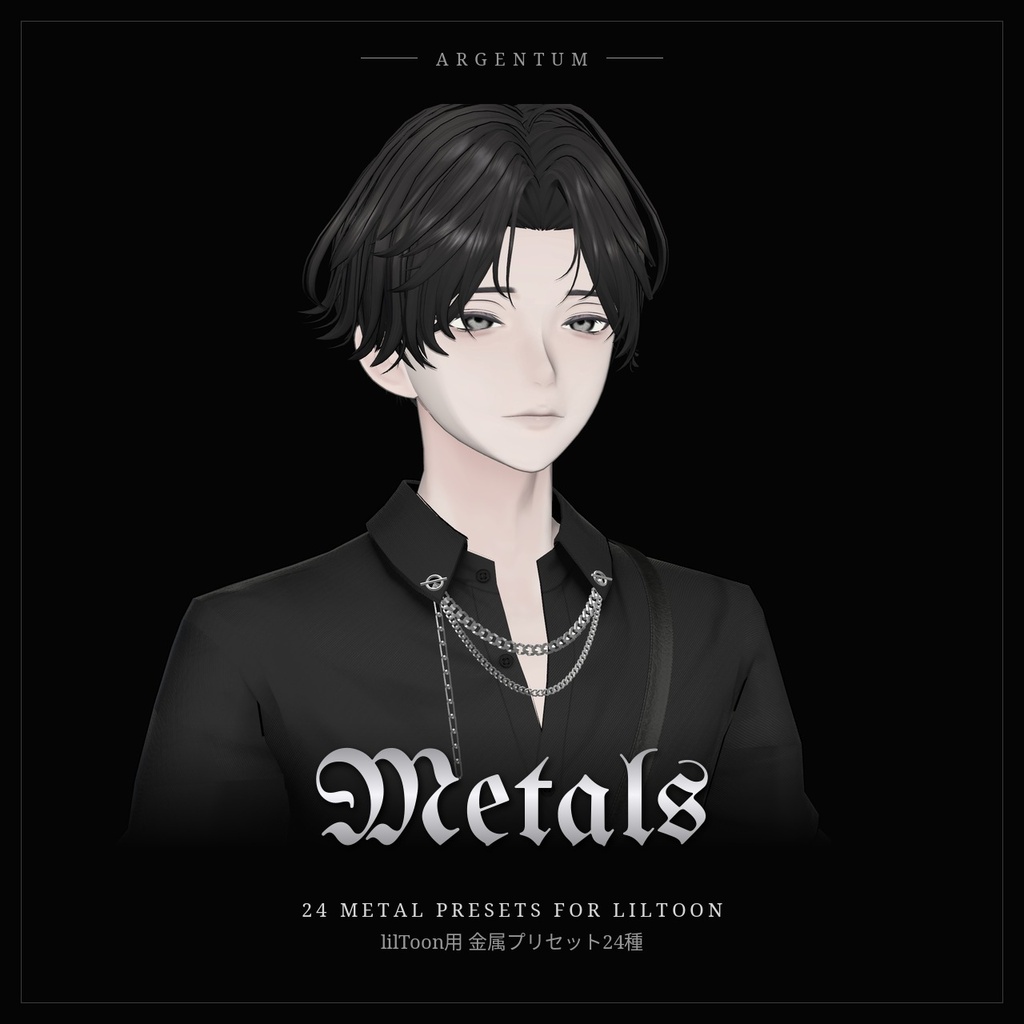
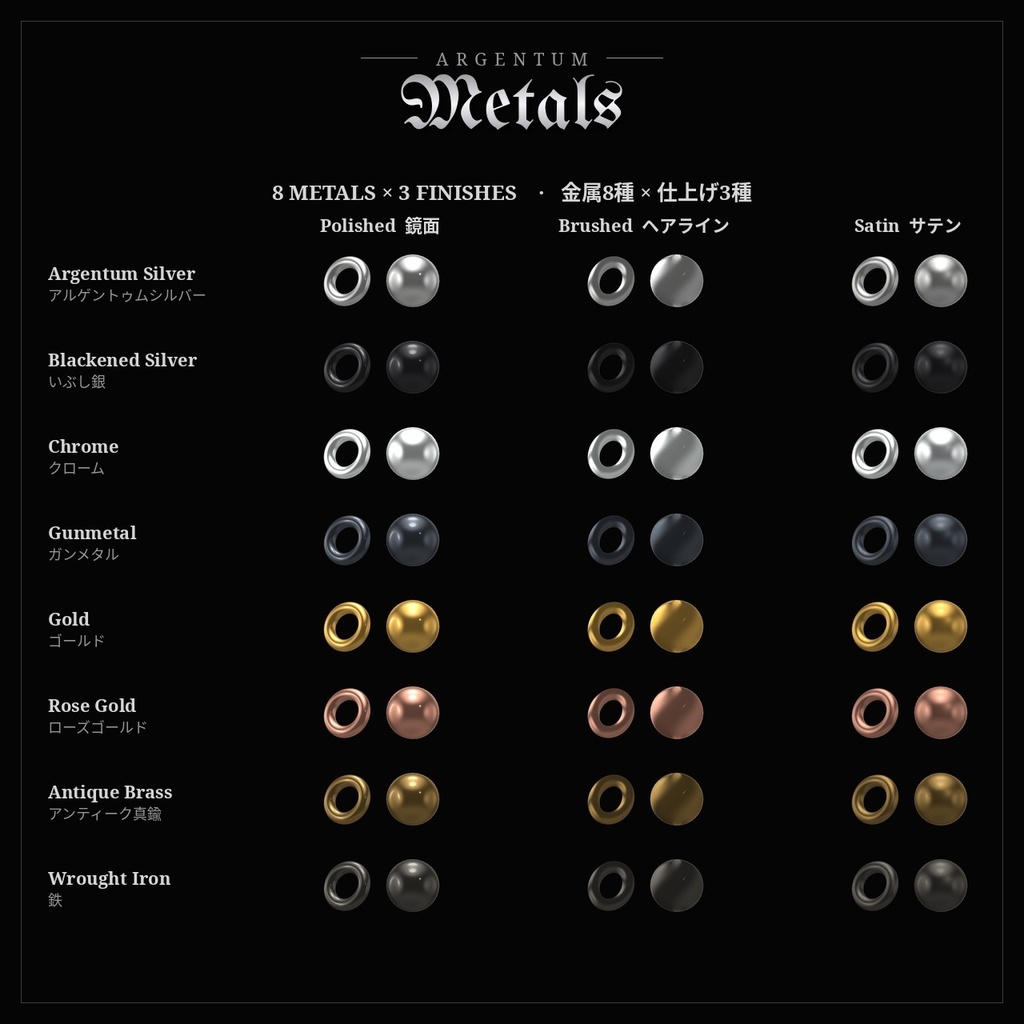
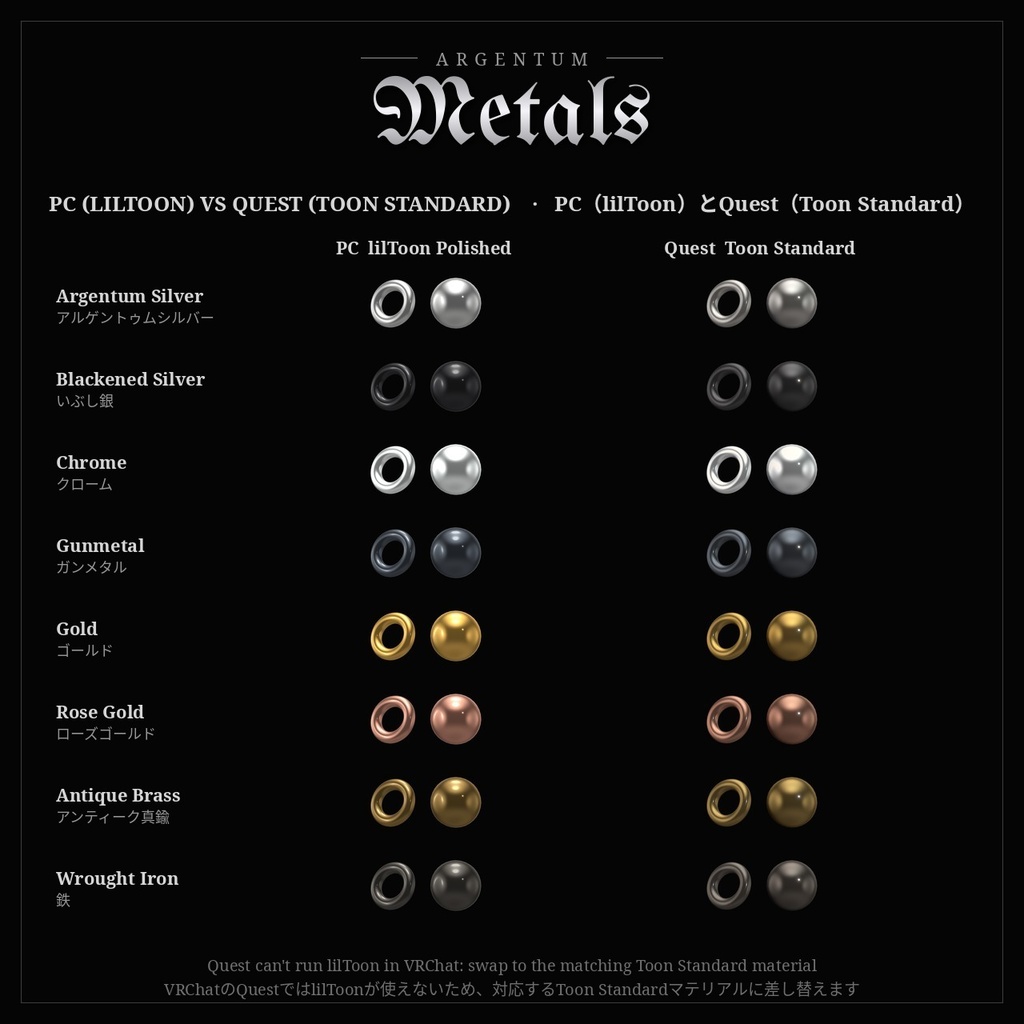
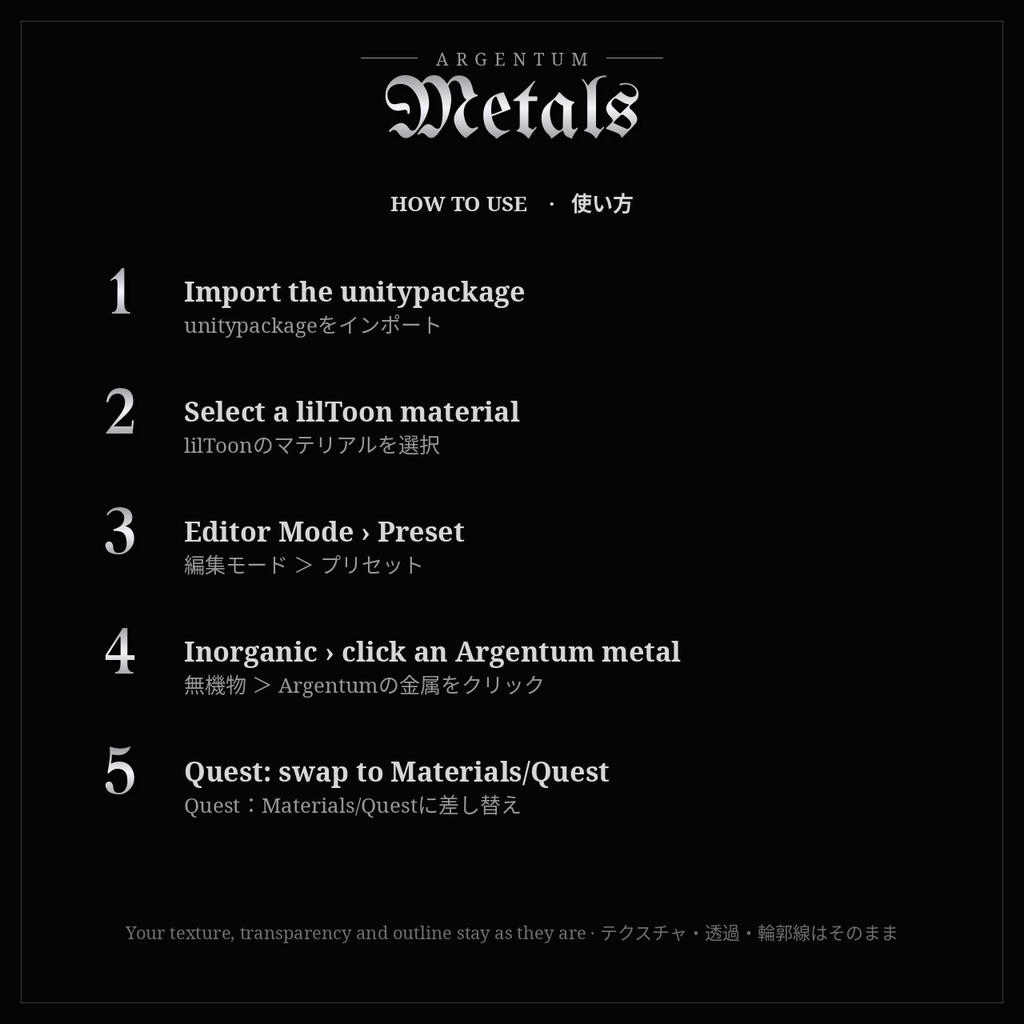
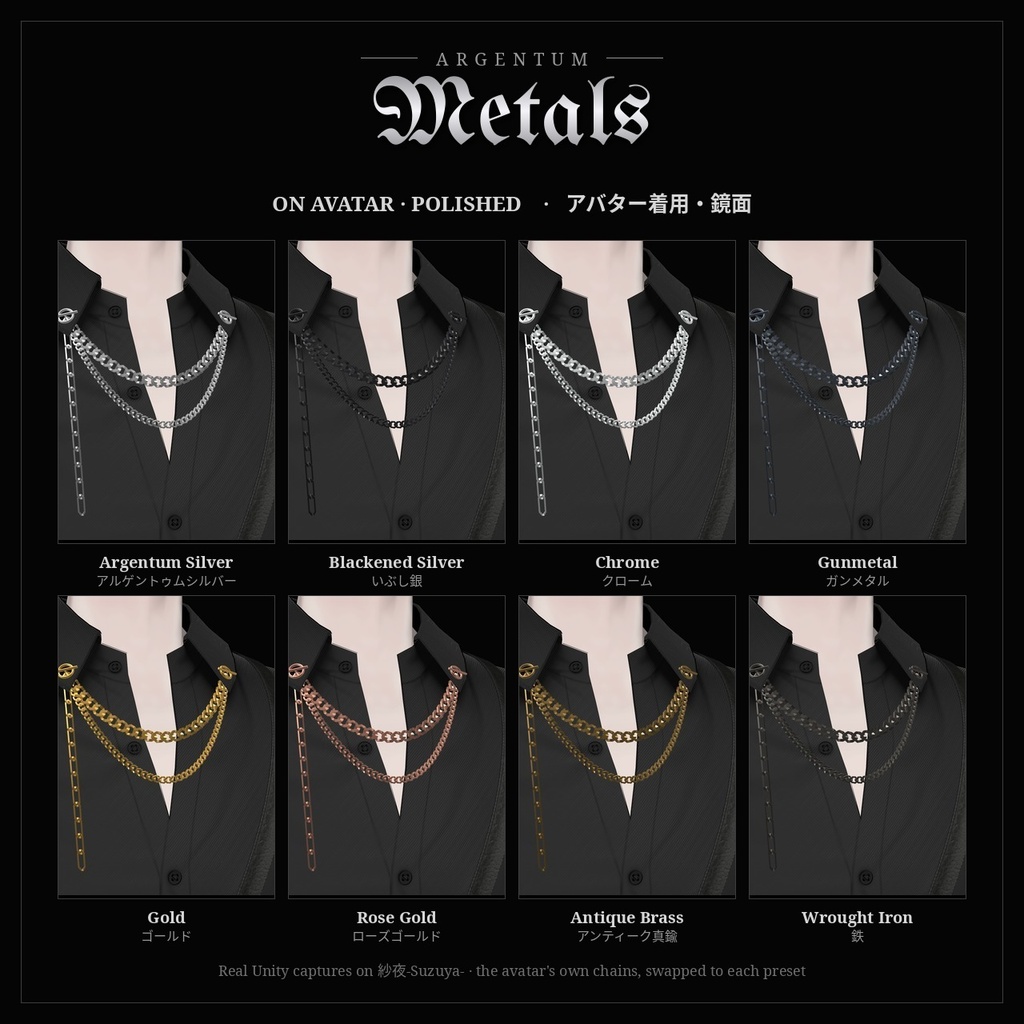
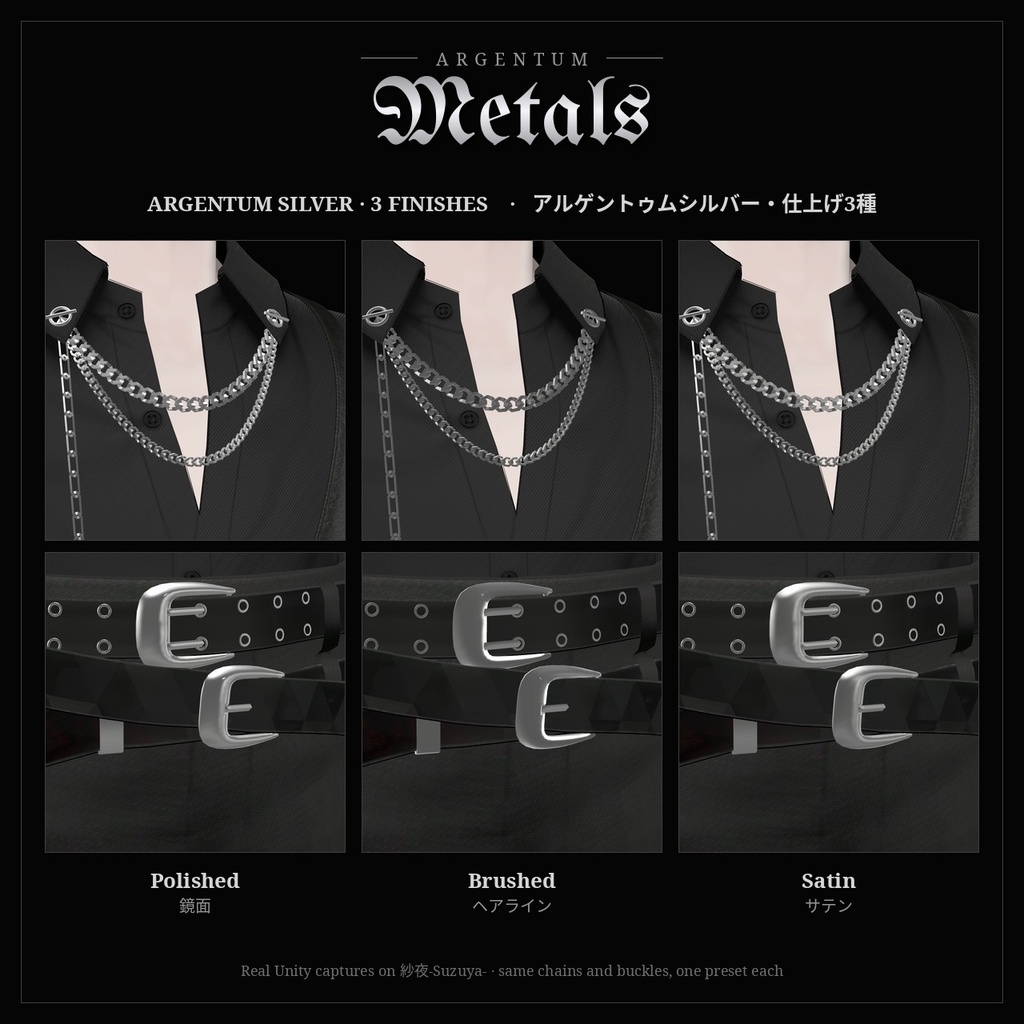
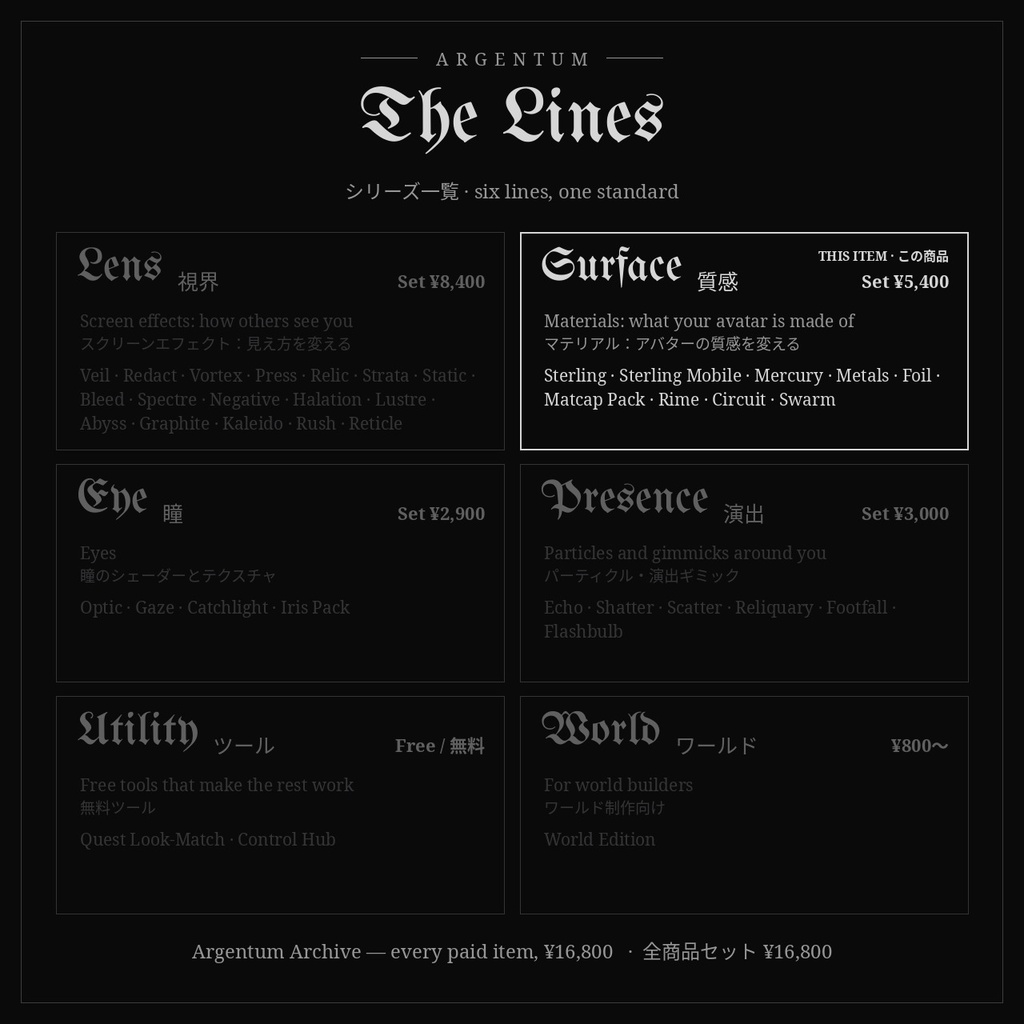


lilToonのマテリアルを、ワンクリックで金属に。 シルバーからいぶし銀、クローム、ゴールドまで、8種の金属を3つの仕上げで。 ■ 特長 ・lilToonプリセット24種:アルゲントゥムシルバー、いぶし銀、クローム、ガンメタル、ゴールド、ローズゴールド、アンティーク真鍮、鉄を、それぞれ鏡面・ヘアライン・サテンで ・lilToon標準のプリセット一覧(編集モード > プリセット > 無機物)からワンクリックで適用 ・テクスチャ、ノーマルマップ、描画モード(不透明・カットアウト・半透明)、輪郭線、ステンシル、Render Queueはそのまま。変わるのは金属の質感だけです ・ヘアラインはlilToonの異方性反射を使用。鏡面はくっきりしたきらめき付き ・反射のフォールバックを内蔵。リフレクションプローブのないワールドでも金属らしく見えます ・メニューやパラメーターは使いません(同期ビット0) ■ 対応環境 ・Unity 2022.3.22f1(現在VRChatが使用しているバージョン) ・lilToon 2.x(Unityエディター上で2.3.4 / 2.4.1、新規プロジェクトへのクリーンインストールで確認)。lilToonは同梱していません。lilxyzw様のBOOTHまたはVCCから無料で入手できます ・lilToon Liteにはプリセット機能がないため使えません ・VRChat SDK(Avatars)3.10.5でUnityエディター上で確認(Quest用マテリアルに必要)。VRChat内での確認はこれから ・PC:プリセットとlilToonマテリアル。Quest / Android:Toon Standardマテリアル(VRChatはQuest / Androidのアバターでカスタムシェーダーを許可していません) ■ 内容物 ・Argentum_Metals_v1.0.0.unitypackage(Assets/Argentum/Metals に入ります) ・lilToonプリセット24種(金属8種 × 仕上げ3種) ・設定済みlilToonマテリアル24種 ・Quest用マテリアル8種(VRChat/Mobile/Toon Standard) ・マットキャップ、反射のフォールバック用キューブマップ、Quest用の色付きマットキャップ8種 ・README(日本語 / English)、利用規約、更新履歴(パッケージ内 Documentation フォルダ、Markdown形式) ■ 使い方 1. unitypackageをインポート 2. 金属にしたいパーツのlilToonマテリアルを選択 3. インスペクター上部の「編集モード」を「プリセット」に 4. 「無機物」を開き、Argentumの金属をクリック(例:アルゲントゥムシルバー(鏡面)) 5. Quest版のアバターでは、同じパーツに Materials/Quest の対応するマテリアル(AM_Quest_<金属名>)を割り当て Argentum Quest Look-Matchをお使いの場合、事前に実行する必要はありません。Android向けにアップロードするときに自動で変換されます。これらのQuest用マテリアルを使うには、「マテリアルごとの設定」で各金属マテリアルを「差し替え…」にし、対応する AM_Quest_<金属名> を選んでください。 一覧に出ない場合は「リストを更新」を押してください。 ■ 負荷 ・lilToonの機能をオンにするだけで、パスやマテリアルは増えません ・テクスチャは小さめです(マットキャップ512px、キューブマップ256px、元のPNGで約0.4MB) ■ ご注意 ・プリセットはマテリアル全体に適用されます。一部だけを金属にしたい場合は、その部分を別のマテリアルスロットに分けるか、マットキャップ > マスクで範囲を絞ってください ・色は金属の色になります(色調補正の彩度を0にします)。テクスチャ本来の色を残したい場合は、彩度を1に戻してください ・ヘアラインの向きはメッシュのUVに従います ・金属もワールドの明るさに従うため、暗いワールドでは暗く見えます ・Quest用マテリアルは金属ごとに1種類です。Questでは仕上げの違いやワールドの反射は表現できません ■ アップデート 購入者は無料でアップデートを受け取れます。BOOTHのライブラリから再ダウンロードしてください。 更新するときは、新しいバージョンを上からインポートしてください。プリセットとマテリアルは置き換わるため、変更する場合は複製してからお使いください。 画像のアバター:紗夜-Suzuya-(JUSTDUCKY様)※アバターは付属しません ──────────────────── English ──────────────────── Turn any lilToon material into metal in one click. Silver to blackened silver, chrome to gold: eight metals, three finishes each. ■ Features ・24 lilToon presets: Argentum Silver, Blackened Silver, Chrome, Gunmetal, Gold, Rose Gold, Antique Brass and Wrought Iron, each Polished, Brushed and Satin ・One click in lilToon's own preset list (Editor Mode > Preset > Inorganic) ・Your texture, normal maps, rendering mode (opaque / cutout / transparent), outline, stencil and render queue stay as they are. Only the metal look changes ・Brushed uses lilToon's anisotropic reflection; Polished adds sharp glints ・Built-in fallback reflections, so metal still reads as metal in worlds without reflection probes ・No menu and no parameters (0 synced bits) ■ Compatibility ・Unity 2022.3.22f1 (VRChat's current version) ・lilToon 2.x (checked in the Unity editor with 2.3.4 and 2.4.1, including a clean install into a new project; not yet checked in VRChat). lilToon is not included; it's free from lilxyzw on BOOTH or through VCC ・lilToon Lite has no presets, so it isn't supported ・Checked in the Unity editor with VRChat SDK (Avatars) 3.10.5 (needed for the Quest materials) ・PC: the presets and lilToon materials. Quest / Android: the Toon Standard materials (VRChat does not allow custom shaders on Quest / Android avatars) ■ What's included ・Argentum_Metals_v1.0.0.unitypackage (installs to Assets/Argentum/Metals) ・24 lilToon presets (8 metals × 3 finishes) ・24 ready-made lilToon materials ・8 Quest materials (VRChat/Mobile/Toon Standard) ・Matcaps, a fallback reflection cubemap, and 8 tinted Quest matcaps ・README (English / Japanese), terms of use, changelog (Markdown files in the package's Documentation folder) ■ How to use 1. Import the unitypackage 2. Select the lilToon material of the part that should be metal 3. At the top of the inspector, set Editor Mode to Preset 4. Open Inorganic and click an Argentum metal (e.g. Argentum Silver - Polished) 5. On your Quest avatar, put the matching material from Materials/Quest (AM_Quest_<Metal>) on the same parts If you use Argentum Quest Look-Match, there is nothing to run first: it converts your avatar automatically when you upload for Android. To use these Quest materials, open Per-material choices, set each metal material to Replace with… and pick the matching AM_Quest_<Metal>. If the presets aren't listed, click Refresh List. ■ Performance ・Presets only switch on lilToon features: no extra passes or materials ・Small textures (512 px matcap, 256 px cubemap, about 0.4 MB of source PNGs) ■ Notes ・A preset changes the whole material. To make only part of a mesh metal, give that part its own material slot, or limit it with MatCap > Mask ・The metal decides the color (Color Adjust > Saturation is set to 0). To keep your texture's own colors, set Saturation back to 1 ・Brushed streaks follow the mesh's UV direction ・Metal follows world lighting, so it looks darker in dark worlds ・One Quest material per metal. Quest can't show the Polished / Brushed / Satin difference or world reflections ■ Updates Free for buyers. Re-download from your BOOTH library. To update, import the new version over the old one. The included presets and materials are replaced, so duplicate one before you change it. Avatar in the images: 紗夜-Suzuya- by JUSTDUCKY (not included) ━━━━━━━━━━ ▼ セット / Bundle Argentum SURFACE Set:質感シリーズ全9種を1パッケージに(本商品を含みます。¥5,400。単品合計は¥8,400) All 9 Surface products in one package, including Metals (¥5,400; ¥8,400 if bought separately) https://argentumdesigns.booth.pm/items/9140374 ▼ 最新情報 / Updates https://x.com/argentumdesigns