

帽子かぶれるヘア - 帽子をかぶった時だけ、はみ出す髪を帽子の中へ【JA,EN,KO】
- ダウンロード商品¥ 700
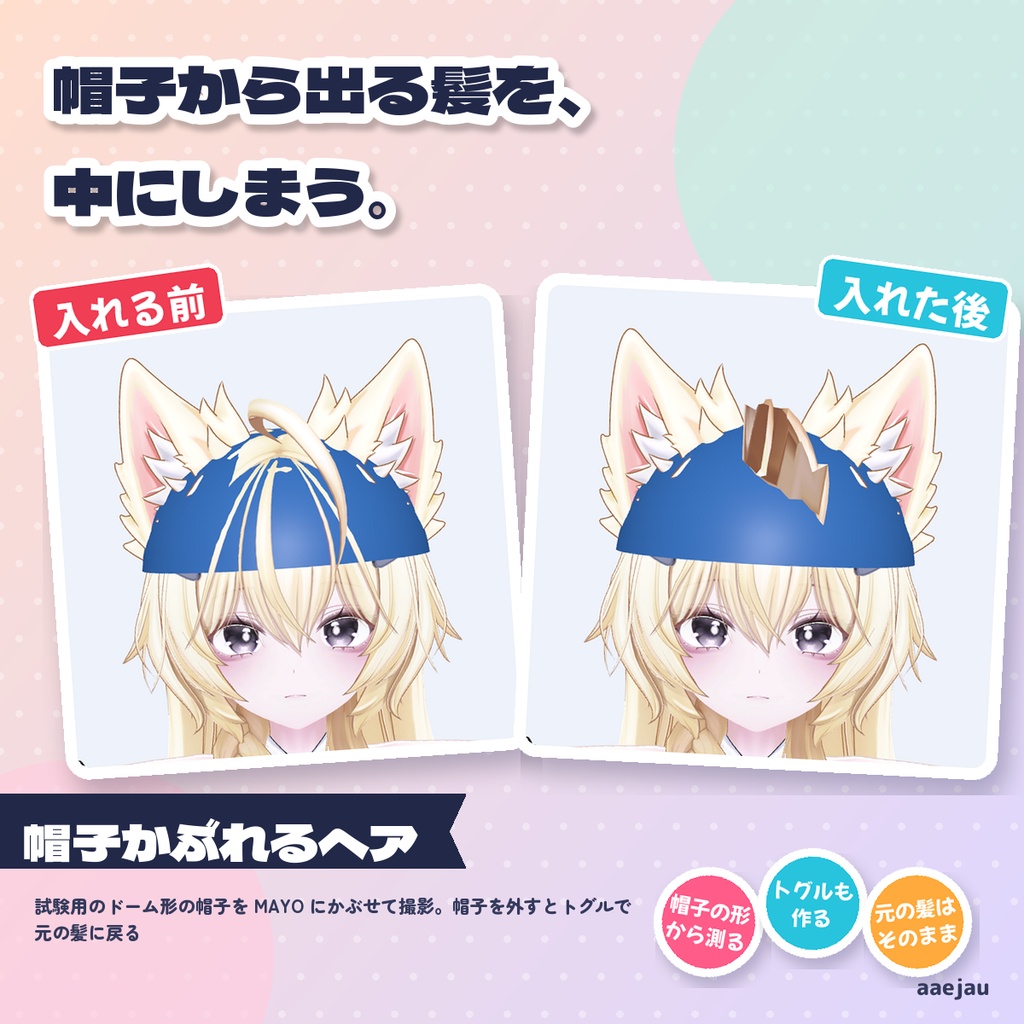
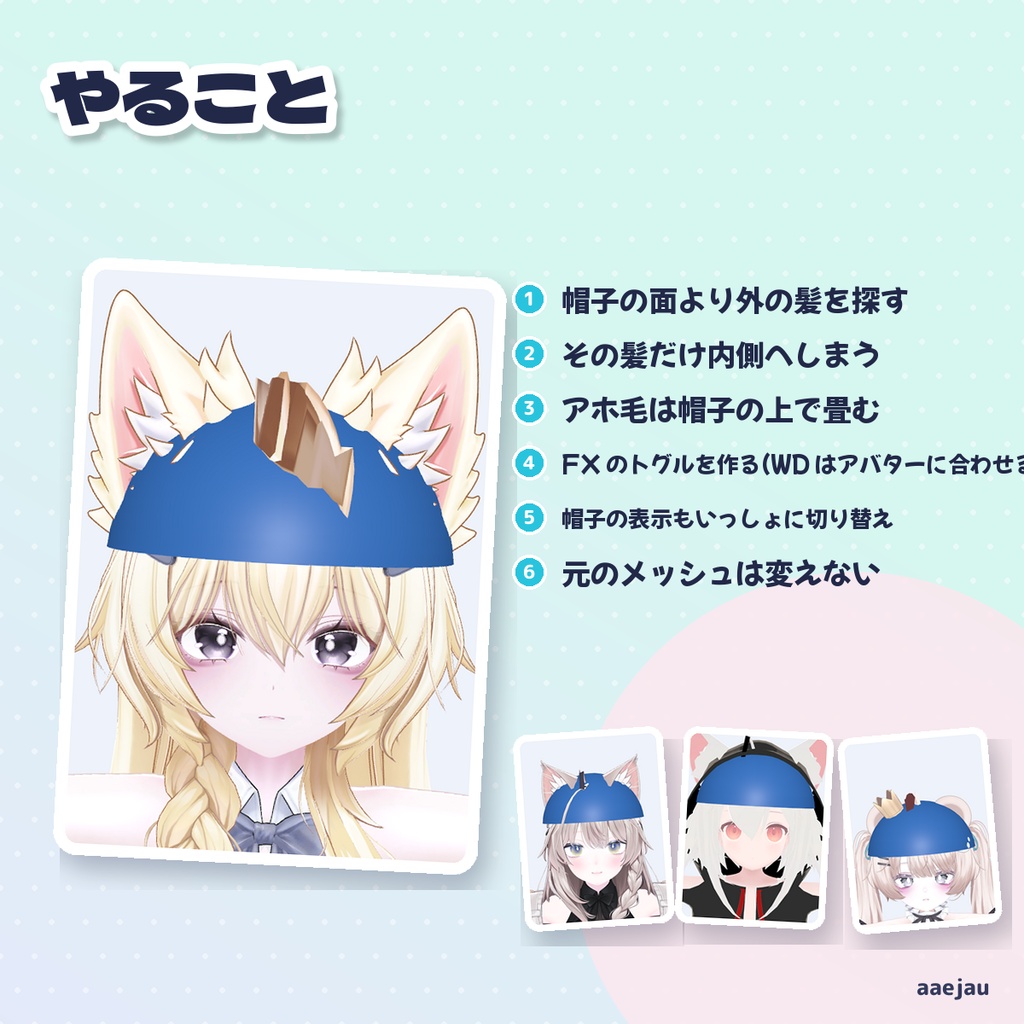
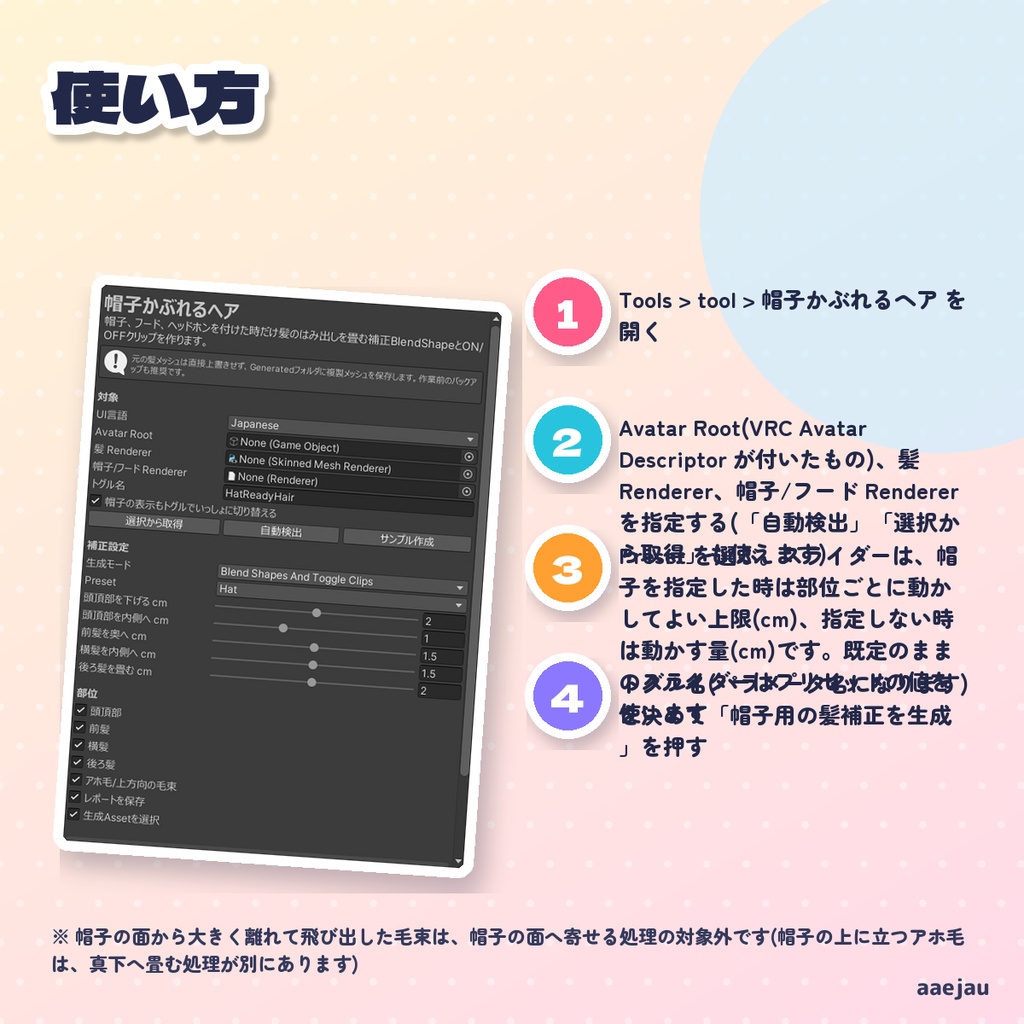
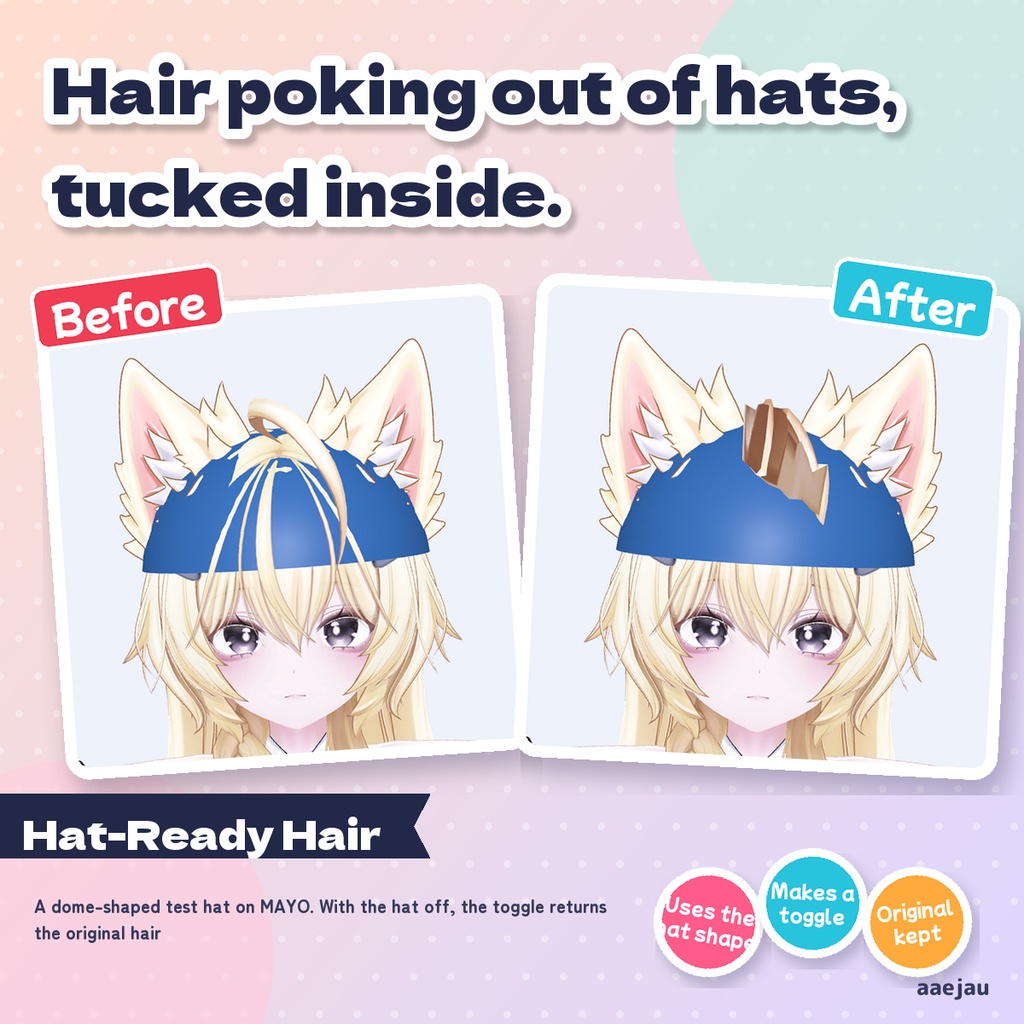
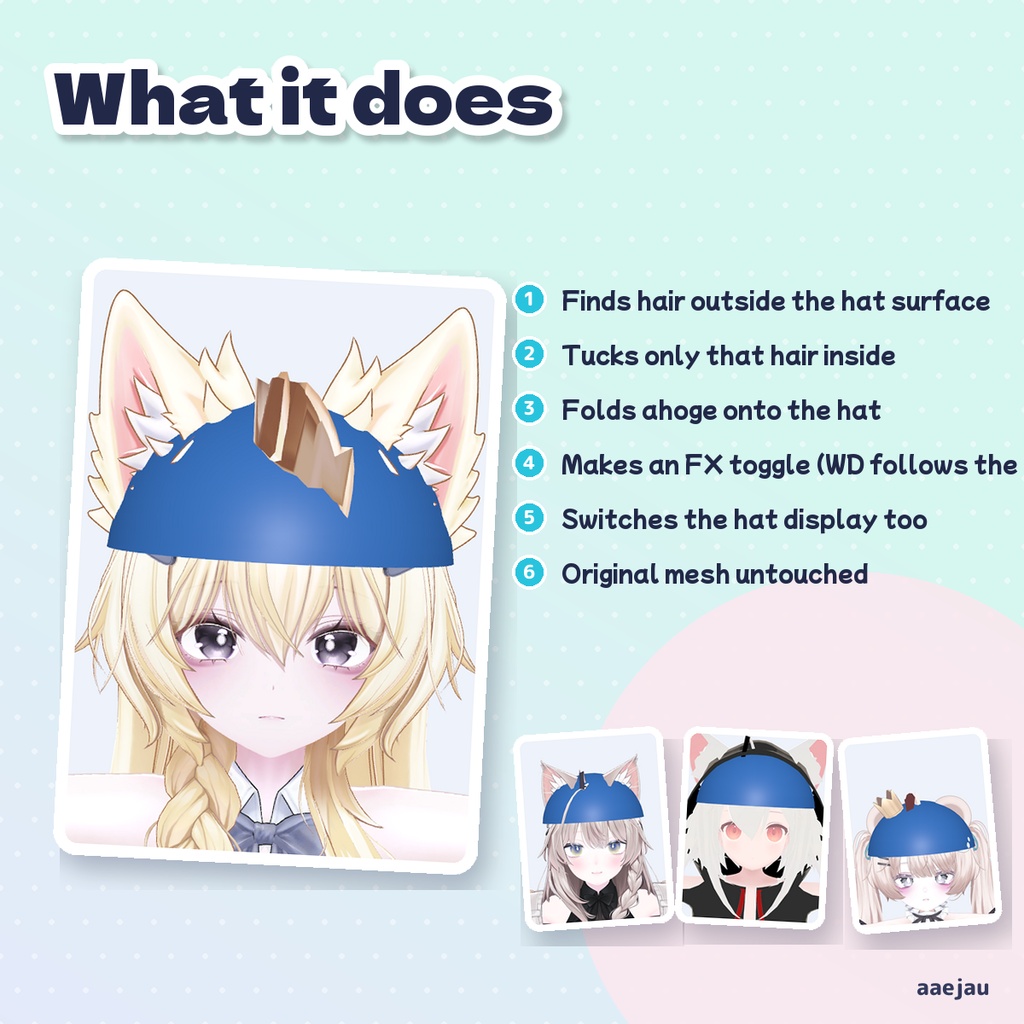
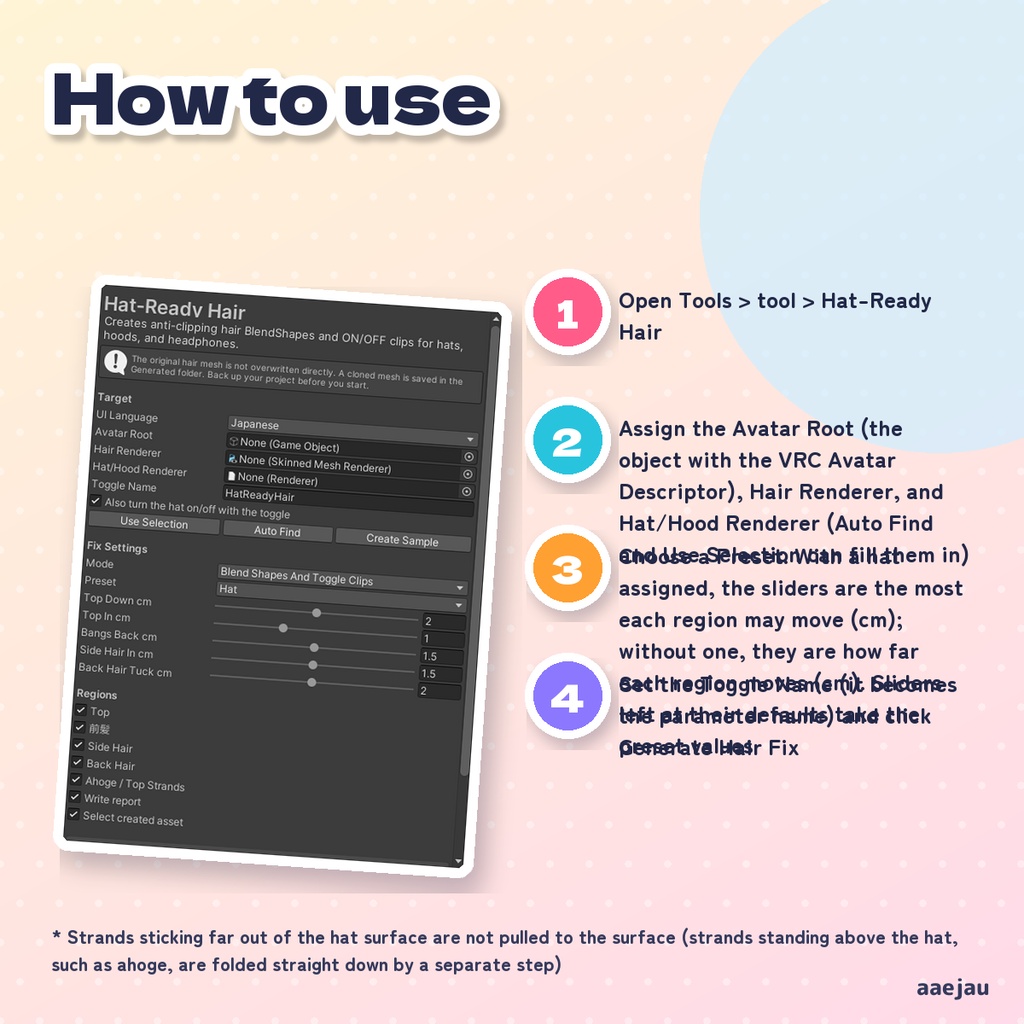
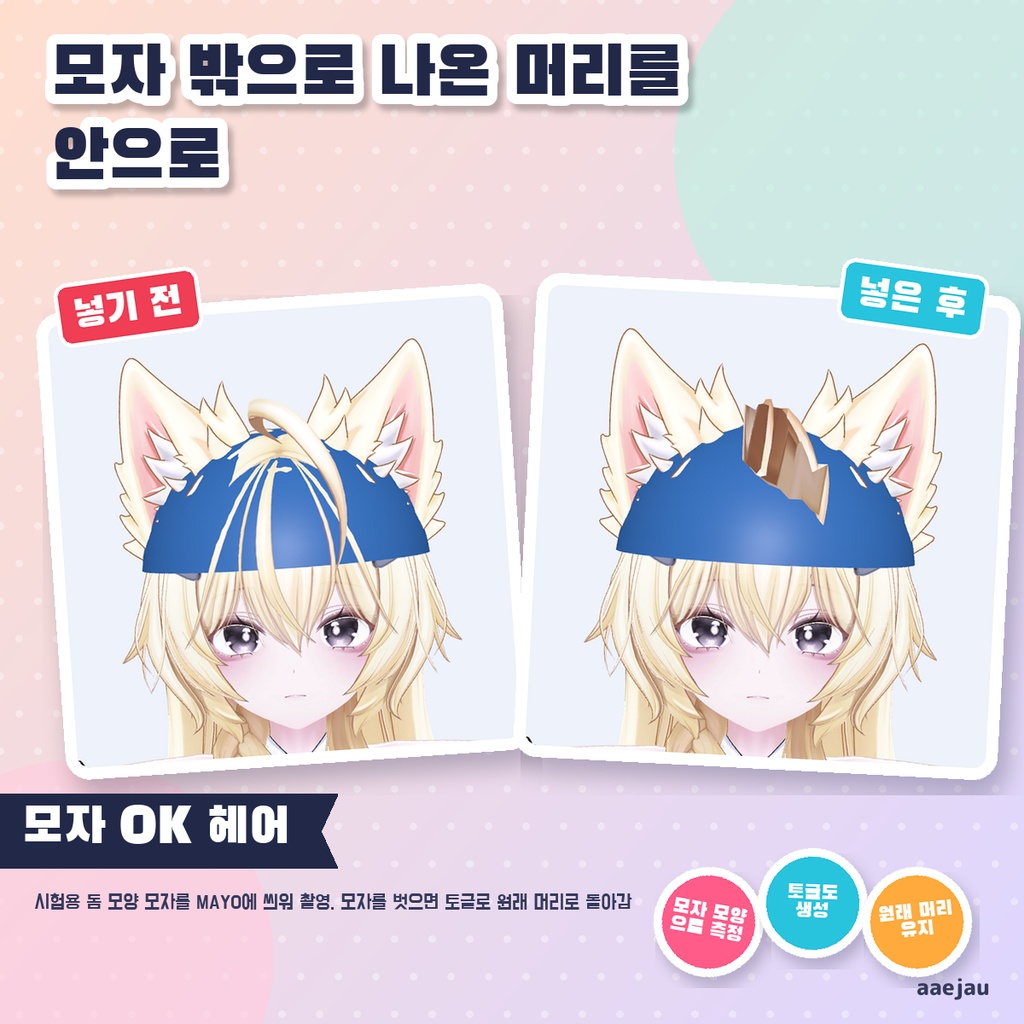
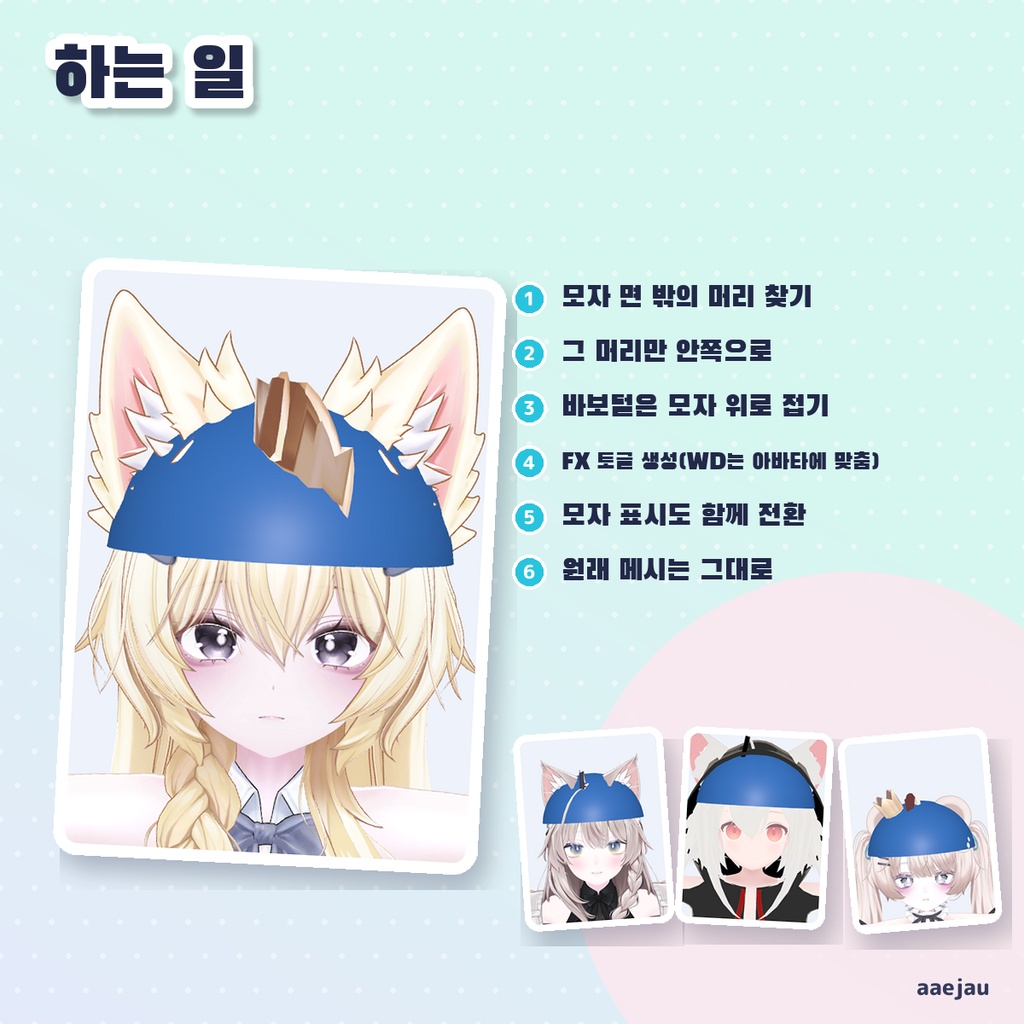
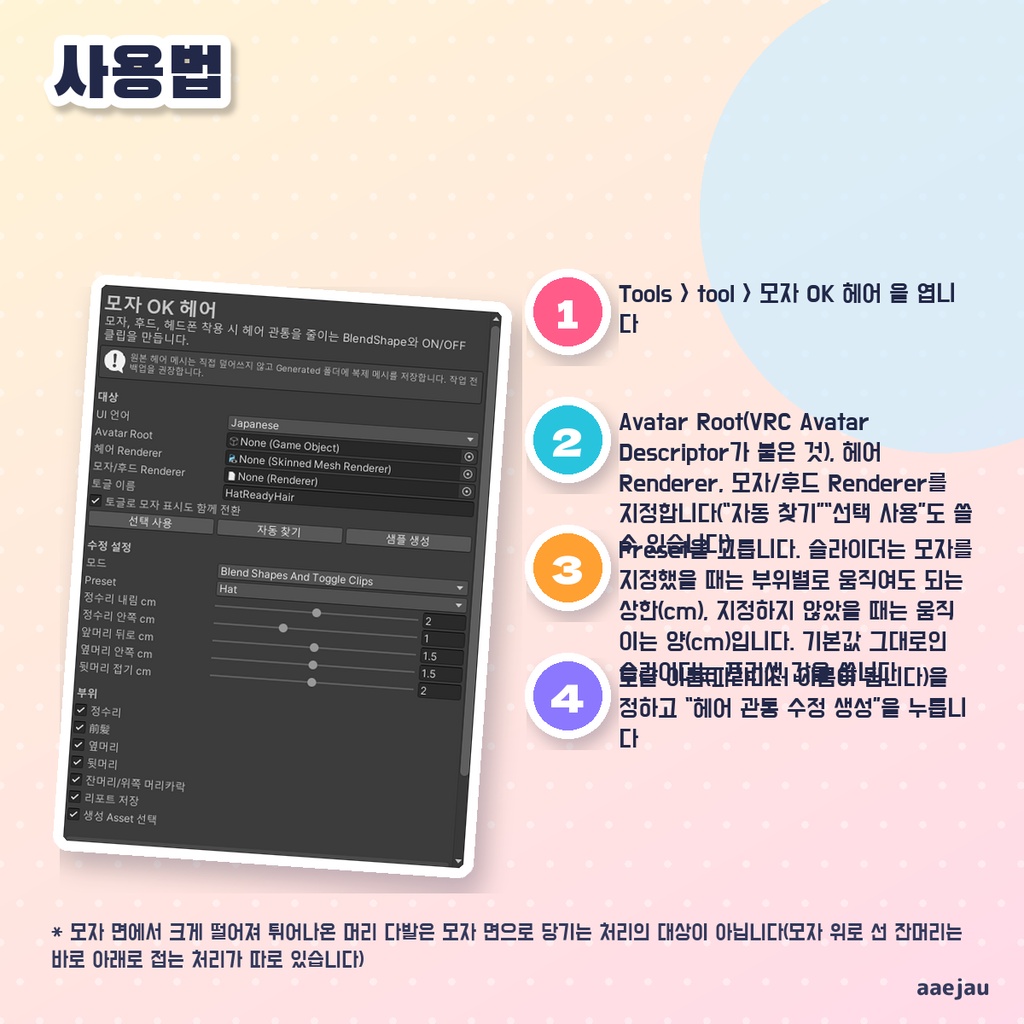


「帽子をかぶると、髪が突き抜けて見えちゃう。」 Blenderは使いません。Unityの中だけで終わります。 帽子・フード・ヘッドホンの Renderer を指定すると、帽子のメッシュの形から「帽子の外に出ている髪」だけを探し、帽子の面の内側へ入れる BlendShape(頭頂部・前髪・横髪・後ろ髪・アホ毛)を作ります。帽子の縁より下に垂れる髪や、帽子から離れた髪は動かしません。さらに FX レイヤー・Bool パラメータ・Expressions メニューのトグルまで作り、トグルを ON にすると髪の補正と帽子の表示がいっしょに切り替わります。計算は骨で動かしたワールド座標で行うので、髪メッシュの軸の向きや FBX の縮尺に左右されません。元の髪メッシュアセットは書き換えず、Generated フォルダに保存した複製へ差し替えます。 ◆ 使い方 1. Tools > tool > 帽子かぶれるヘア を開く 2. Avatar Root(VRC Avatar Descriptor が付いたもの)、髪 Renderer、帽子/フード Renderer を指定する(「自動検出」「選択から取得」も使えます) 3. Preset を選ぶ。スライダーは、帽子を指定した時は部位ごとに動かしてよい上限(cm)、指定しない時は動かす量(cm)です。既定のままのスライダーはプリセットの値を使います 4. トグル名(パラメータ名になります)を決めて「帽子用の髪補正を生成」を押す 5. Build & Test などでメニューのトグルを切り替え、帽子をかぶった時の見え方を確かめる ◆ 必要環境 ・Unity 2022.3 ・VRChat SDK3 (Avatars)(トグルを作る場合) ・髪が SkinnedMeshRenderer になっているアバター ※ 帽子の面から大きく離れて飛び出した毛束は、帽子の面へ寄せる処理の対象外です(帽子の上に立つアホ毛は、真下へ畳む処理が別にあります) ※ 帽子/フード Renderer を指定しない時は、頭の周りの決まった範囲を動かすだけで、帽子の形には沿いません ※ 1回に扱う髪の Renderer は1つです。髪が複数の Renderer に分かれている場合は1つずつ実行してください。同じトグル名なら1つのトグルにまとまります ※ 帽子の切り替えを別に持っている場合は、二重にならないよう「帽子の表示もトグルでいっしょに切り替える」を外してください ※ Expressions メニューに空きが無い、または Expression Parameters が足りない時は、その部分だけ追加されず警告が出ます ※ FX レイヤーの Write Defaults は、アバターの既存 FX レイヤーの多数に合わせます ※ 帽子やフード側のメッシュは変更しません ※ 4体に試験用のドーム形の帽子をかぶせて、帽子の外へ出ていた髪の頂点を数えました: しなの 316→45・Felis 732→16・MAYO 582→110・ミルフィ 748→298(ツインテールの根元が残る)。アホ毛は帽子の上で小さく畳まれます。本物の帽子アセットではまだ試していません 内容物: unitypackage / README / CHANGELOG / TEST_REPORT / LICENSE / 画面のスクリーンショット ━━━━━━━━━━━━━━━━━━━━ English ━━━━━━━━━━━━━━━━━━━━ Assign the hat, hood or headphones renderer, and the tool uses the shape of that mesh to find only the hair that pokes out of it. It creates BlendShapes (top, bangs, side hair, back hair, ahoge) that move that hair just inside the hat surface. Hair hanging below the brim and hair away from the hat is not moved. It also creates the FX layer, a Bool parameter and an Expressions menu toggle; turning the toggle ON switches the hair fix and the hat on together. Everything is computed in world space with the bones, so the axes of the hair mesh and the FBX import scale do not matter. The original hair mesh asset is not edited; the hair renderer is switched to a copy saved in the Generated folder. ◆ How to use 1. Open Tools > tool > Hat-Ready Hair 2. Assign the Avatar Root (the object with the VRC Avatar Descriptor), Hair Renderer, and Hat/Hood Renderer (Auto Find and Use Selection can fill them in) 3. Choose a Preset. With a hat assigned, the sliders are the most each region may move (cm); without one, they are how far each region moves (cm). Sliders left at their defaults take the preset values 4. Set the Toggle Name (it becomes the parameter name) and click Generate Hair Fix 5. Switch the menu toggle in Build & Test or similar and check the look with the hat on ◆ Requirements ・Unity 2022.3 ・VRChat SDK3 (Avatars) (to create the toggle) ・An avatar whose hair is a SkinnedMeshRenderer * Strands sticking far out of the hat surface are not pulled to the surface (strands standing above the hat, such as ahoge, are folded straight down by a separate step) * Without a Hat/Hood Renderer, only fixed regions around the head are moved; they do not follow the shape of a hat * One hair renderer per run. If the hair is split across several renderers, run the tool once for each. With the same Toggle Name they are grouped into one toggle * If you already have your own hat toggle, turn off "Also turn the hat on/off with the toggle" so it is not doubled * If the Expressions menu is full or Expression Parameters memory runs out, that part is not added and a warning is shown * Write Defaults of the FX layer follow the majority of the avatar's existing FX layers * The hat or hood mesh is not changed * Tested with a dome-shaped test hat on 4 avatars, counting hair vertices outside the hat: Shinano 316→45, Felis 732→16, MAYO 582→110, Milfy 748→298 (twin-tail roots remain). Ahoge hair folds down into a small tuft on the hat. Not yet tested with real hat assets Contents: unitypackage / README / CHANGELOG / TEST_REPORT / LICENSE / screenshot ━━━━━━━━━━━━━━━━━━━━ 한국어 ━━━━━━━━━━━━━━━━━━━━ 모자·후드·헤드폰의 Renderer를 지정하면, 모자 메시의 모양으로 「모자 밖으로 나온 머리카락」만 찾아 모자 면 안쪽으로 넣는 BlendShape(정수리·앞머리·옆머리·뒷머리·잔머리)를 만듭니다. 모자 가장자리 아래로 늘어진 머리카락이나 모자에서 떨어진 머리카락은 움직이지 않습니다. 또한 FX 레이어·Bool 파라미터·Expressions 메뉴 토글까지 만들어, 토글을 ON으로 하면 머리카락 보정과 모자 표시가 함께 전환됩니다. 계산은 본으로 움직인 월드 좌표에서 하므로 헤어 메시의 축 방향이나 FBX 스케일에 좌우되지 않습니다. 원본 헤어 메시 에셋은 수정하지 않고, Generated 폴더에 저장한 복제로 교체합니다. ◆ 사용법 1. Tools > tool > 모자 OK 헤어 을 엽니다 2. Avatar Root(VRC Avatar Descriptor가 붙은 것), 헤어 Renderer, 모자/후드 Renderer를 지정합니다(「자동 찾기」「선택 사용」도 쓸 수 있습니다) 3. Preset을 고릅니다. 슬라이더는 모자를 지정했을 때는 부위별로 움직여도 되는 상한(cm), 지정하지 않았을 때는 움직이는 양(cm)입니다. 기본값 그대로인 슬라이더는 프리셋 값을 씁니다 4. 토글 이름(파라미터 이름이 됩니다)을 정하고 「헤어 관통 수정 생성」을 누릅니다 5. Build & Test 등에서 메뉴 토글을 전환해 모자를 쓴 모습을 확인합니다 ◆ 요구 환경 ・Unity 2022.3 ・VRChat SDK3 (Avatars) (토글을 만들 경우) ・머리카락이 SkinnedMeshRenderer로 되어 있는 아바타 ※ 모자 면에서 크게 떨어져 튀어나온 머리 다발은 모자 면으로 당기는 처리의 대상이 아닙니다(모자 위로 선 잔머리는 바로 아래로 접는 처리가 따로 있습니다) ※ 모자/후드 Renderer를 지정하지 않으면 머리 주변의 정해진 범위만 움직이며, 모자 모양에는 맞추지 않습니다 ※ 한 번에 다루는 헤어 Renderer는 1개입니다. 머리카락이 여러 Renderer로 나뉘어 있다면 하나씩 실행해 주세요. 같은 토글 이름이면 하나의 토글로 묶입니다 ※ 모자 전환을 따로 가지고 있다면 중복되지 않도록 「토글로 모자 표시도 함께 전환」을 꺼 주세요 ※ Expressions 메뉴에 빈칸이 없거나 Expression Parameters가 부족하면 그 부분만 추가되지 않고 경고가 나옵니다 ※ FX 레이어의 Write Defaults는 아바타의 기존 FX 레이어 다수에 맞춥니다 ※ 모자나 후드 쪽 메시는 변경하지 않습니다 ※ 4체에 시험용 돔 모양 모자를 씌우고 모자 밖으로 나온 머리카락 정점을 셌습니다: 시나노 316→45, Felis 732→16, MAYO 582→110, 밀피 748→298(트윈테일 뿌리가 남음). 바보털은 모자 위에서 작게 접힙니다. 실제 모자 에셋으로는 아직 시험하지 않았습니다 내용물: unitypackage / README / CHANGELOG / TEST_REPORT / LICENSE / 스크린샷