

なん頭身でも - アバターの頭身をスライダーで変える【JA,EN,KO】
- 日本語ダウンロード商品¥ 700
- Englishダウンロード商品¥ 700
- 한국어ダウンロード商品¥ 700
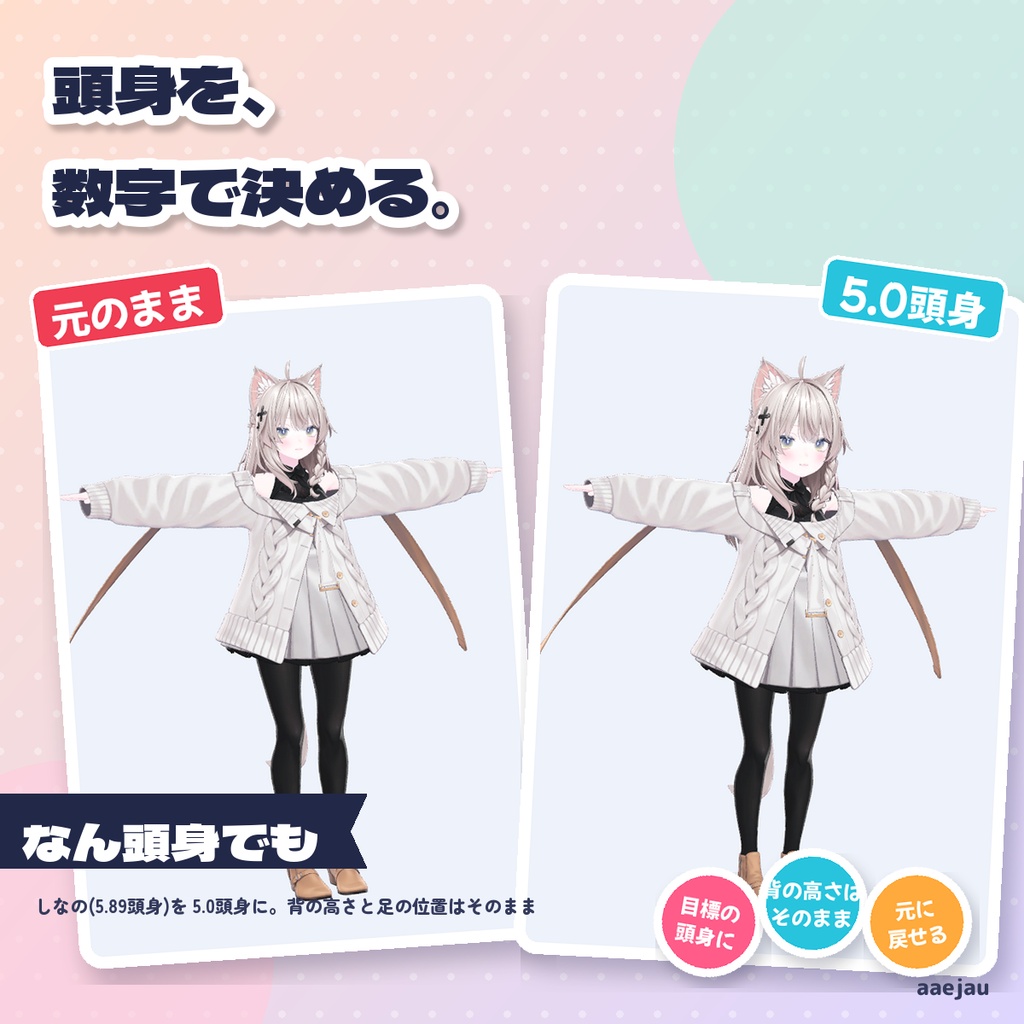
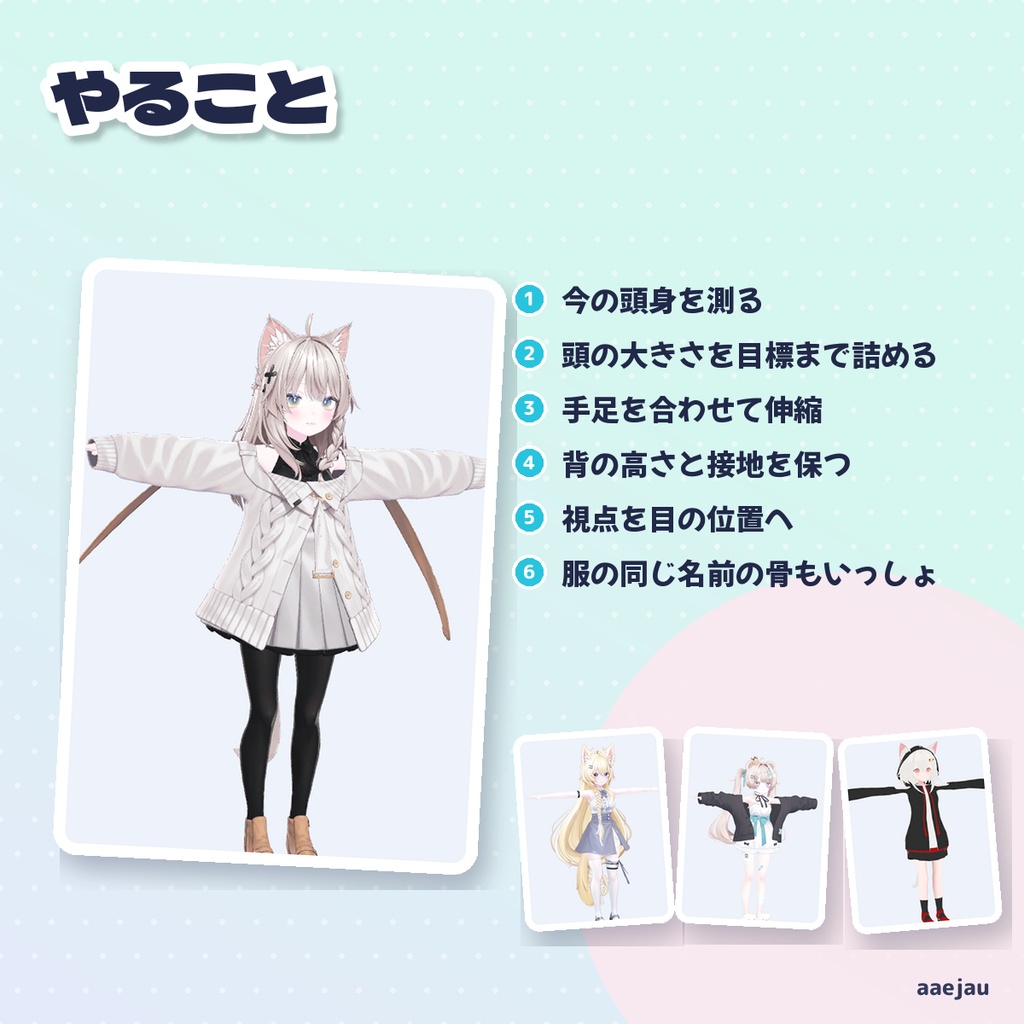
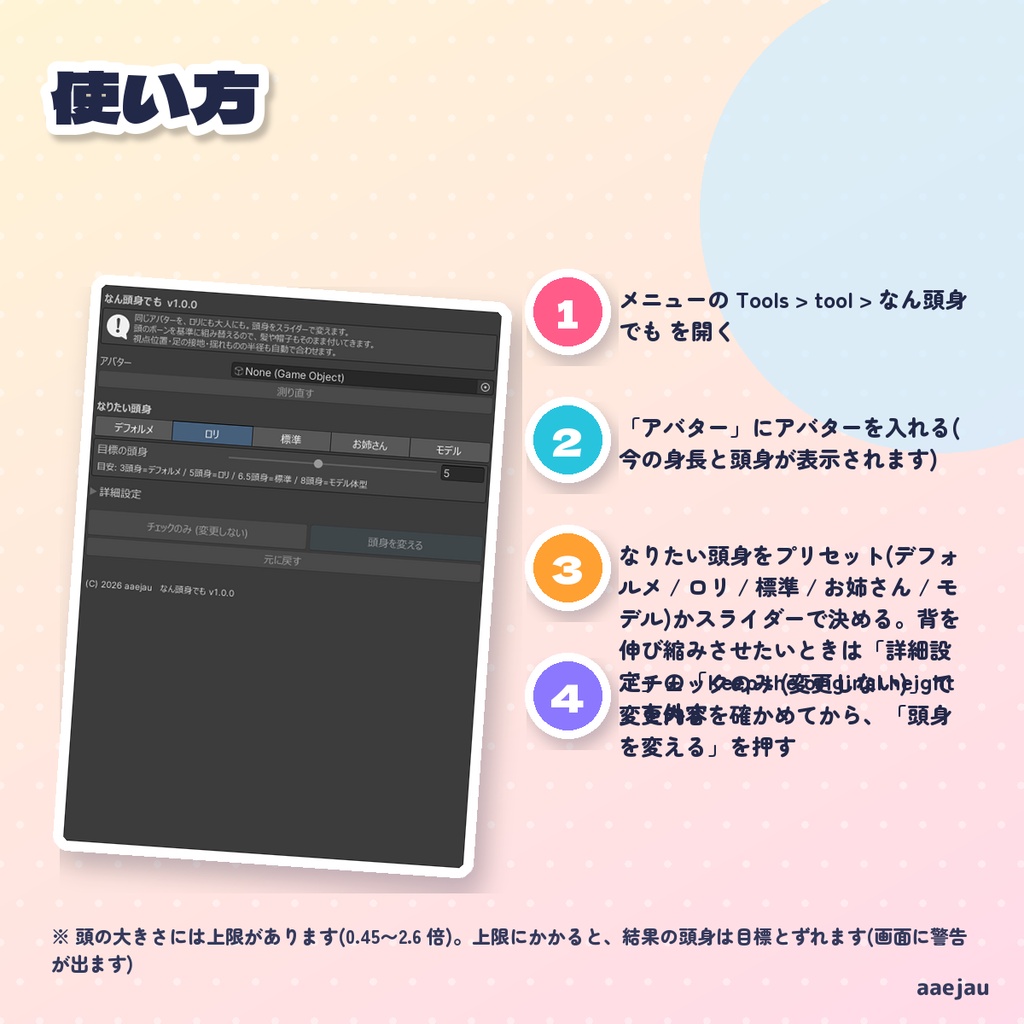
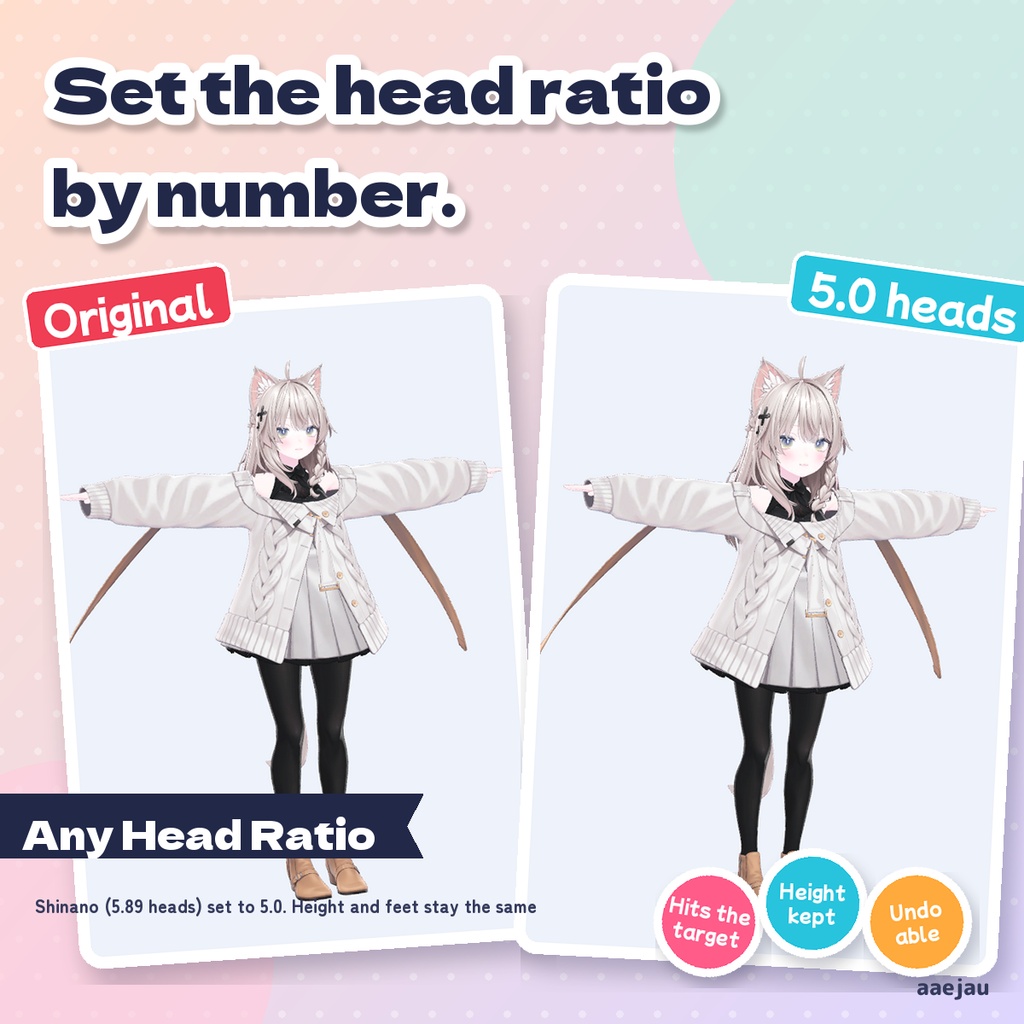
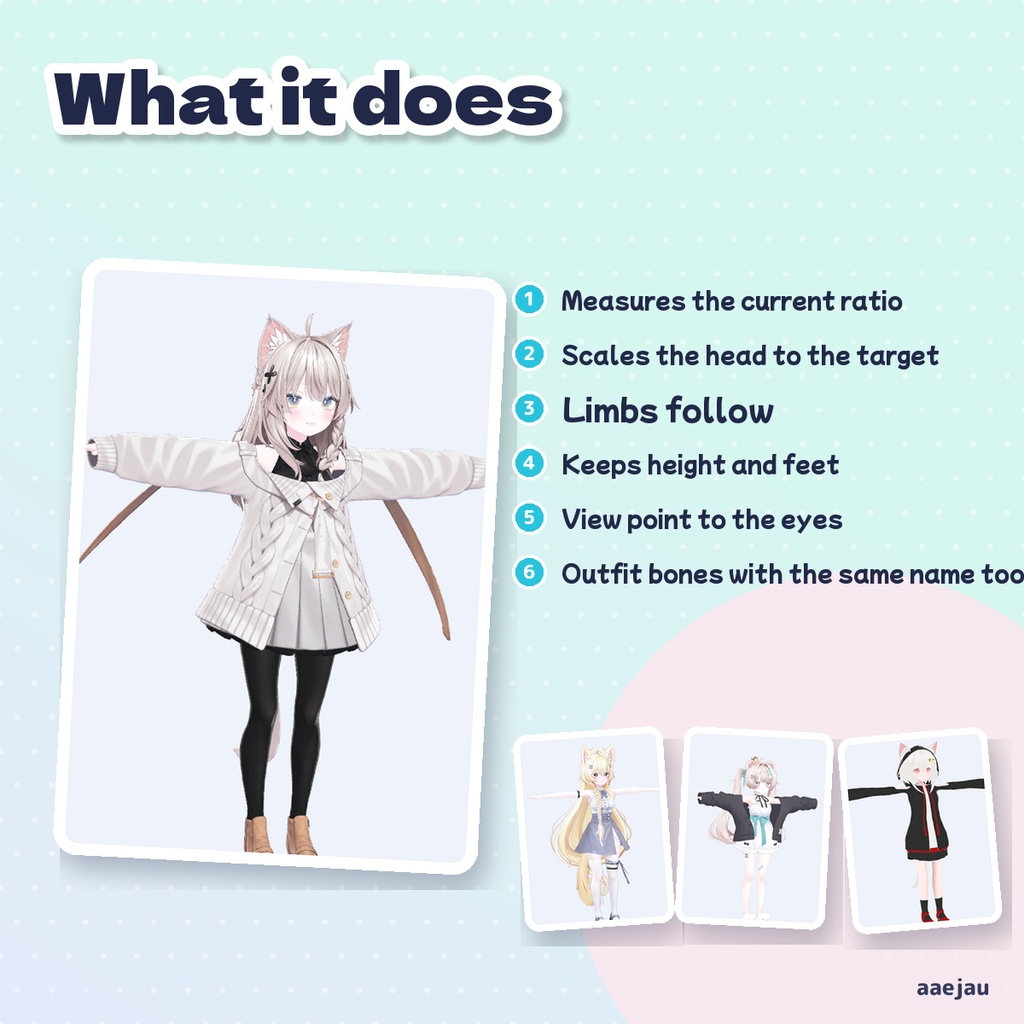
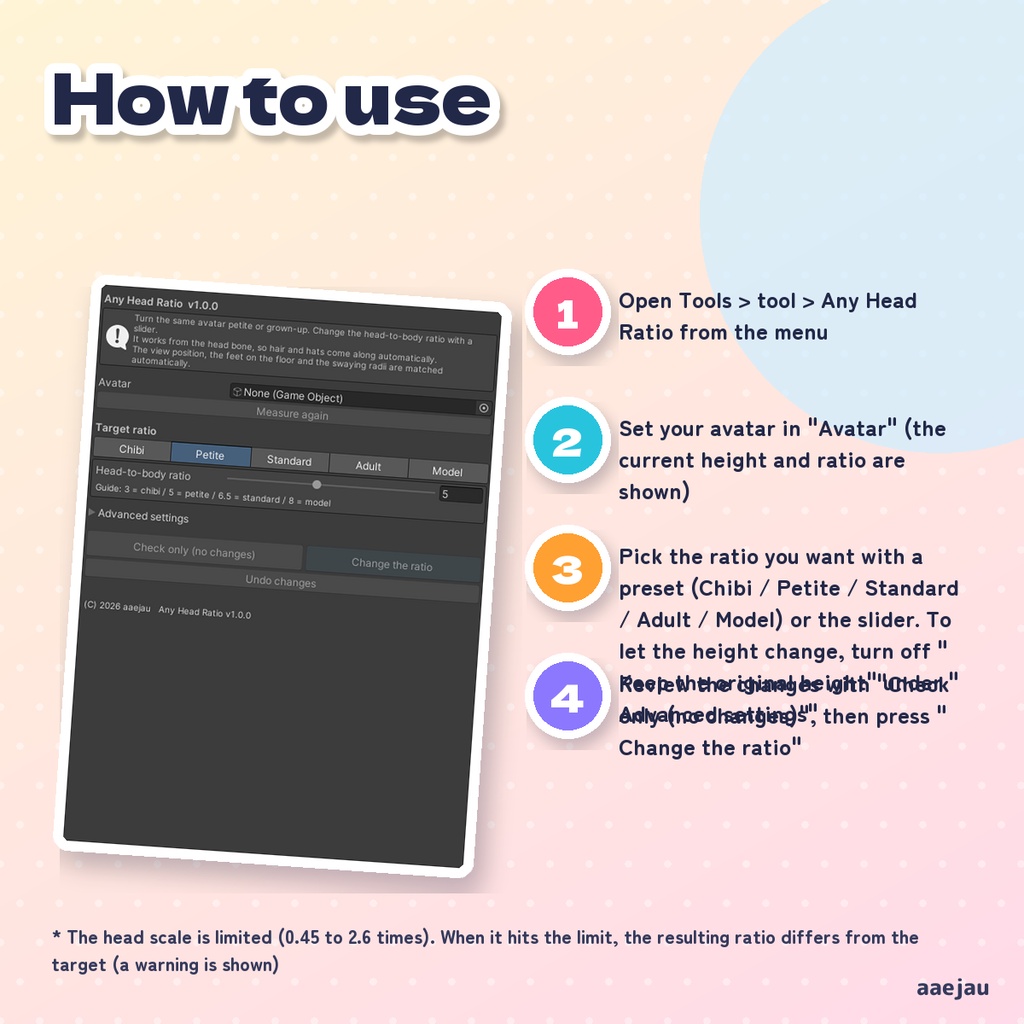
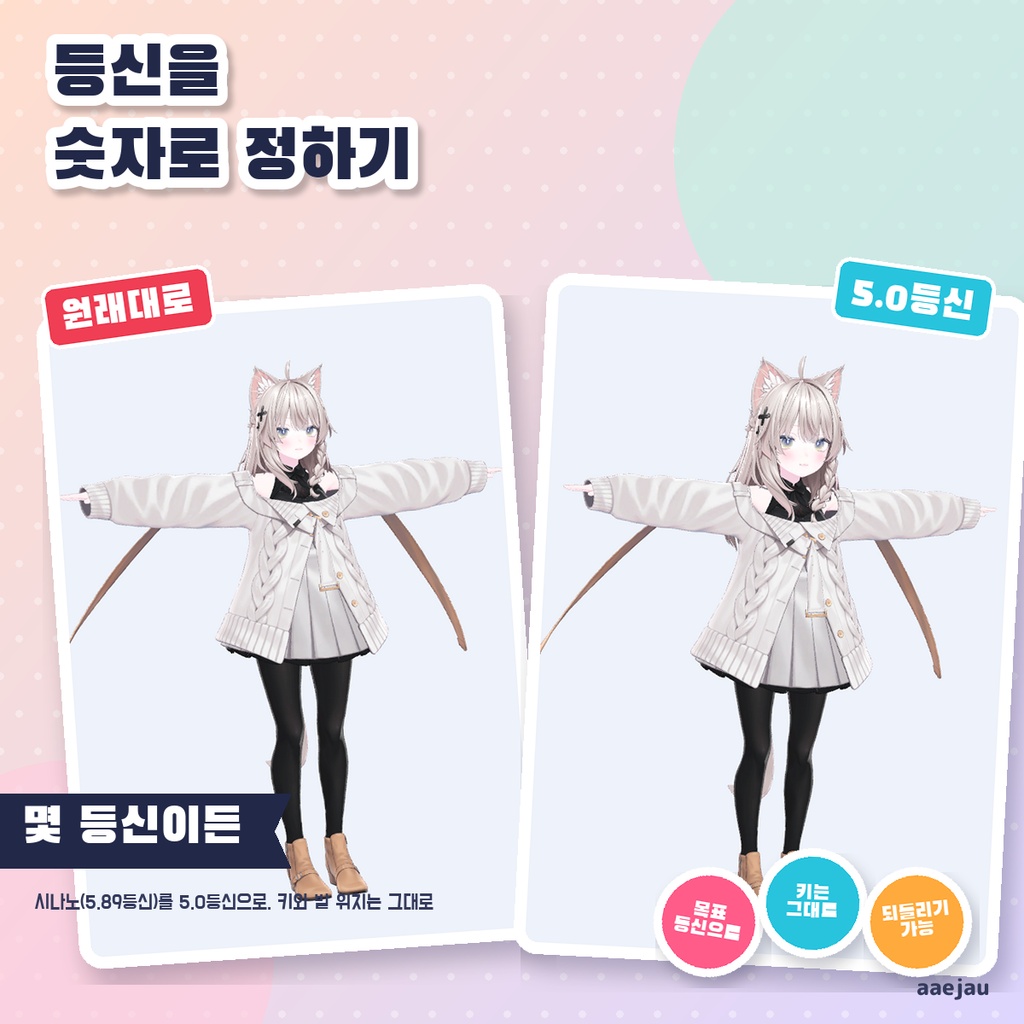
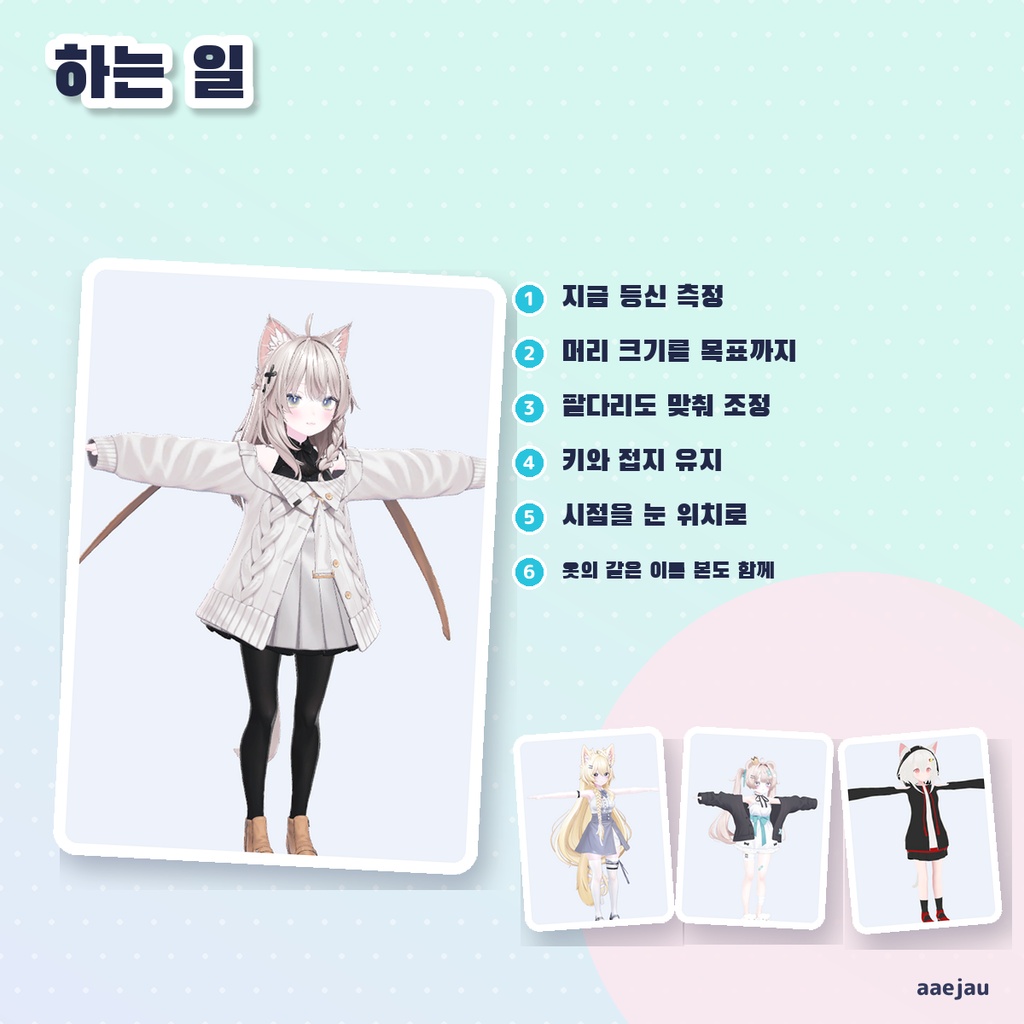
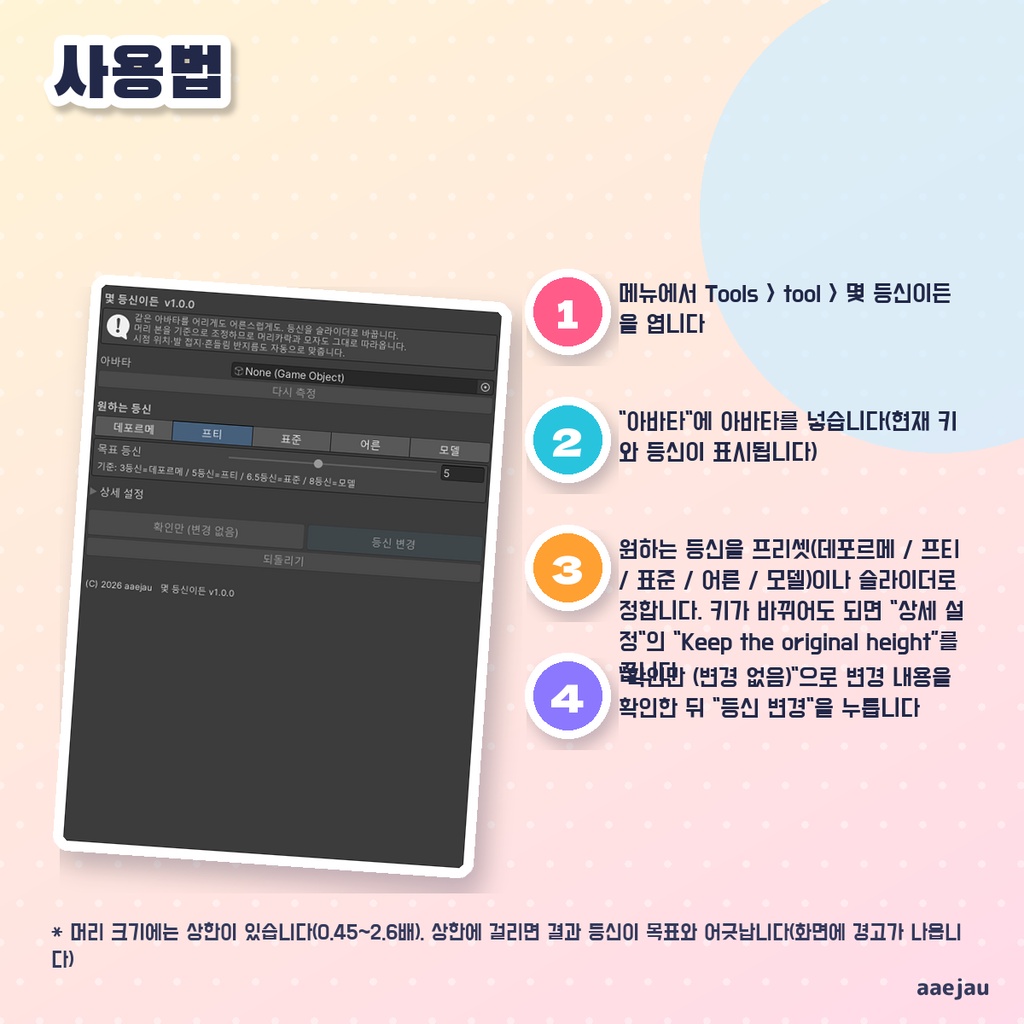


「アバターの頭身を、数字で決めたい。」 Blenderは使いません。Unityの中だけで終わります。 アバターの頭身を 2〜9 頭身の範囲でスライダーで変えます。BlendShape ではなくボーンを拡大縮小するので、頭のボーンに付いた髪や帽子もそのまま付いてきます。頭の大きさは、実物のメッシュで背の高さと頭の長さを測り直しながら目標の頭身に合わせて決めます。服が自分の骨を持っている場合は、同じ名前の骨(.001 などの付け足しや「接頭辞_」は無視)も一緒に動かします。既定では、頭身を変えた後に Hips から下をまとめて拡大縮小して元の背の高さに戻し、足の一番下を元の高さにそろえ、視点位置を目の骨に合わせます。揺れもの(PhysBone)とコライダーは VRChat が骨の拡大率に合わせて自動で大きさを変えるので、値は書き換えません。 ◆ 使い方 1. メニューの Tools > tool > なん頭身でも を開く 2. 「アバター」にアバターを入れる(今の身長と頭身が表示されます) 3. なりたい頭身をプリセット(デフォルメ / ロリ / 標準 / お姉さん / モデル)かスライダーで決める。背を伸び縮みさせたいときは「詳細設定」の「Keep the original height」を外す 4. 「チェックのみ (変更しない)」で変更内容を確かめてから、「頭身を変える」を押す 5. 戻したいときは Ctrl+Z か「元に戻す」を押す ◆ 必要環境 ・Unity 2022.3 ・Humanoid 設定のアバター ・VRChat SDK3 Avatars(任意。視点位置の調整に使います) ※ 頭の大きさには上限があります(0.45〜2.6 倍)。上限にかかると、結果の頭身は目標とずれます(画面に警告が出ます) ※ 「Keep the original height」(既定オン)は Hips から下をまとめて拡大縮小します。頭身は変わりませんが、体全体が少し大きく/小さくなります ※ 足の接地は Hips の位置を上下させて、足の一番下を元の高さに戻します。VRChat の中での立ったときの高さは Humanoid のアニメーションが決めるため、手足の長さを変えると VRChat の中で足が浮いたり沈んだりすることがあります(VRChat の実機では確かめていません)。アップロード前に必ず Build & Test で確かめてください ※ 手足は付け根の骨をそのまま拡大縮小するので、長さと一緒に太さも変わります ※ 服の骨は名前で探します。名前が大きく違う服の骨は一緒に動きません ※ Humanoid の頭・腰ボーンが見つからないアバターでは使えません。視点位置の調整には VRChat SDK が要ります ※ しなの・Felis・MAYO・ミルフィを 5.0頭身と 6.0頭身にして、目標どおりの頭身になること、背の高さと足の接地が変わらないこと、視点が目の位置に合うこと、PhysBone の値を書き換えないこと、元に戻せることを確かめました。VRChat の中での立ち位置はまだ確かめていません 内容物: unitypackage / README / CHANGELOG / TEST_REPORT / LICENSE / 画面のスクリーンショット ━━━━━━━━━━━━━━━━━━━━ English ━━━━━━━━━━━━━━━━━━━━ Changes your avatar's head-to-body ratio anywhere from 2 to 9 heads tall with a slider. It scales bones instead of using BlendShapes, so hair and hats attached to the head bone follow along. The head size is chosen to reach the target ratio by measuring the height and head length on the actual meshes. When outfits have their own bones, bones with the same name (ignoring suffixes like .001 and "Prefix_") move too. By default, after the ratio change everything from the Hips down is scaled back to the original height, the lowest point of the feet is put back at its original height, and the view position is matched to the eye bones. VRChat scales PhysBones and colliders with the bone scale by itself, so their values are not rewritten. ◆ How to use 1. Open Tools > tool > Any Head Ratio from the menu 2. Set your avatar in "Avatar" (the current height and ratio are shown) 3. Pick the ratio you want with a preset (Chibi / Petite / Standard / Adult / Model) or the slider. To let the height change, turn off "Keep the original height" under "Advanced settings" 4. Review the changes with "Check only (no changes)", then press "Change the ratio" 5. To go back, use Ctrl+Z or press "Undo changes" ◆ Requirements ・Unity 2022.3 ・An avatar set up as Humanoid ・VRChat SDK3 Avatars (optional, used for the view position) * The head scale is limited (0.45 to 2.6 times). When it hits the limit, the resulting ratio differs from the target (a warning is shown) * "Keep the original height" (on by default) scales everything from the Hips down. The ratio stays the same, but the whole body gets slightly bigger or smaller * Foot grounding moves the Hips up or down to put the lowest point of the feet back at its original height. Inside VRChat the standing height is decided by the Humanoid animation, so after changing the limb length the feet can float or sink in VRChat (not checked in VRChat itself). Always check with Build & Test before uploading * Limbs are scaled at their root bones as a whole, so their thickness changes along with their length * Outfit bones are found by name. Outfit bones with very different names do not move with the avatar * Avatars where the Humanoid head and hip bones cannot be found are not supported. Adjusting the view position needs the VRChat SDK * Set Shinano, Felis, MAYO and Milfy to 5.0 and 6.0 head ratios: the target ratio is reached, height and foot contact stay the same, the view point matches the eyes, PhysBone values are not rewritten, and it can be restored. Standing height inside VRChat is not yet checked Contents: unitypackage / README / CHANGELOG / TEST_REPORT / LICENSE / screenshot ━━━━━━━━━━━━━━━━━━━━ 한국어 ━━━━━━━━━━━━━━━━━━━━ 아바타의 등신을 2~9등신 범위에서 슬라이더로 바꿉니다. BlendShape가 아니라 본을 확대·축소하므로 머리 본에 붙은 머리카락이나 모자도 그대로 따라옵니다. 머리 크기는 실제 메시로 키와 머리 길이를 다시 재면서 목표 등신에 맞춰 정합니다. 옷이 자체 본을 가진 경우 같은 이름의 본(.001 같은 접미사나 「접두사_」는 무시)도 함께 움직입니다. 기본적으로 등신을 바꾼 뒤 Hips 아래 전체를 확대·축소해 원래 키로 되돌리고, 발의 가장 낮은 곳을 원래 높이에 맞추고, 시점 위치를 눈 본에 맞춥니다. 흔들림(PhysBone)과 콜라이더는 VRChat이 본의 스케일에 맞춰 자동으로 크기를 바꾸므로 값은 다시 쓰지 않습니다. ◆ 사용법 1. 메뉴에서 Tools > tool > 몇 등신이든 을 엽니다 2. "아바타"에 아바타를 넣습니다(현재 키와 등신이 표시됩니다) 3. 원하는 등신을 프리셋(데포르메 / 프티 / 표준 / 어른 / 모델)이나 슬라이더로 정합니다. 키가 바뀌어도 되면 "상세 설정"의 「Keep the original height」를 끕니다 4. "확인만 (변경 없음)"으로 변경 내용을 확인한 뒤 "등신 변경"을 누릅니다 5. 되돌리려면 Ctrl+Z 또는 "되돌리기"를 누릅니다 ◆ 요구 환경 ・Unity 2022.3 ・Humanoid로 설정된 아바타 ・VRChat SDK3 Avatars(선택. 시점 위치 조정에 사용) ※ 머리 크기에는 상한이 있습니다(0.45~2.6배). 상한에 걸리면 결과 등신이 목표와 어긋납니다(화면에 경고가 나옵니다) ※ 「Keep the original height」(기본 켜짐)는 Hips 아래 전체를 확대·축소합니다. 등신은 그대로지만 몸 전체가 조금 커지거나 작아집니다 ※ 발 접지는 Hips 위치를 위아래로 움직여 발의 가장 낮은 곳을 원래 높이로 되돌립니다. VRChat 안에서 서 있을 때의 높이는 Humanoid 애니메이션이 정하므로, 팔다리 길이를 바꾸면 VRChat 안에서 발이 뜨거나 가라앉을 수 있습니다(VRChat 실기에서는 확인하지 않았습니다). 업로드 전에 반드시 Build & Test로 확인하세요 ※ 팔다리는 뿌리 본을 통째로 확대·축소하므로 길이와 함께 굵기도 바뀝니다 ※ 옷의 본은 이름으로 찾습니다. 이름이 크게 다른 옷의 본은 함께 움직이지 않습니다 ※ Humanoid의 머리·허리 본을 찾을 수 없는 아바타에서는 쓸 수 없습니다. 시점 위치 조정에는 VRChat SDK가 필요합니다 ※ 시나노·Felis·MAYO·밀피를 5.0등신과 6.0등신으로 만들어 목표 등신이 되는 것, 키와 발 접지가 바뀌지 않는 것, 시점이 눈 위치에 맞는 것, PhysBone 값을 바꾸지 않는 것, 되돌릴 수 있는 것을 확인했습니다. VRChat 안에서 서는 위치는 아직 확인하지 않았습니다 내용물: unitypackage / README / CHANGELOG / TEST_REPORT / LICENSE / 스크린샷